

Quick Summary: The Training Library is a centralized catalog of learning resources available to your organization. Admins build and curate the library, link resources to skills and careers, and assign them to employees. Employees can suggest new resources for admin review.
Overview
The Training Library gives administrators a single place to manage all training resources available in your organization. Each resource can be linked to specific skills and careers, assigned directly to employees, and tracked through completion. Resources in the library appear in employees’ Learning Plans when assigned, and employees can suggest new resources for admin approval. Who can use this feature:The Training Library requires the Library: Training feature to be enabled for your organization. Contact your account manager if it is not visible.
Navigating the Training Library
Navigate to Library > Training in the left sidebar to open the Training Library.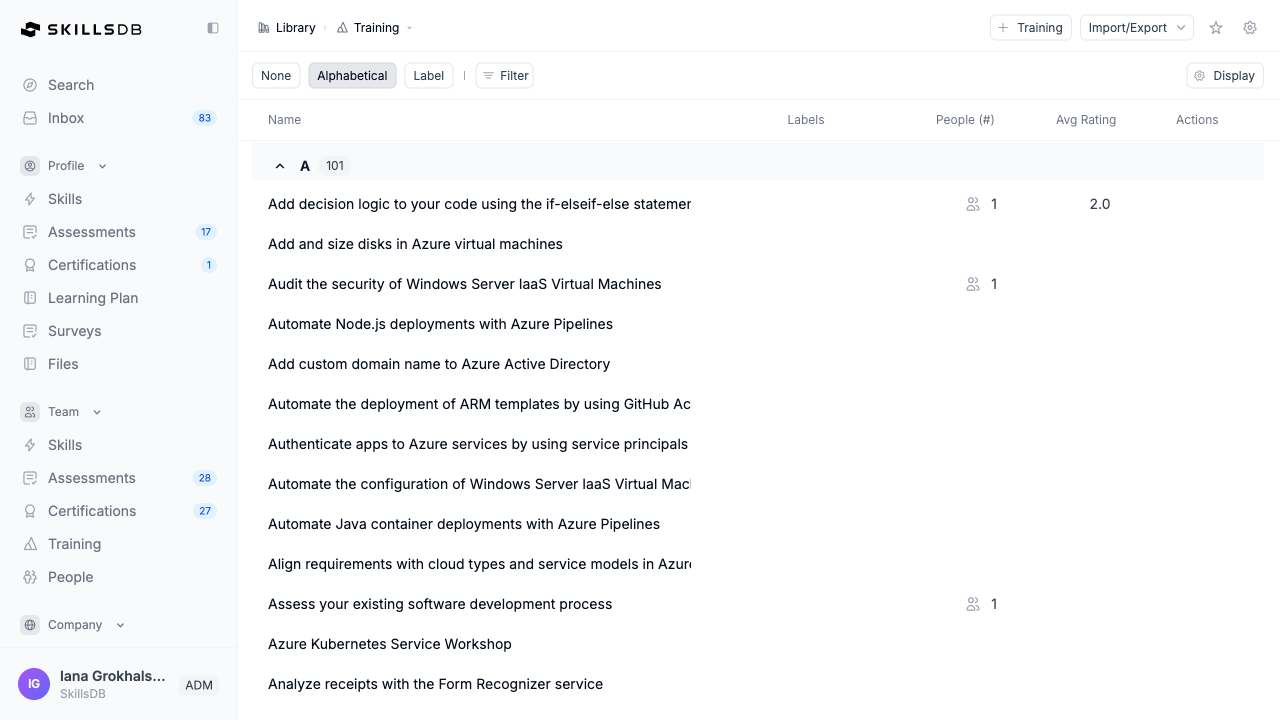
Group By
The library supports three grouping modes via the toggle at the top of the page:Columns
Select Display on the right side of the toolbar to show or hide columns.
Filters
Select Filter in the toolbar to open the filter menu. Available filters: Name, Labels, People (#), Avg Rating, Cost, Duration, Provider, Format, Audience.Adding a Training Resource
Admins can add training resources directly to the library. Newly added resources are immediately available for assignment.- Navigate to Library > Training.
- Select + Training in the top-right corner.
- Enter the training title and complete the optional settings described below.
- Select Continue, then choose a category to create the training. If needed, use Create category to add a category.
Training Form Field Reference
The create and edit dialogs share four settings sections. The title is required. Creation asks for a category after Continue; editing shows the saved category under Training Details.Additional Information
Training Details
Training Attributes
Related Entities
Linking a training resource to skills and careers helps employees discover it through their career profiles and learning paths. Resources linked to a career appear in that career’s detail page.
Viewing a Training Record
Select any resource in the library table to open its detail page.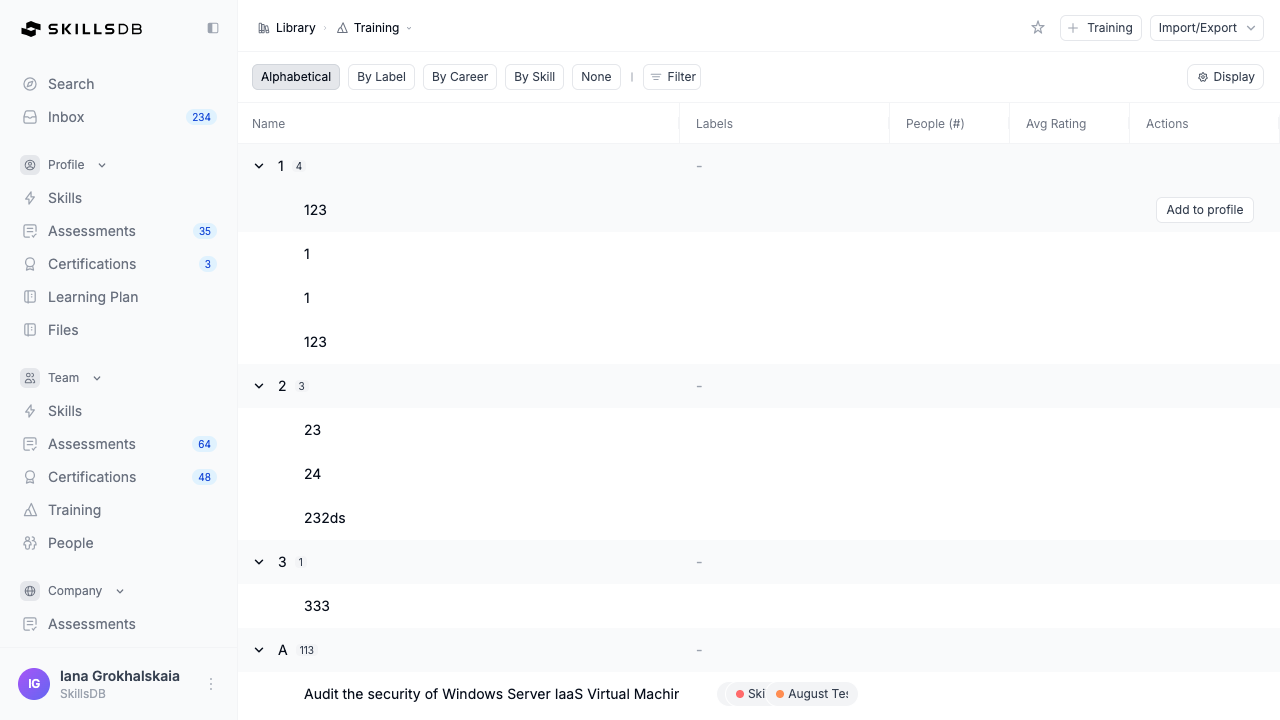 The detail page includes:
- Hero section — Title, description, type badge, and status badge
- Quick stats bar — Duration, Cost, and Provider at a glance
- Training Details card — Category, Training Format, Target Audience, Course Level, and Reference ID
- Related Entities card — Skills and careers this resource is linked to, displayed as chips
- Labels card — Labels applied to the resource (admin view)
- Training Link card — The external URL with an Open Training button
Deleting a Training Resource
To delete a resource, select Delete from the row actions in the library table. If the resource is linked to skills or careers, a confirmation dialog will display the number of related entities before proceeding. Deletion is a soft delete — the record is removed from active views but retained in historical data.Assigning Training to People
Admins and managers can assign training resources directly to employees from the library.- In the library table, select the people count in the People (#) column on the resource row, or open the resource detail page and select Assign Users.
- The Assign Training drawer opens.
- Search for and select the employees to assign the resource to.
- Select Assign to confirm.
Employee Suggestions
Employees who do not have admin access can suggest training resources for the library. Suggestions are queued for admin review before being added.How Employees Submit Suggestions
- Navigate to Library > Training.
- Select Suggest Training.
- Complete the suggestion form with the resource details.
- Select Submit for Approval.
Reviewing Suggestions (Admin)
Admins review employee suggestions from the Inbox. Select Inbox in the left sidebar, then select the Requests category to see pending training suggestions. Each suggestion shows:- Training — Resource title and how long ago it was submitted
- Status — Pending / Approved / Rejected
- Review — Button to open the two-step review form
- Select Review on a pending suggestion.
- Step 1 — Review and edit the basic details: Title, Provider, Category, Description, Cost, Duration, and URL.
- Step 2 — Complete the training attributes: Course Level, Training Format, Target Audience, and Labels.
- Choose one of the following actions:
- Save — Save edits without approving or rejecting
- Save & Approve — Approve and add the resource to the library immediately
- Reject — Open the rejection dialog; enter a required Reason for Rejection and confirm
Approved suggestions are added to the Training Library and become available for assignment. Rejected suggestions remain in the queue with a Rejected status for audit purposes.
Importing and Exporting Training Resources
Admins can import and export training resources from the Import/Export dropdown in the top navigation bar.Exporting
- Navigate to Library > Training.
- Select Import/Export in the top navigation bar.
- Select Export.
- A
.xlsxfile downloads automatically.
Export is available to admins only. The exported file includes all visible columns.
Configuring Training Settings
Admins can configure the attribute lists used in the training form — categories, providers, formats, audiences, and course levels. These settings determine the options available when creating or editing training resources. Navigate to Settings > Training (or Library > Training, then open the Settings menu). The settings page contains five configurable attribute types:
For each attribute type, admins can:
- Add a new value via the Add button, which opens a configuration drawer
- Edit an existing value by clicking the edit icon on a row
- Delete a value that is no longer needed
- Reorder values by dragging rows into the desired order
Common Questions
Can employees see all resources in the Training Library?
Can employees see all resources in the Training Library?
Employees can see training resources that have been assigned to them or that appear in their Learning Plan. The full library browsing experience and direct add/edit capabilities are restricted to admins and managers with appropriate permissions.
Can I link a training resource to multiple skills?
Can I link a training resource to multiple skills?
Yes. In the Related Skills field of the training form, you can select as many skills as are relevant. The resource will appear under each linked skill in the By Skill view.
What happens to assigned training if I edit a resource?
What happens to assigned training if I edit a resource?
Edits to a training resource (title, description, URL, etc.) apply immediately to the resource record. Employees who already have the resource in their Learning Plan will see the updated information.
Can I assign the same training resource to the same person more than once?
Can I assign the same training resource to the same person more than once?
Each person can have a training resource in their Learning Plan once at a time. If the resource has been completed and archived by the employee, it can be re-assigned.
Where do employee suggestions go after approval?
Where do employee suggestions go after approval?
Approved suggestions are added to the Training Library as standard resources. They can then be assigned, edited, and managed like any other resource in the library.
Related Articles
Frontline Training
Overview of training workflows including suggestions, metrics, and team activity
Careers
Linking training resources to careers and enabling training date tracking
Learning Plan
How employees interact with assigned training resources in their Learning Plan
Labels
Applying labels to training resources for filtering and reporting
Need Help?
If you run into any issues or have questions, reach out to your organization’s SkillsDB administrator or contact SkillsDB Support.