

Quick Summary: Labels are color-coded tags you apply to skills, careers, training resources, and certifications to organize, filter, and group records across SkillsDB. Admins manage the label library; managers and employees can apply labels to records within their access.
Overview
Labels in SkillsDB are a flexible tagging system that lets your organization categorize and cross-reference records across the platform. A label is a named, color-coded tag that can be attached to four entity types: skills, careers, training resources, and certifications. Once applied, labels appear throughout SkillsDB in tables, grids, and filters — giving admins, managers, and employees a consistent way to group and locate related content. Labels support a parent-child hierarchy. A top-level label (for example, “Compliance”) can have sub-labels (for example, “Safety”, “Data Privacy”, “Financial”). Sub-labels can themselves have further children. This means your organization can build a structured taxonomy that reflects how you think about skills and roles — without flattening everything into a single alphabetical list. Each label carries a color that appears as a small circle indicator wherever the label is displayed. Colors help users visually distinguish labels at a glance, particularly in dense tables and grids. Administrators manage the full label library — creating, editing, reordering, and deleting labels. Managers can apply and remove labels from records within their access. Employees can add labels to their own profile entries for skills, certifications, and training.Prerequisites
Before creating or managing labels, ensure you have:- Permission level: Administrator role in SkillsDB
- Access required: Navigate to Labels in the left sidebar under the Company section
Note: The Labels navigation item is only visible to users with administrator access. Managers and employees interact with labels through label selector components embedded in skills, career, training, and certification pages — not through the dedicated Labels management page.
Understanding Label Structure
Labels in SkillsDB are organized as a hierarchical tree. Every label is either a top-level label (no parent) or a sub-label (child of another label). There is no enforced limit on tree depth — a label hierarchy can be as shallow or as deep as your organization requires.
When a top-level label is deleted, its sub-labels are permanently deleted along with it. When a sub-label is deleted, only that sub-label is removed; its siblings and the parent label are unaffected.
Each label has a name (up to 50 characters) and a color (a hex color selected from the color picker). The color defaults to blue if none is chosen.
Managing the Labels Library
To access the labels library, navigate to Company > Settings and select Configure labels on the Labels row. There is no Labels item in the sidebar — the page opens with a Company > Settings > Labels breadcrumb. The Labels page displays all labels in your organization as a hierarchical tree. Top-level labels appear at the root; sub-labels are nested beneath their parents and can be expanded or collapsed.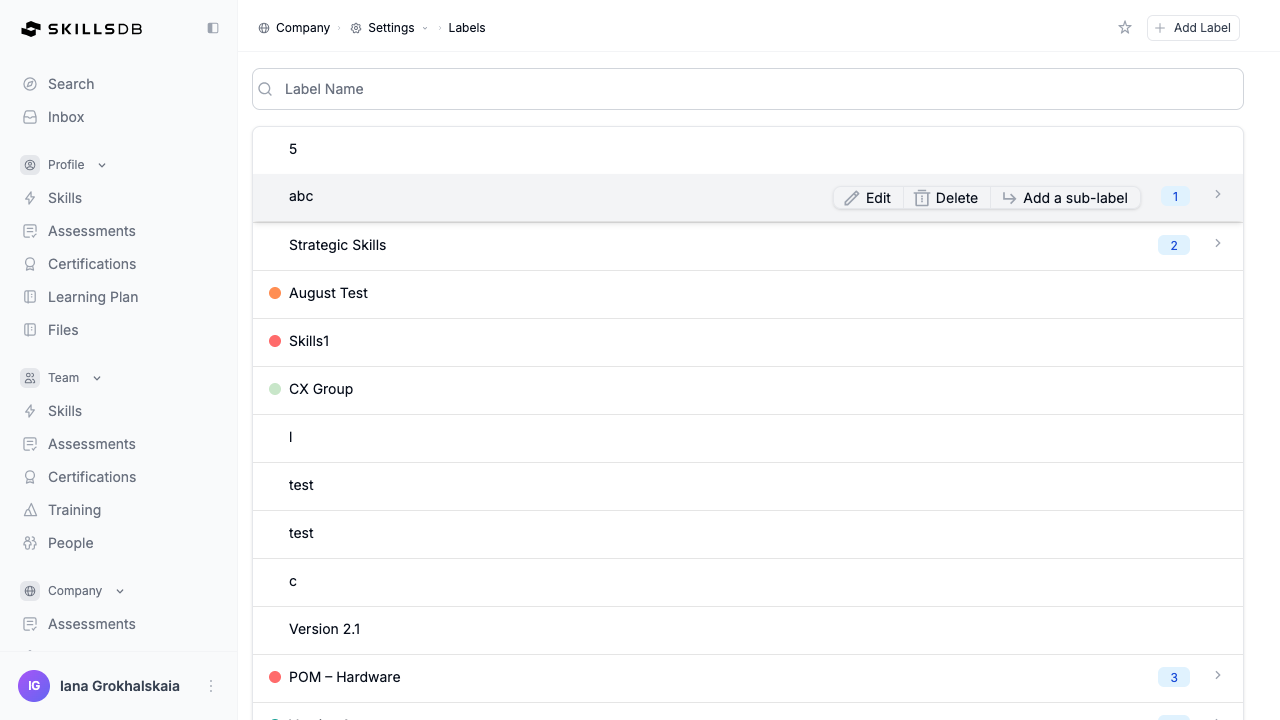
Label tree features
Each label row in the tree includes:- Color indicator — A small colored circle representing the label’s color. Select the circle to open the color picker and change the color inline.
- Label name — Selectable to navigate to the label’s detail page.
- Sub-label count — A blue badge showing how many direct child labels this label has. Visible only if the label has at least one child.
- Expand/collapse arrow — For labels with sub-labels, select the arrow to expand or collapse the nested tree.
- Drag handle — Hover over a row to reveal the drag handle on the left. Use it to reorder labels within the tree.
- Action buttons — Hover over a row to reveal three action buttons: Edit, Delete, and Add a sub-label.
Searching labels
A search input at the top right of the page filters the label tree by name in real time. Enter any part of a label name to narrow results. The tree updates to show matching labels and their parent labels for context. If no labels match your search, the page displays: “No results for ‘[search term]’. Try a different search term.”Creating Labels
Administrators can create new labels at the top level or as sub-labels of an existing label.Creating a top-level label
- Navigate to Labels in the left sidebar.
- Select Add Label in the top right of the page.
- In the Add Label dialog, complete the following:
- Select Add.
Creating a sub-label
Sub-labels can be created from the labels tree or from within a label’s detail page. From the labels tree:- Navigate to Labels in the left sidebar.
- Hover over the parent label where you want to add a child.
- Select the Add sub-label icon that appears on hover.
- In the Add Sub Label dialog, enter a Sub Label Name and optionally select a color.
- Select Add.
- Navigate to a label’s detail page by selecting its name in the tree.
- Select Add Sub Label in the top right of the page.
- Complete the name and color fields, then select Add.
Editing and Reordering Labels
Editing a label
To change a label’s name or color:- Navigate to Labels in the left sidebar.
- Hover over the label you want to edit.
- Select the Edit icon that appears on hover.
- In the Edit Label dialog, update the Label Name and/or select a new color.
- Select Save.
Reordering labels with drag-and-drop
Labels can be reordered within the tree by dragging and dropping. Drag-and-drop supports three types of placement:
A glowing blue line indicates where the label will land when you release. If you hover over a collapsed label while dragging “inside” it, the label automatically expands after 400 milliseconds to let you drop into its sub-label list.
Deleting Labels
To delete a label:- Navigate to Labels in the left sidebar.
- Hover over the label you want to delete.
- Select the Delete icon that appears on hover.
- A confirmation dialog appears with the following message:
“Deleting a label will remove it permanently from all associated records in SkillsDB. It cannot be undone. Are you sure you want to delete this label?”
- Select Confirm to delete, or Cancel to return without deleting.
Applying Labels to Records
Labels are applied to individual records — skills, careers, training resources, and certifications — from the record’s own interface, not from the Labels management page. Administrators can apply and remove labels inline wherever the label selector appears.How the label selector works
Wherever labels can be managed (for example, on a skill’s detail view, a career row in the library, or a training resource), a label selector appears as a small tag icon or existing label pills. Selecting the icon opens a label selector popover with the following features:- Search — Type at least three characters to search for labels by name.
- Hierarchical navigation — Browse the label tree with breadcrumb navigation. Select a parent label to expand its children.
- Multi-select checkboxes — Check or uncheck labels to add or remove them.
- Create new label — Admins see a + Create new label shortcut at the bottom of the popover to add a new label without leaving the current page.
Entity-level label behavior
Note: Employees can add labels to skills, certifications, and training entries within their own profile using the Add to Profile action on the label detail page. Employees cannot apply labels to careers (job roles).
Applying labels in bulk
SkillsDB does not have a dedicated bulk label assignment tool. Labels are applied one record at a time via the inline selector. For large-scale labeling projects, it is most efficient to apply labels at the point of record creation (for example, when adding a training resource or creating a skill).Viewing the Label Details Page
Each label has a dedicated detail page that shows every record tagged with that label, organized by entity type. The detail page gives you a live view of what a label is being used for across your organization. To access a label’s detail page:- Navigate to Labels in the left sidebar.
- Select the label name in the tree.
- Label name — Large heading at the top of the page.
- Sub-labels — Shown as colored pill chips below the label name. Each chip is selectable to navigate to that sub-label’s detail page.
- Resources table — An AG-Grid table showing all entities tagged with this label, grouped by type.
Resources table structure
The resources table is divided into collapsible sections, one per entity type:
Each section header displays a count badge showing how many records are in that section. Select the header to expand or collapse the section.
Resources table columns
Filtering the resources table
Two filters appear above the resources table:- Resource Type — Multi-select filter. Choose one or more of: Skills, Certifications, Training, Job Roles. The table shows only rows matching the selected types.
- Other Labels — Multi-select filter. Appears when resources in the table carry additional labels. Filter to show only records that also carry a specific second label — useful for finding resources at the intersection of two labels.
Where Labels Appear Across SkillsDB
Once applied, labels surface in tables, filters, and search results throughout the platform:Common Questions
How many labels can be applied to a single record?
How many labels can be applied to a single record?
There is no enforced limit on how many labels you can apply to a single skill, career, training resource, or certification. However, for practical readability in tables and grids, most organizations apply between one and five labels per record.
Can I rename a label without affecting the records it's attached to?
Can I rename a label without affecting the records it's attached to?
Yes. Renaming a label updates the label’s name everywhere it is displayed without removing any attachments. All records that had the old label name continue to have the label — it just shows the new name immediately.
What happens when I delete a label that has sub-labels?
What happens when I delete a label that has sub-labels?
When you delete a parent label, all of its sub-labels are deleted along with it. The deletion is permanent and removes the parent and all sub-labels from every record they were attached to. If you want to keep the sub-labels, reorganize them under a different parent before deleting the original parent.
Can labels be applied to individual people rather than to skills or careers?
Can labels be applied to individual people rather than to skills or careers?
Labels in SkillsDB apply to entity records (skills, careers, training resources, certifications), not directly to people. However, because these entities are linked to people through assignments, filtering a team view by a label effectively shows you the people whose assigned entities carry that label. For tagging people directly, see People Flags.
Can managers create new labels?
Can managers create new labels?
No. Only administrators can create, rename, reorder, and delete labels from the Labels management page. Managers can apply existing labels to records within their access (for example, assigning a label to a skill or training resource via the inline selector), but they cannot add new labels to the label library.
Does deleting a label affect search results?
Does deleting a label affect search results?
Yes. When a label is deleted, it is removed from all records immediately. Any saved views, reports, or filters that referenced that label will no longer match records using it. Review your organization’s saved views and filter configurations after deleting a label that was widely applied.
Is there a limit on how deep the label hierarchy can go?
Is there a limit on how deep the label hierarchy can go?
SkillsDB does not enforce a maximum depth limit for label hierarchies. However, very deep trees (more than four or five levels) can become difficult to navigate in the label selector popover. Most organizations use two to three levels of nesting.
Can labels be imported or exported?
Can labels be imported or exported?
Labels do not have a dedicated import or export workflow. They are created and managed only through the Labels management interface. If you need to bulk-create labels, contact SkillsDB support for assistance.
Related Articles
Skill Flags
Configure Expert, Mentor, Focus, and Interest designations for skills and people, which complement labels for categorization
People Flags
Apply tags directly to individuals rather than to entity records
Saved Views
Save filter configurations that include label filters for quick access
Skills
Managing the skills library, where labels are most commonly applied
Careers
Managing careers, which can also carry labels for filtering
Training
Managing training resources, which support label tagging for categorization
Certifications
Managing certifications, which can carry labels for compliance grouping
Need Help?
If you run into any issues or have questions, reach out to your organization’s SkillsDB administrator or contact SkillsDB Support.