

Quick Summary: The Skills scope of Search lets you search and browse every skill in your organization’s catalog. Use it to understand how a skill is distributed across the org, find learning resources, see who has the skill and at what proficiency level, and benchmark your own standing against peers.
Overview
The Skills explore feature gives every SkillsDB user a view into the organization’s full skill catalog — not just the skills assigned to their own role. You can search for any skill by name, filter results by career, grade level, or flag type, and click through to a detailed profile for each skill. Skill detail pages show aggregate data drawn from across the organization: how many people are assigned to a skill, how proficiency grades are distributed by department and job role, what learning resources exist for the skill, and which colleagues hold it. This gives you a broader frame of reference when thinking about your own development — you can see where a skill sits in the organization, how it is graded on average, and what training is available to help you improve. The Skills explore feature is available to all SkillsDB users. No special permissions are required to search for skills or view skill detail pages.Finding Skills
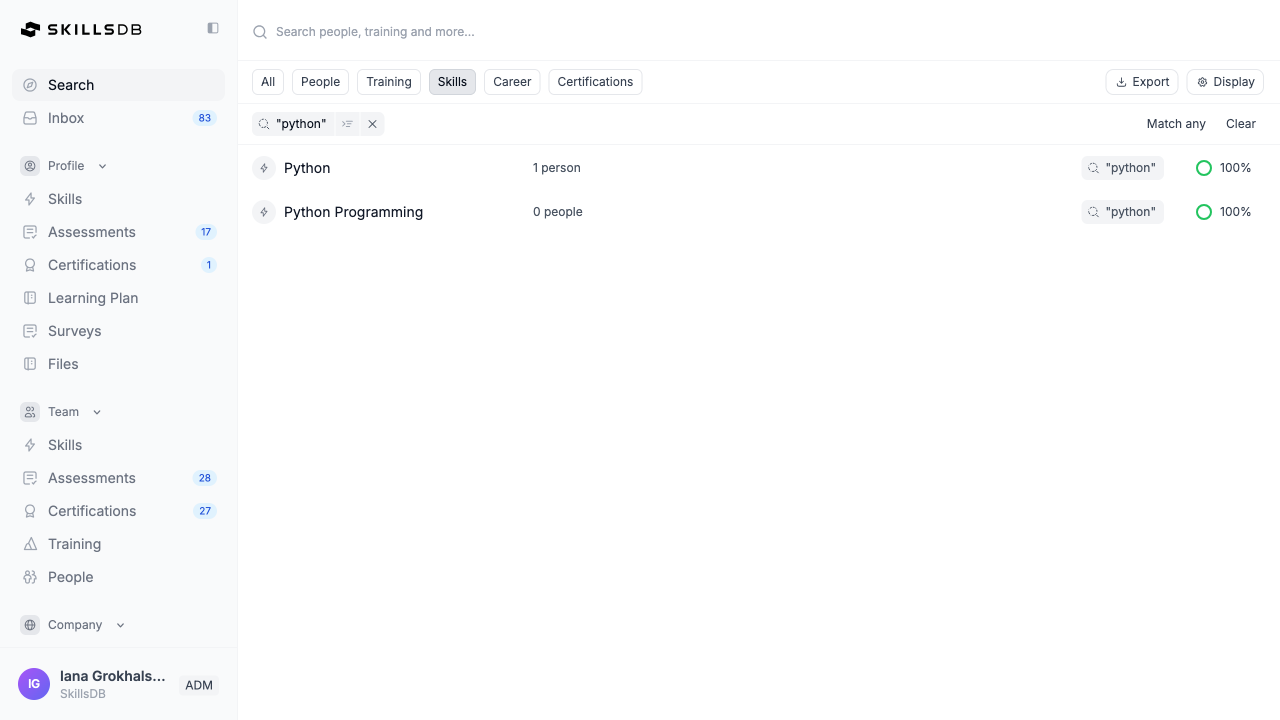
Skills are discovered through the Search page — a unified search tool that covers people, training, skills, careers, and certifications. To navigate to skill search:- Select Search from the left sidebar.
- In the filter bar beneath the search input, select Skills to narrow results to skills only.
- Type the skill name (or a keyword) into the search input.
- As you type, a suggestions dropdown appears grouped into categories such as Skill and Learning, showing matching skills and related training resources.
- Select a suggestion to add it as a structured filter, or press Enter to run a broad text search.
Filtering Skill Results
After running a search, you can refine results using filters and sub-filters. Adding filters: Type a keyword into the search input and select a suggestion to add it as a filter tag. Each active filter appears as a tag below the search bar. Select the x on any tag to remove it, or select Clear to remove all filters at once. Sub-filters: Some filter tags display a sub-filter icon. Select it to access additional refinement options such as Document Search. Filter matching mode: When multiple filters are active, you can choose how they interact:- Match all — A skill must satisfy every filter you have set (more restrictive)
- Match any — A skill needs to satisfy at least one filter (broader results)
Understanding Search Results
When the Skills scope is selected, the results table shows the following for each skill:
Skills are ranked by match score, with the most relevant results at the top.
Exploring a Skill
Selecting any skill name in the results table opens the skill detail page. This page gives you a comprehensive profile of the skill across five tabs: Overview, Proficiency, Resource, Analytics, and Activity (the Activity tab is visible to administrators only). Use the dropdown in the breadcrumb bar to switch between tabs. A right sidebar displays Skill Details — including the average employee grade, manager grade, benchmarks, and training cost — alongside a Related section showing which careers and groups include this skill.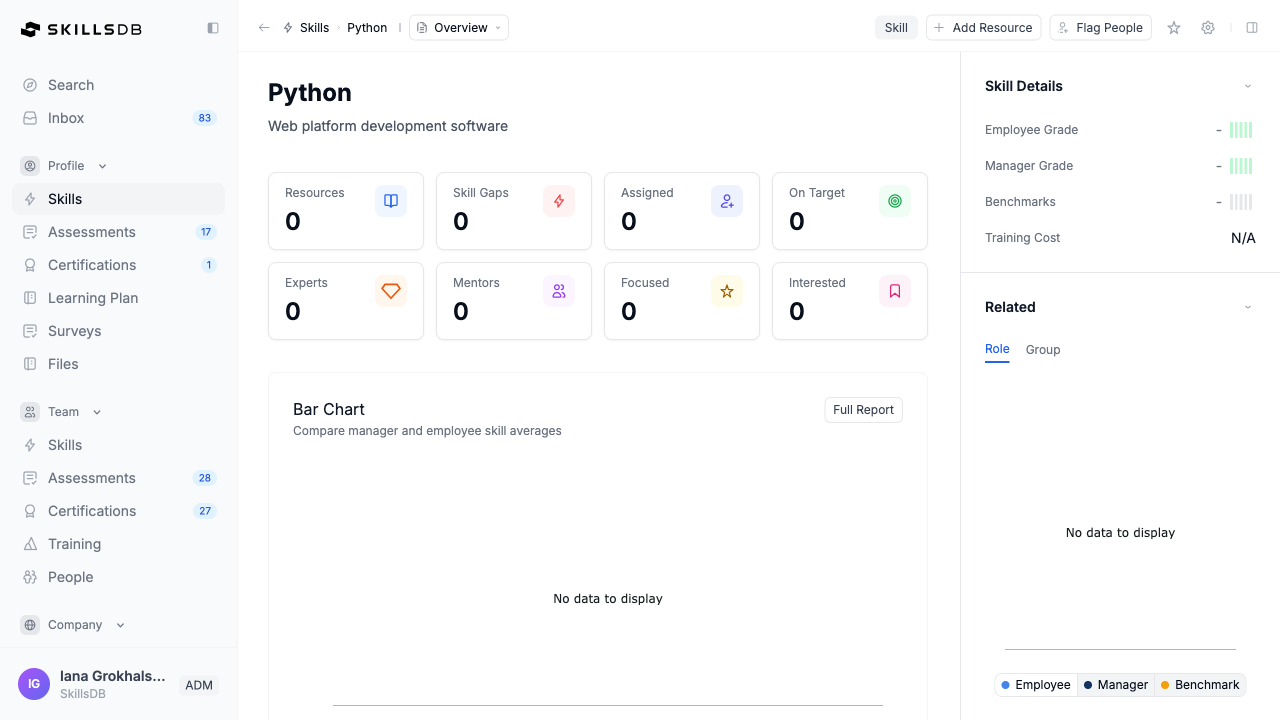 Summary statistics
At the top of every skill detail page, eight summary statistics give you an at-a-glance view of the skill’s footprint in the organization:
Summary statistics
At the top of every skill detail page, eight summary statistics give you an at-a-glance view of the skill’s footprint in the organization:
Overview tab
The Overview tab is the default view and provides a summary of the skill’s profile across the organization.
The tab includes:
- A grade comparison chart showing the average employee grade, average manager grade, and benchmark grade side by side
- A preview of the top five people with this skill, showing their self-assessed and manager-assessed grades
- A snapshot of Analytics charts (by Department and by Job Role)
- View All — select to jump to the full Proficiency tab
- Full Report — select to jump to the Analytics tab
Use this tab to understand how colleagues at different grades approach this skill, or to identify colleagues who might be a resource for development conversations.
Resource tab
The Resource tab displays a Learning Resources section listing all learning resources associated with this skill in the organization’s training library. Each resource displays its title, format, and other details.
If no resources have been linked to this skill yet, the tab shows an empty state: “No resources available for this skill yet.”
Analytics tab
The Analytics tab displays five charts that break down the skill’s proficiency distribution across different organizational dimensions:
Use the Analytics tab to understand how this skill is developed across your organization — for example, whether certain departments or regions tend to have higher or lower proficiency in this area.
Activity tab
The Activity tab is visible to administrators only. It shows a chronological log of changes made to this skill, including baseline snapshots and edits. Each entry displays a description, who made the change, and when it occurred. Select Show content on any entry to view its details.
Common Questions
Do I need special permissions to explore skills?
Do I need special permissions to explore skills?
No. The Search page and all skill detail pages are available to every SkillsDB user. You do not need manager or administrator access to search for skills or view skill statistics.
What is the difference between 'Assigned' and 'On Target'?
What is the difference between 'Assigned' and 'On Target'?
“Assigned” is the total count of people who have this skill included in their career path in SkillsDB. “On Target” is the subset of those people who meet or exceed the benchmark grade set for the skill in their role. A skill can have many assigned people but few on-target if the benchmark is high or if the skill is newly added to career paths.
Can I see another person's exact grade from this page?
Can I see another person's exact grade from this page?
Yes, on the Proficiency tab. The table shows each person’s self-assessed employee grade and manager-assessed grade alongside their benchmark. You can see this for all people who have the skill assigned, not just your immediate team.
Can I add a skill to my learning plan directly from the skill detail page?
Can I add a skill to my learning plan directly from the skill detail page?
Not directly. To add a skill-related resource to your learning plan, navigate to the Resource tab, identify the training resource you want, and add it through your Learning Plan. See Building a Learning Plan for instructions.
What does the Match percentage represent?
What does the Match percentage represent?
The Match score reflects how closely a skill aligned with your search term and applied filters combined. A score of 100% means the skill is a perfect match for everything you searched and filtered. Lower scores indicate partial matches where the skill meets some but not all criteria.
Can I search for skills I don't currently have assigned to my career path?
Can I search for skills I don't currently have assigned to my career path?
Yes. The search returns skills from the entire organization’s skill catalog, regardless of whether a skill is part of your career path. This is useful for exploring skills in areas you are interested in developing beyond your current role.
Why do some skills show zero learning resources?
Why do some skills show zero learning resources?
Not every skill in the organization’s catalog has linked learning resources. Resources are added by administrators and managers. A skill with zero resources in SkillsDB may still have external learning options — speak with your manager if you want to develop in a skill that lacks linked resources.
Related Articles
Find Experts
Search for people with specific skills, flags, or expertise across your organization
Your Skills Profile
View your own skill grades and compare against benchmarks in your career
Skill Flags
Understand what Focus, Interest, Expert, and Mentor flags mean and how they are applied
Building a Learning Plan
Add training resources to your personal learning plan
Training
Browse learning resources available in your organization’s training library
Skill Gaps
How proficiency gaps are calculated from grades and benchmarks
Need Help?
If you run into any issues or have questions, reach out to your organization’s SkillsDB administrator or contact SkillsDB Support.