

Quick Summary: The Skills Library is your organization’s master catalog of skills. Administrators can add and manage skills, assign them to people, and analyze proficiency across the organization. Employees can browse the library to discover and add skills to their own profile.
Overview
The Skills Library is the centralized catalog that holds every skill available in your SkillsDB environment. It serves as the authoritative source for all skills used in assessments, career profiles, learning plans, and skills matrices across your organization. Every skill in SkillsDB originates from the Skills Library. When a skill is added to the library, it becomes available for assignment to individuals, inclusion in careers, and use in assessments. Skills in the library can be tagged with labels for organization, enriched with learning resources, and analyzed for proficiency trends across your workforce. The Skills Library is primarily an administrative tool, but it is also a discovery resource for employees. Employees can browse the catalog, filter by labels, and add skills to their own profile directly from the library view. Who uses the Skills Library:- Administrators build and maintain the library — creating skills, assigning people, managing labels, and exporting data.
- Managers use the library to view and manage skill assignments for their team members.
- Employees browse the library to explore available skills and add relevant ones to their own skills profile.
Navigating the Skills Library
To access the Skills Library, select Library > Skills from the left sidebar.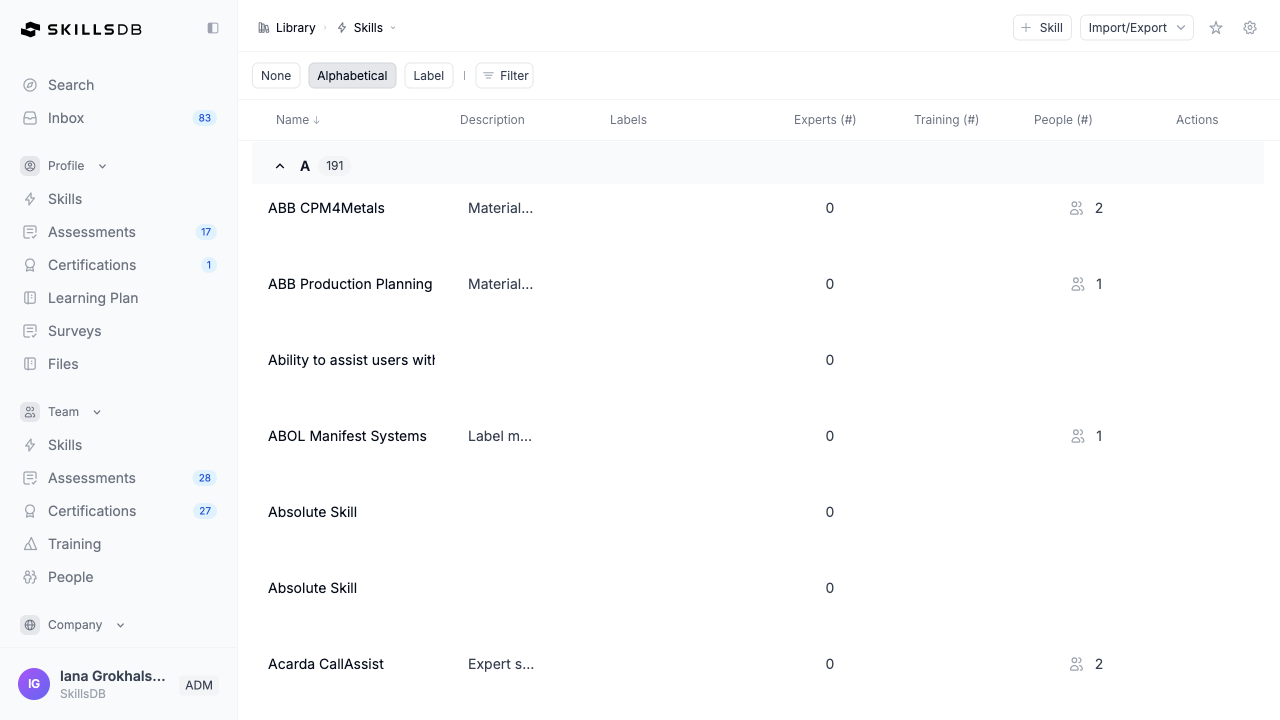
Group By
The library supports four grouping modes via the toggle at the top of the page:Columns
Filters
Select Filter in the toolbar to open the filter menu. Available filters:- Name — Filter by skill name (is, is not, contains, does not contain).
- Description — Filter by description text.
- Labels — Filter by label values.
- Experts (#) — Filter by expert count (is, is not, above, below).
- Training (#) — Filter by training resource count.
- People (#) — Filter by assigned people count.
Adding a Skill
Administrators can add new skills to the library at any time. Adding a skill makes it immediately available for assignment, career inclusion, and assessment throughout SkillsDB.- Navigate to Library > Skills.
- Select + Skill in the top navigation bar.
- In the Create skill dialog, enter a Name for the skill. The name field is required.
- Under Additional Information, optionally enter a Description and select Labels.
- Select Create skill. Enable Create more first if you want to add another skill.
Training, benchmark, expiration, and evidence requirements are configured for a skill within a career. See Adding skills to a career.
Editing a Skill
Administrators can update a skill’s name, description, or labels after it has been created. Editing a skill updates its details everywhere it appears in SkillsDB — including careers, assessments, and learning plans.- Navigate to Library > Skills.
- Select the skill row you want to edit.
- On the skill detail page, access the edit option for the skill.
- The Edit skill dialog opens with the saved name, description, and labels selected. Update the fields as needed.
- Select Save changes.
Organizing Skills with Labels
Labels are tags you apply to skills to categorize and organize your library. Applying labels makes it easier for administrators, managers, and employees to filter and find relevant skills. Labels can be edited inline directly in the Skills Library table without opening a separate edit modal:- Navigate to Library > Skills.
- In the Labels column, select the label area on the row of the skill you want to tag.
- Add or remove labels using the label selector that appears.
- Changes save automatically.
Note: Labels are created and managed separately from the Skills Library. To create new labels or manage existing ones, navigate to Company > Settings > Labels. For a full guide, see Labels.
Assigning Skills to Team Members
Administrators and managers can assign skills directly to people from the Skills Library. When a skill is assigned to a person, it appears on their skills profile and becomes eligible for assessment and grading.Opening the assign drawer
- Navigate to Library > Skills.
- In the People (#) column, select the people count for the skill you want to manage.
- The Assign Skill drawer opens, showing a list of all people in your organization.
Assigning and unassigning individuals
In the assign drawer:- Select Assign next to a person’s name to assign the skill to them. The count in the library updates immediately.
- Select Unassign next to a person’s name to remove the skill assignment.
- Use the search bar at the top of the drawer to find a specific person by first or last name.
Bulk operations
To assign or unassign multiple people at once:- Select the checkboxes next to the people you want to include.
- Select Bulk Assign or Bulk Unassign at the top of the drawer.
Adding a Skill to Your Profile (Employees)
Employees can browse the Skills Library to discover skills relevant to their role and add them to their own skills profile.- Navigate to Library > Skills.
- Browse or filter the library to find a skill you want to add.
- In the People (#) column, if the skill is not yet on your profile, an Add Skill button appears.
- Select Add Skill. The skill is added to your skills profile and the column updates to show “Added.”
Note: If you see a checkmark labeled “Added” in the People (#) column, the skill is already on your profile. You do not need to add it again.
Exploring Skill Details
Selecting any skill row in the library opens the skill detail page at Library > Skills > [Skill Name]. This page provides a complete view of the skill — including proficiency data, learning resources, and analytics — for administrators and managers. The skill detail page is organized into tabs, accessible from the dropdown in the breadcrumb navigation at the top of the page:Overview tab stats
The Overview tab displays eight stat cards to summarize how the skill is performing across the organization:Note: Benchmark grades are configured per skill and career level by administrators. The threshold scale (e.g., 1–5) is set by your account admin. Contact your admin if you have questions about how grades are defined.
Adding Learning Resources to a Skill
Managers and administrators can attach learning resources to any skill directly from the skill detail page. Learning resources help people develop proficiency in the skill and appear in individual learning plans.- Navigate to Library > Skills and select the skill.
- Select + Add Resource in the top navigation bar.
- In the Add Resource modal, enter the resource details including title, description, resource type, URL, cost, and other optional fields.
- Select Submit.
Applying People Flags to a Skill
Managers and administrators can apply skill flags to specific people directly from the skill detail page. Flags designate roles such as Mentor, Focused, or Interested for a skill, and contribute to the stat counts shown in the Overview tab.- Navigate to Library > Skills and select the skill.
- Select Flag People in the top navigation bar.
- In the Flag People modal, search for the person you want to flag.
- Select the appropriate flag to apply.
- Select Save.
Importing and Exporting Skills
Exporting
Administrators can export the skills library to an Excel file for reporting, auditing, or sharing with stakeholders.- Navigate to Library > Skills.
- Select Import/Export in the top navigation bar.
- Select Export.
Importing
Administrators can import skills in bulk from the Import/Export dropdown.- Navigate to Library > Skills.
- Select Import/Export in the top navigation bar.
- Select Import. This navigates to the import page with the Skills tab preselected.
- Follow the on-screen instructions to upload your file and map columns.
Reviewing Skill Requests
Employees can submit requests for new skills to be added to the organization library. Administrators review and approve or reject these requests from the Inbox. To review skill requests as an administrator:- Select Inbox in the left sidebar.
- Select the Requests category. Skill requests appear alongside certification requests and training suggestions, showing the skill name, description, the person who requested it, and the date submitted.
- For requests with Draft status:
- Select Approve to accept the request and add the skill to the library.
- Select Reject to decline the request.
- Select the pencil icon to edit the skill name or description before approving.
- Confirm your action in the confirmation dialog that appears.
Common Questions
Can I delete a skill from the library?
Can I delete a skill from the library?
Skills in SkillsDB use soft deletion — they are not permanently removed from the database when deleted. Contact your SkillsDB account manager or support if you need to remove a skill that was created in error or is no longer relevant. Before removing a skill, consider whether it is referenced in active careers, assessments, or learning plans.
Why can't I unassign a skill from someone?
Why can't I unassign a skill from someone?
If the Unassign button is grayed out for a person in the assign drawer, the skill is assigned to that person through a career or job role rather than individually. Career-assigned skills can only be removed by changing the person’s career assignment. Navigate to the person’s profile and update their career configuration to remove the skill.
Can employees see all skills in the library?
Can employees see all skills in the library?
Yes. All employees can browse the full Skills Library at Library > Skills. Employees can view skill names, labels, descriptions (if the Description column is enabled), and add skills to their own profile using the Add Skill button.
How do I see which skills have no assignments?
How do I see which skills have no assignments?
Select Filter, then choose the People (#) filter and set it to is
0. The library updates to show only skills with zero assignments. This is useful for identifying skills that were created but never put into use.Can a skill appear in multiple careers?
Can a skill appear in multiple careers?
Yes. A single skill can be included in multiple careers and sections. The Skills Library is a flat catalog — skills exist independently and are linked to careers without being duplicated. Changes to a skill’s name or description are reflected everywhere the skill appears.
What is the difference between the Skills Library and the Skills Matrix?
What is the difference between the Skills Library and the Skills Matrix?
The Skills Library (Library > Skills) is the catalog where administrators create and manage skills, labels, and assignments. The Skills Matrix is a reporting tool that shows how people are graded across a set of skills for a team or career. The library is the source; the matrix is the analysis view. For more information, see Skills Matrix.
Can I view a chart of skill proficiency across the organization?
Can I view a chart of skill proficiency across the organization?
Yes. From the skill detail page (Library > Skills > [Skill Name]), select the Analytics tab to view bar charts broken down by name, department, region, division, and job role. The Proficiency tab shows a full table of individual grades for all assigned people.
Related Articles
Skill Flags
Configure and apply skill flags such as Expert, Mentor, and Focused
Labels
Create and manage labels for organizing skills
Careers Library
Build career structures that reference skills from the library
Skills Matrix
Analyze skill proficiency across your team or organization
Assessments
Understand how skills are graded through self and manager assessments
Explore Skills
User guide for browsing and discovering skills
Need Help?
If you run into any issues or have questions, reach out to your organization’s SkillsDB administrator or contact SkillsDB Support.