

Quick Summary: People Flags are colored labels that administrators assign to individuals to categorize them across your organization. SkillsDB includes three built-in potential flags, and you can create unlimited custom flags to match your own categorization needs.
Overview
People Flags are administrator-defined labels attached to individual employees to mark meaningful attributes — for example, talent potential levels, project availability, leadership readiness, or any other category relevant to your organization. Once assigned, flags appear as colored badges on a person’s profile and in people tables, making them immediately visible to anyone with access to that person’s record. SkillsDB includes three system-default flags for talent potential assessment that are available immediately without any configuration. Administrators can supplement these with any number of custom flags, each with a unique name, description, and color. People Flags are distinct from Skill Flags. People Flags are applied to individuals and describe attributes of the person. Skill Flags are applied to a person’s relationship with a specific skill and describe their level of expertise or designation for that skill (for example, Expert or Mentor). See Skill Flags for information on that feature. Only administrators can create, edit, delete, and assign People Flags. Managers can view flags applied to their direct reports but cannot modify them.Prerequisites
Before managing People Flags, you need:- Permission level: Administrator role
- Access: Navigate to Settings > Flags > People Flags tab
Understanding People Flags
System flags
SkillsDB includes three system-default People Flags that are pre-configured and available to all organizations. These flags cannot be edited or deleted, but they can be disabled if your organization does not use them.
System flags are labeled System in the flags list and their name, description, and color cannot be changed.
Custom flags
Administrators can create unlimited custom flags with a name, optional description, and color of their choosing. Custom flags are fully editable after creation and can be deleted at any time. Custom flags support any categorization that matters to your organization — for example:- Project availability (
Available,On Bench,Deployed) - Specialist designations (
AWS Certified,Six Sigma Black Belt) - Development programs (
Mentoring Program,Leadership Track) - Succession planning (
Successor – Director,Succession Candidate)
People Flags vs Skill Flags
People Flags and Skill Flags are two distinct systems that exist side by side in SkillsDB. Understanding the difference helps ensure you apply the right tool.
Use People Flags to describe who a person is organizationally. Use Skill Flags to describe someone’s standing or relationship to a specific skill.
Managing People Flags
All People Flag management is done from Settings > Flags. Select the People Flags tab to view and manage the full list of flags for your organization. The flags list displays each flag’s name, description, color, and enabled status. Drag handles on the left allow you to reorder flags. System flags are labeled System and have no edit or delete icons, but their Enabled checkbox still works and they can be dragged to reorder.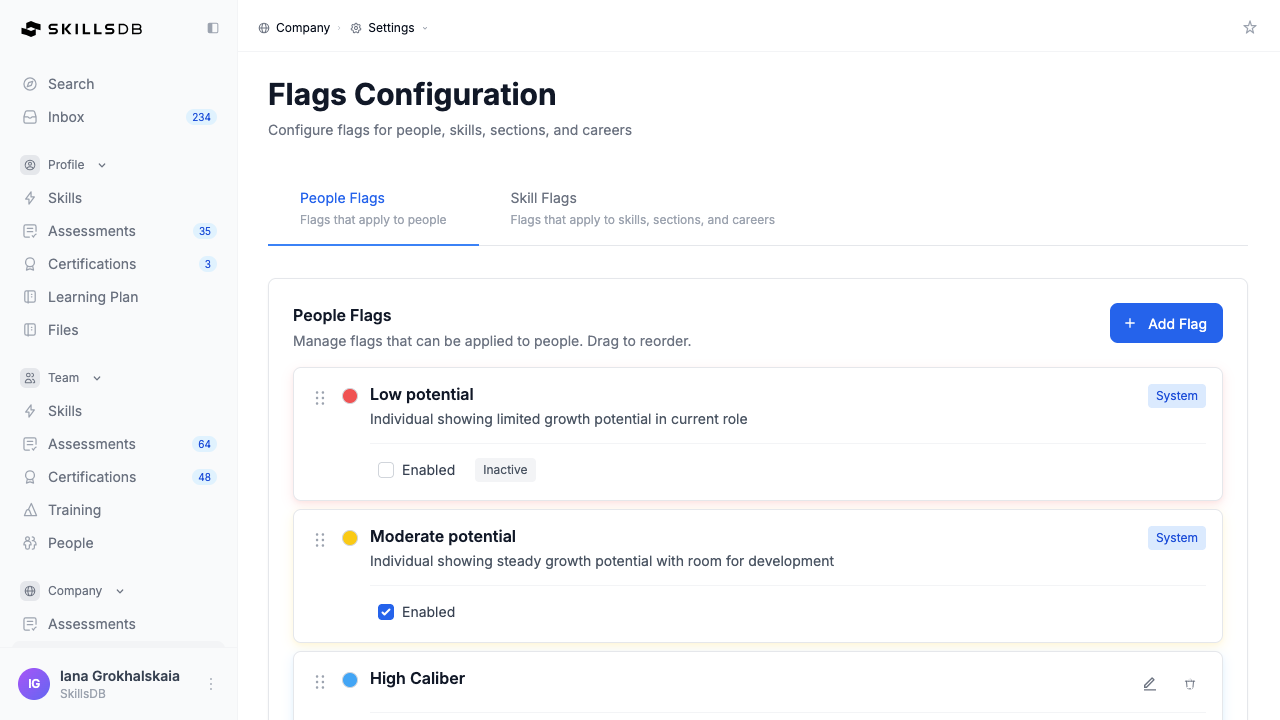
Creating a custom flag
- Navigate to Settings > Flags and select the People Flags tab
- Select Add Flag
- In the Add new people flag modal, enter the following:
- Flag name (required) — Up to 30 characters
- Description (optional) — Up to 100 characters; shown as a tooltip when hovering over the flag badge
- Color — Enter a hex color code (for example,
#3B82F6for blue); defaults to gray if left blank
- Select Save
Editing a custom flag
- Navigate to Settings > Flags > People Flags tab
- Select the edit icon (pencil) next to the flag you want to update
- In the Edit people flag modal, update the name, description, or color
- Select Save
Note: System flags (High potential, Moderate potential, Low potential) cannot be edited. The edit icon is not available for system flags.
Enabling and disabling flags
Each flag has an Enabled toggle that controls whether it can be assigned to new people.- Enabled — The flag is active and appears in the flag assignment dropdown when editing a person’s flags.
- Disabled — The flag is hidden from the assignment dropdown. It cannot be applied to new people, but existing assignments are preserved. The flag badge continues to appear on people who already have it assigned, marked as Inactive.
Reordering flags
The order of flags in the list determines how they appear in the assignment dropdown and in people tables. To reorder:- Navigate to Settings > Flags > People Flags tab
- Select and hold the drag handle (the grip icon on the left side of a flag row)
- Drag the flag to the desired position
- Release to drop — the new order saves automatically
Deleting a custom flag
Deleting a flag permanently removes it from your organization and strips it from every person it has been assigned to.- Navigate to Settings > Flags > People Flags tab
- Select the delete icon (trash can) next to the flag you want to remove
- Review the confirmation message, which shows how many people currently have this flag assigned
- Select Delete to confirm
Note: System flags (High potential, Moderate potential, Low potential) cannot be deleted. The delete icon is not available for system flags.
Applying People Flags to Individuals
Administrators assign People Flags to individuals directly from any people table in SkillsDB. The People Flags column appears in team and employee list views. To apply a flag to a person:- Navigate to a people table — for example, Team > People or Team > People
- Locate the People Flags column in the row for the person you want to update
- Select the + (plus icon) in that person’s People Flags cell
- In the dropdown that appears, search for a flag by name using the Find Flag input, or scroll the list
- Check the flag(s) you want to apply to this person
- The assignment saves automatically — no additional confirmation is required
Note: Only enabled flags appear in the assignment dropdown. Disabled flags are not available for new assignments but remain visible on people who already have them.
Where People Flags Appear
Once assigned, People Flags are visible in several areas of SkillsDB:
Hovering over a flag badge shows the flag’s description (if one was entered), making it easy for viewers to understand the meaning of a flag without navigating away.
Common Questions
Can managers apply or remove People Flags?
Can managers apply or remove People Flags?
No. Only administrators can assign or remove People Flags. Managers can view flags on their direct reports’ records but the assignment controls are not available to them.
Can I create a People Flag without a color?
Can I create a People Flag without a color?
Yes. The color field is optional. If no hex color is entered, the flag badge defaults to gray (
#6B7280). You can add or update the color at any time by editing the flag.What happens to a person's flags if they change departments or teams?
What happens to a person's flags if they change departments or teams?
People Flags are assigned directly to the individual, not to their position in the org structure. A flag remains on a person when they move departments, are reassigned to a different manager, or change roles. You must manually remove the flag if it is no longer applicable.
How many People Flags can I create?
How many People Flags can I create?
There is no limit on the number of custom flags. However, consider whether each flag serves a distinct, searchable purpose for your organization. A smaller set of well-defined flags is easier to maintain and more consistently applied than a large set of overlapping categories.
Can the same person have multiple People Flags at the same time?
Can the same person have multiple People Flags at the same time?
Yes. A person can have any number of People Flags applied simultaneously. For example, someone could hold both
High potential and Available at the same time. All assigned flags are displayed together as separate badges on their record.Can I use People Flags as a filter when searching for employees?
Can I use People Flags as a filter when searching for employees?
Yes. People Flags are available as a filter dimension in the Search page. After navigating to Search, open the filter options and select one or more People Flags to narrow results to people who hold those flags.
What is the difference between disabling and deleting a flag?
What is the difference between disabling and deleting a flag?
Disabling a flag hides it from the assignment dropdown so no new assignments can be made, but preserves all existing assignments. People who already have the flag retain it on their record, and it is still visible (marked as Inactive). Deleting a flag permanently removes it from every person it was assigned to and from the system. Deletion cannot be undone.
Can I edit the system flags (High potential, Moderate potential, Low potential)?
Can I edit the system flags (High potential, Moderate potential, Low potential)?
No. System flags are locked — their name, description, and color cannot be changed. You can disable them if your organization does not use potential ratings, which hides them from the assignment dropdown and from new assignments. Existing assignments to system flags are preserved when the flag is disabled.
Related Articles
Skill Flags
Configure Expert, Mentor, Focus, Interest, and custom flags that apply to skills
People Flags
How employees and managers view People Flags on profiles
Surveys
Collect structured data from employees, including talent assessments
Analytics & Reporting
Report on people data including flag assignments across your organization
Need Help?
If you run into any issues or have questions, reach out to your organization’s SkillsDB administrator or contact SkillsDB Support.