

Quick Summary: Your Learning Plan is where you track all learning resources assigned to you or added by yourself. You can move resources through four stages — To Do, In Progress, Completed, and Archived — log your progress, add custom resources, and export your plan.
Overview
Your Learning Plan in SkillsDB is a personal workspace for managing all of the learning resources connected to your development. It brings together everything assigned to you by your manager or tied to your career, alongside resources you add yourself, in one organized view. Learning plans are most useful when you are actively working toward closing skill gaps, preparing for a new role, or completing development goals agreed on with your manager. Resources appear in your plan when your manager or an administrator assigns them to you, when they are linked to a Career you have been assigned to, or when you add them yourself from the learning library or as a custom entry. All employees can view and manage their own Learning Plan. You do not need any special permissions to access this page or to update your progress on assigned resources. Managers and administrators can view your learning plan and assign resources to it; your manager can also add and update resources on your behalf. There are two types of items in your Learning Plan:- Library resources — resources that come from the SkillsDB learning library. These may be assigned to you by your manager, linked to your Career, or added by you directly from the library. Library resources include a title, description, category, and optional link.
- Custom resources — resources you create yourself by entering a title and details. Custom resources are useful for tracking learning that is not yet in the library, such as an internal training session, a book, or an external course not included in your organization’s library.
Navigating to Your Learning Plan
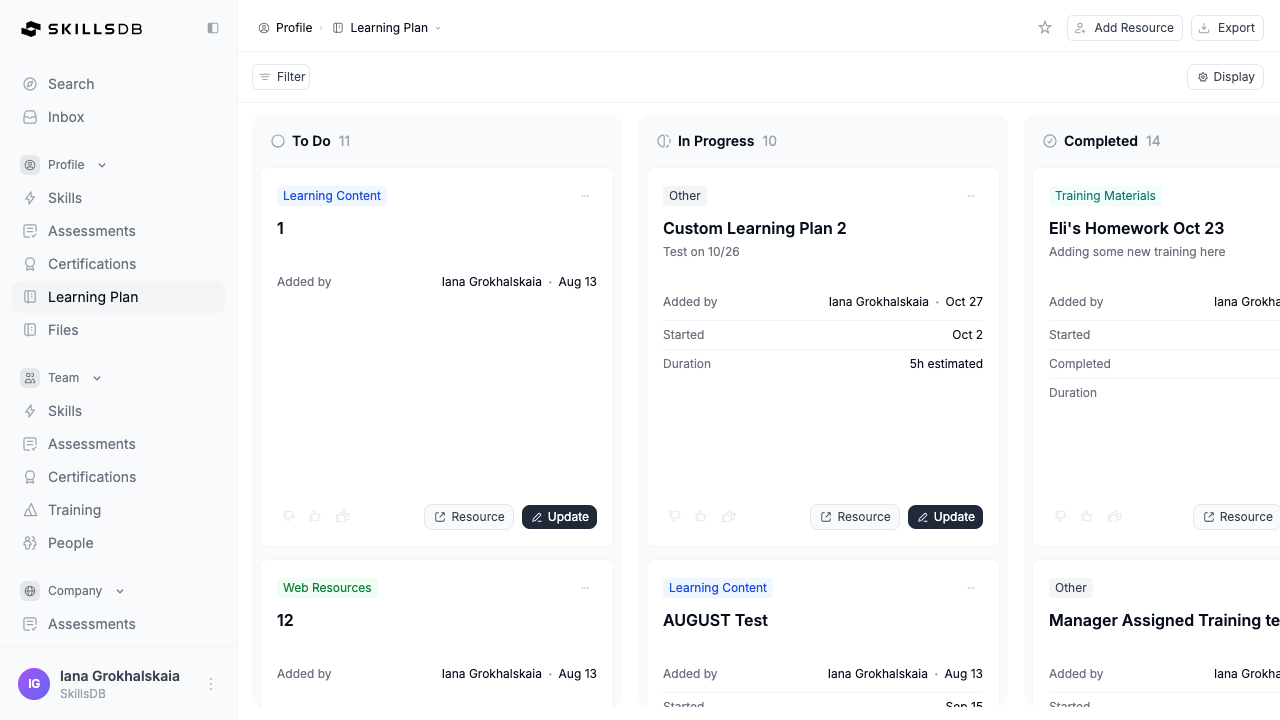
To view your learning plan:- Select Learning Plan from the left sidebar navigation.
Understanding the Board View
By default, your learning plan is displayed as a board — a Kanban-style layout with four columns representing the stages of your learning activity.
Each card on the board shows the resource title, description, category badge, labels, who added it, and your current rating (for library resources).
To move a resource between columns, drag and drop the card to the target column. Not all moves are permitted — the board enforces a logical progression:
- To Do can move to In Progress or Archived.
- In Progress can move to Completed or Archived.
- Completed can only move to Archived. Completion cannot be undone by moving a card back.
- Archived can move back to In Progress.
Note: If you try to drag a card to a column that is not a valid next step, the board will return the card to its original position.
Understanding the Table View
The table view shows your learning plan as a grouped list, organized by status. To switch to the table view:- Select Display in the top right of the page.
- Select Table.
The table view is also the mode used when exporting your learning plan.
Understanding Item Statuses and Allowed Transitions
Each item in your Learning Plan has a status that reflects your progress. Status changes follow a set progression and cannot be reversed in all directions.
Once an item is marked Completed, it cannot be moved back to In Progress or To Do. If you need to re-engage with a completed resource, archive it first and then restart it from Archived.
Adding a Custom Resource
You can add resources to your learning plan that are not in the SkillsDB learning library. Custom resources are useful for tracking personal learning activities, external courses, books, internal workshops, or any development activity you want to log. To add a custom resource:- Select Add resource in the top right of the page.
- In the Add new learning modal, complete the following fields:
- Title (required) — The name of the resource.
- Description — A brief description of the resource.
- Category (required) — The type of resource, such as Course, Video, or Article. Select from the available categories configured by your organization.
- URL — A direct link to the resource. The URL must begin with
http://,https://, orwww.. - Duration — The estimated time to complete the resource, in hours. Must be greater than 0 if provided.
- Select Add resource.
Updating Your Progress
You can log your duration and progress percentage for any resource in your learning plan — both library resources and custom resources. To update your progress:- On the resource card in the board view, open the card’s action menu (the three-dot icon or the action button on the card).
- Select Update.
- In the Update duration and progress modal, update the following fields:
- Duration — The total estimated or actual duration of the resource, in hours. Must be greater than 0. Accepts up to 2 decimal places.
- Percent Complete — Your completion percentage, from 0 to 100. Accepts up to 2 decimal places.
- Select Save.
Note: In the table view, the Update action is available from the edit icon in the row’s actions column for To Do and In Progress items.
Marking a Resource Complete
When you finish a resource, mark it as complete to move it to the Completed column and record your completion. To mark a resource complete:- On the resource card, open the action menu and select Complete, or drag the card to the Completed column.
- Complete with [X] hours — Records the number of hours you actually spent (your completed hours based on percent complete).
- Complete with [Y] hours — Records the full duration hours regardless of percent complete.
Rating a Resource
You can rate library resources in your learning plan to share feedback on quality and usefulness. Ratings are visible to your manager. To rate a resource:- On the resource card in the board view, select one of the three rating icons:
- Thumbs Down — The resource was not useful or did not meet expectations.
- Thumbs Up — The resource was useful.
- Double Thumbs Up — The resource was excellent.
Note: Rating is only available for library resources. Custom resources you created yourself display N/A in the rating column and do not support thumbs ratings.
Archiving a Resource
Archiving moves a resource to the Archived column and removes it from your active To Do, In Progress, and Completed view. Use archiving when a resource is no longer relevant, has been superseded by another resource, or is something you want to set aside without deleting. To archive a resource:- On the resource card, open the action menu and select Archive, or drag the card to the Archived column. Alternatively, completed items show an Archive button in the table view’s actions column.
Removing a Resource
You can remove resources from your learning plan that are no longer needed. The remove action is permanent and cannot be undone.- Library resources — Select the action menu on the card and select Remove. This unassigns the resource from your plan. Library resources that were automatically linked to your plan through a Career or job role assignment cannot be removed — the Remove option will not be available for these items.
- Custom resources — Select the action menu on the card and select Delete. This permanently deletes the custom resource and all associated progress.
Filtering your Learning Plan
You can filter your learning plan to find specific resources or focus on a subset of your items. To apply a filter:- Select a filter button from the filter bar above the board or table. Available filters are:
- Category — Filter by resource type, such as Course, Video, or Article (multi-select).
- Rating — Filter by your rating: Thumbs Down, Thumbs Up, Double Thumbs Up, or Not Rated (multi-select).
- Resource Type — Filter by source: Library (assigned or added from the library) or Custom (resources you created yourself) (multi-select).
- Select one or more values. The board or table updates immediately.
Switching Between Board and Table View
Your learning plan can be viewed as a board (Kanban layout) or as a table. Both views show the same data. The board view is best for actively managing and moving resources; the table view is better for reviewing your full plan at a glance and exporting. To switch views:- Select Display in the top right of the page.
- Select Board or Table.
Exporting Your Learning Plan
You can export your learning plan to Excel for reporting, sharing with your manager, or record-keeping. To export:- Select Learning Plan from the left sidebar navigation.
- Select Export in the top right of the page.
learning-plans.xlsx containing all currently visible items in your plan, including any active filters. The export includes the learning resource name, status, labels, category, who added it, and your rating.
Note: The Export button exports the data from the table view regardless of which view you are currently looking at. All items in your plan are included unless a filter is active.
Common Questions
What is the difference between a library resource and a custom resource?
What is the difference between a library resource and a custom resource?
Library resources come from your organization’s learning library — they are courses, videos, articles, and other content that your organization has configured in SkillsDB. Library resources may be assigned to you by your manager or linked to your Career. Custom resources are resources you create yourself by entering a title, description, and other details. Custom resources let you track learning that is not in the library, such as a book, an internal session, or an external course your organization has not yet added. Library resources support ratings; custom resources do not.
Can I add resources to my own learning plan?
Can I add resources to my own learning plan?
Yes. You can add custom resources at any time using the Add resource button. You can also add library resources to your own plan from the training library. However, library resources linked to your Career by an administrator are added automatically and cannot be removed by you.
Why can't I remove a resource from my plan?
Why can't I remove a resource from my plan?
Some library resources are automatically assigned to your plan because they are linked to a Career you have been assigned to. These role-assigned resources cannot be removed individually — they are part of your role’s development requirements. If you believe a resource has been incorrectly linked to your role, contact your manager or administrator. Custom resources and manually assigned library resources can always be removed.
Can I undo a completion?
Can I undo a completion?
No. Once a resource is marked as Completed, it cannot be moved back to To Do or In Progress. If you need to re-engage with a resource you completed, archive it and then drag it back to the In Progress column to restart it.
What does the rating do?
What does the rating do?
Ratings (Thumbs Down, Thumbs Up, Double Thumbs Up) let you record your feedback on a library resource. Ratings are visible to your manager and may be used to inform learning library decisions. Rating a resource does not affect your skill grades, benchmarks, or any other data in SkillsDB — it is purely informational feedback about the resource’s quality.
Who can see my learning plan?
Who can see my learning plan?
Your learning plan is visible to you, your manager, and administrators. Your manager can view your plan, assign new resources to it, and update progress on your behalf. Administrators have full visibility across all employees’ learning plans.
What happens to my learning plan items if I am assigned to a new Career?
What happens to my learning plan items if I am assigned to a new Career?
If your manager assigns you to a new Career that has learning resources linked to it, those resources may be automatically added to your plan. Resources previously linked to an old Career remain in your plan unless your manager removes them.
Related Articles
Your Skills Profile
View your grades, flags, training records, and benchmark comparisons
Skill Gaps
How skill gaps are identified and how to address them through learning
Build Learning Plans
How managers assign and manage learning plans for their team
Managing Certifications
How to submit and track your professional certifications
Need Help?
If you run into any issues or have questions, reach out to your organization’s SkillsDB administrator or contact SkillsDB Support.