

Quick Summary: The Training Matrix is a grid view that maps every skill against every team member, showing each person’s most recent training date and status at a glance. Use it to monitor compliance, identify expiring records, submit training evidence, and export reports.
Overview
The Training Matrix is a cross-reference view in SkillsDB that displays training records across your team. Each row represents a skill and each column represents a team member. Each cell shows that person’s most recent training date for that skill, along with a color-coded status indicator. The Training Matrix is distinct from the Skills Matrix. The Skills Matrix shows proficiency grades — how well someone performs a skill. The Training Matrix shows training completion — whether someone has submitted evidence of completing training for a skill, and whether that training is still current. The two views complement each other: proficiency tells you what people can do, and training records tell you when they formally completed training to confirm it. The Training Matrix is most valuable when your organization tracks training against specific skills with regulatory, safety, or certification requirements, particularly where training records have expiration dates that must be monitored. Administrators can view and manage training data for all employees in the organization. Managers can view and manage training data for their direct reports and their full organizational hierarchy. Users designated as Experts for a skill can also access the Training Matrix for the skills where they hold Expert status.Navigating to the Training Matrix
The Training Matrix is accessed from the My Team training section of SkillsDB.- Select Team from the left sidebar navigation.
- In the view dropdown at the top of the page, select Training Matrix.
Understanding the Matrix
Reading the grid
The Training Matrix uses a row-per-skill, column-per-person layout: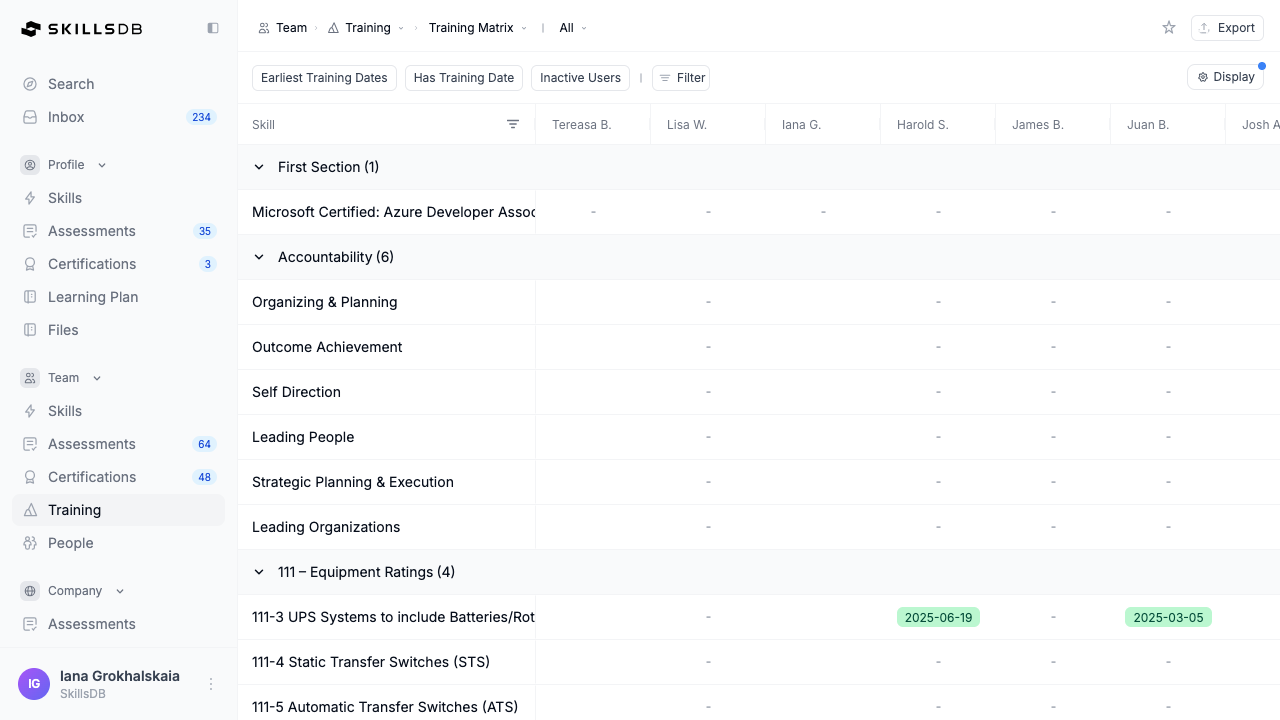 | Cells | The training date and status for that person-skill combination |
Interpreting cell values
Each cell in the matrix shows one of the following states:
Each cell shows the training date inside a single colored chip — green when approved and current, yellow when the training expires within 30 days, and red once it has expired. Expiration takes priority over approval status, so an approved record that is expiring shows the yellow chip. Hover the chip to see the exact expiration message.
Note: Expiration settings are configured per skill by your administrator. If no expiration period is set for a skill, approved training does not display an expiration badge and remains valid indefinitely. See Training Expirations for details on how expiration is calculated.
Selecting a view scope
Three tabs control which team members appear as columns in the matrix:
| Direct Reports | Only your immediate direct reports | Managers and Admins | | My Org | Everyone in your full organizational hierarchy | Managers and Admins | | All | All employees in the entire organization | Admins only |
Filtering and Sorting
Lenses
Lenses are toggle filters that change which records you see. Three lenses appear in the toolbar above the matrix:Builder filters
The filter panel lets you narrow the matrix by organizational attributes. Select the filter icon to open the panel.Managing a Training Record
Clicking any cell in the Training Matrix — except an NA cell — opens the Manage Skill Training panel for that person-skill combination. From this panel, you can view the full training history for that person and skill, submit a new training record, edit a pending submission, or renew an approved record.Submitting a new training record
To submit a training record for a person-skill combination:- Click the cell for the person and skill you want to update.
- In the Manage Skill Training panel, select Add training.
- Complete the training record form:
- Training Date (required) — Select the date the training was completed.
- Trainer Name (optional) — Enter the name of the trainer or instructor.
- Text Evidence (required if configured for this skill) — Provide a written description of the training completed.
- Attachments (required if configured for this skill) — Upload supporting files. Maximum 5 files, 10 MB each. Accepted formats:
.jpg,.png,.pdf,.docx,.xlsx,.txt,.csv. - Delegated Approver (optional) — Select a specific approver for this submission. If left blank, the default approver configured for the skill handles the request.
- Select Submit.
Note: Whether text evidence and attachments are required depends on how each skill’s training settings are configured by your administrator. The form will not submit until all required fields are completed.
Editing a pending training record
A training record can be edited while its status is Pending — that is, before it has been approved or rejected. To edit a pending record:- Click the cell for the relevant person-skill combination.
- In the Manage Skill Training panel, locate the pending record and select Edit.
- Update any fields as needed.
- Select Submit to resubmit the updated record.
Renewing an approved training record
When approved training needs to be renewed — for example, when it has expired or is approaching its expiration date — you can submit a renewal directly from the Training Matrix. To renew an approved training record:- Click the cell for the relevant person-skill combination.
- In the Manage Skill Training panel, select Renew on the approved record.
- Complete the renewal form with the new training date and any required evidence.
- Select Submit.
Exporting the Training Matrix
You can export the current Training Matrix view to an Excel file for reporting, audits, or offline review. To export:- Apply any filters to scope the matrix to the data you need.
- Select the Excel button in the top right of the page.
Training_Matrix_YYYY-MM-DD.xlsx, where the date reflects the date of export. The export includes all visible rows and columns. Cell values are exported as follows:
All Activity vs. Training Matrix
The My Team training section offers two views, selectable from the dropdown at the top of the page:
Use Training Matrix when you need a broad view of who has completed training for which skills. Use All Activity when you need to review, filter, or take action on individual submissions.
Common Questions
Who can access the Training Matrix?
Who can access the Training Matrix?
Managers can access the Training Matrix and view training data for their direct reports using the Direct Reports tab and their full organizational hierarchy using the My Org tab. Administrators can access all three tabs, including the All tab, which displays training data for every employee in the organization. Users who hold Expert status for a skill can view the Training Matrix for skills where they are designated as Experts. Standard employees without Manager or Admin roles cannot access the Training Matrix. They can view their own individual training records from their Skills Profile.
What does the NA badge mean?
What does the NA badge mean?
The NA badge (Not Assigned) appears when a skill is not assigned to a person’s job role. A training record can only exist for skills that are assigned to a person. Clicking an NA cell does not open the Manage Skill Training panel.
Why is the Training Matrix showing no data?
Why is the Training Matrix showing no data?
The Training Matrix only displays data when training-date tracking is enabled on skills. If the matrix appears empty, the most likely causes are: no skills have training dates enabled for the selected job role (administrators can enable training dates per skill in Library > Skills), no team members have submitted training records yet for the skills shown, or active filters are too restrictive (try clearing all filters and switching to the Direct Reports tab to verify data is present).
Can I submit training records for people who are not my direct reports?
Can I submit training records for people who are not my direct reports?
Managers can submit training records for any person visible in their matrix. If you are viewing the My Org tab, you can submit records for anyone in your organizational hierarchy, not just your immediate direct reports. Administrators can submit training records for all employees regardless of reporting structure.
What happens when training expires?
What happens when training expires?
When an approved training record passes its expiration date, the cell displays an Expired badge (red). The underlying training record is not deleted — it remains visible in the Manage Skill Training panel with its historical date and approval status. To restore compliance, submit a renewal. Expiration periods are configured per skill by your administrator in Library > Skills.
Why does a cell show Expiring Soon instead of Approved?
Why does a cell show Expiring Soon instead of Approved?
Expiration alerts take priority over approval status in the Training Matrix display. If training is approved but the expiration date is within 30 days, the date chip turns yellow rather than green. Once the expiration date has passed, the chip turns red. The training date itself is shown inside the chip in every case.
Can I approve or reject training submissions from the Training Matrix?
Can I approve or reject training submissions from the Training Matrix?
No. Training submissions are approved or rejected through the training approvals workflow, not directly from the Training Matrix. When a training record is submitted, the designated approver receives a notification and can approve or reject the record from their approvals inbox. The Training Matrix reflects the resulting status but is not the tool used to take approval actions. See Training Approvals for the full approval workflow.
Can I view training records for skills I am an Expert on?
Can I view training records for skills I am an Expert on?
Yes. If you are designated as an Expert for one or more skills, you can access the Training Matrix to view training records for those specific skills. Expert access is limited to skills where you hold Expert status — you cannot view the full organization-wide matrix unless you also have Manager or Admin access.
Why doesn't my job role appear in the Role filter?
Why doesn't my job role appear in the Role filter?
The Role filter only shows careers (job roles) for which training-date tracking has been enabled. If a career does not appear in the filter list, an administrator needs to enable training dates in that career’s settings. This is configured in Library > Careers under the career’s settings panel.
Related Articles
Training Expirations
Understand how expiration periods are configured and how expiration dates are calculated for skills
Training Approvals
How the approval workflow operates when a training record is submitted
Skills Matrix
View proficiency grades across your team (distinct from training completion)
Skill Flags
Configure the Expert flag, which grants Training Matrix access to designated users
Need Help?
If you run into any issues or have questions, reach out to your organization’s SkillsDB administrator or contact SkillsDB Support.