

Quick Summary: Skill flags are colored labels you apply to people at the skill, section, or career level to mark specific designations — such as subject matter experts or approved trainers. Admins create and configure flags from the Flags Configuration page. Managers apply flags to their team members.
Overview
Skill flags are designations that mark a person’s relationship to one or more skills. A flag might identify someone as the go-to expert for a skill, an approved trainer who can sign off on training requests, a focus area for development, or any other custom designation that matters to your organization. Flags can be applied at three different scopes — a single skill, an entire section within a career, or an entire career — allowing broad designations to cascade naturally without requiring individual assignments for every skill. Admins create and manage the available flag types from Company > Settings > Flags. Managers apply those flags to their direct reports from within career and skill views. Employees can view flags applied to their own skills but cannot create or modify flag assignments. Flags appear throughout SkillsDB: in skill profiles, in the Flag Matrix view for a career or section, and as a search filter — allowing managers and admins to quickly find flagged employees.Understanding Flag Scope
When a flag is applied to a person, it is assigned at one of three scope levels. Each level determines which skills the flag is visible on for that person.
When viewing the Flag Matrix, flag sources are color-coded:
- Direct (skill-level assignment) — indigo
- Section (inherited from a section assignment) — purple
- Career (inherited from a career assignment) — pink
Creating a Skill Flag
Administrators can create custom skill flags to represent any designation used in your organization. New flags are immediately available for use once created. To create a new skill flag:- Navigate to Company > Settings > Flags
- Select the Skill Flags tab
- Select Add Flag
- In the Add new skill flag modal, enter a Flag Name (required, maximum 100 characters)
- Optionally enter a Description (maximum 500 characters)
- Select a Color using the color picker — the color will appear as the flag’s badge color throughout SkillsDB
- Select Add Flag
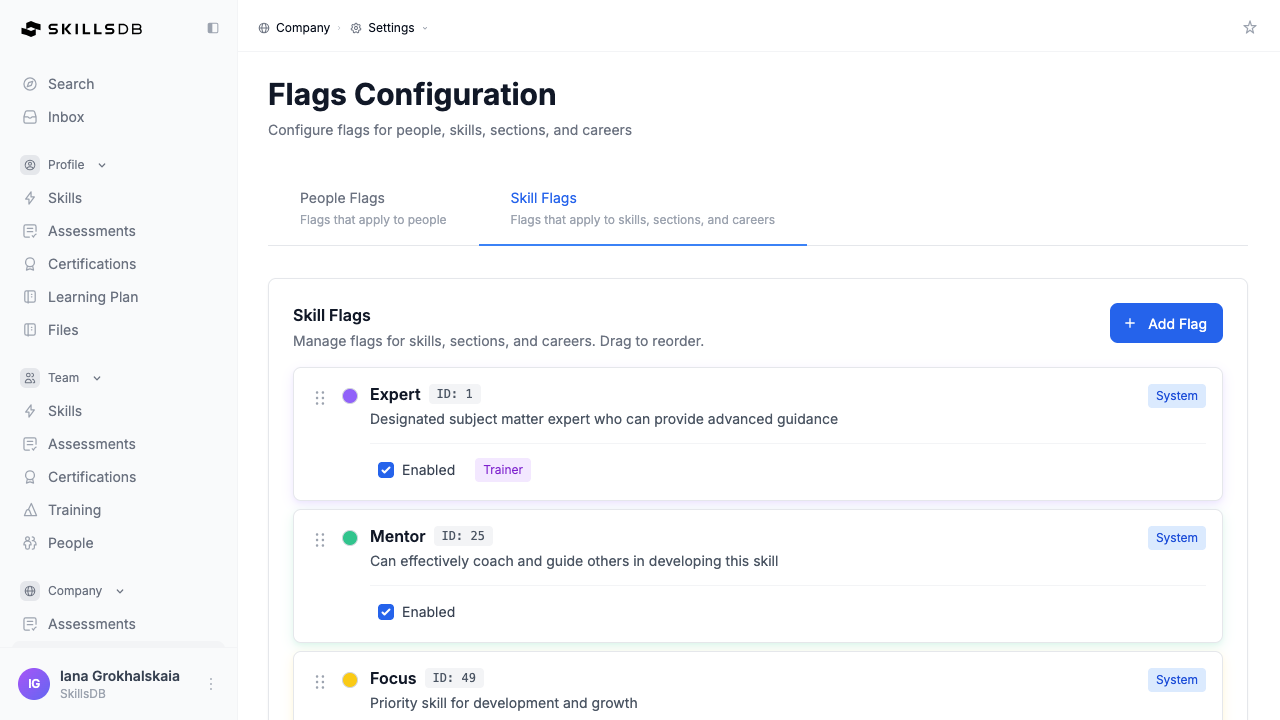
Note: After creating a flag, use the inline Enabled and Trainer Permission checkboxes on the flag row to configure those settings. They cannot be set during initial creation.
Editing a Skill Flag
Administrators can update the name, description, and color of any custom skill flag. System default flags cannot be edited. To edit a custom skill flag:- Navigate to Company > Settings > Flags
- Select the Skill Flags tab
- Select the edit icon (pencil) on the flag you want to update
- In the Edit skill flag modal, update the Flag Name, Description, or Color as needed
- Select Save Changes
Note: System default flags display a System badge instead of edit and delete icons. The name, description, and color of system defaults cannot be changed. The Enabled checkbox is available on every flag, including system defaults; only the Trainer Permission checkbox is hidden on system defaults.
Enabling and Disabling Flags
Each flag has an Enabled checkbox that controls whether the flag appears in the assignment dropdown throughout SkillsDB. Disabling a flag hides it from use without deleting it or removing existing assignments. To enable or disable a flag:- Navigate to Company > Settings > Flags
- Select the Skill Flags tab
- Check or uncheck the Enabled checkbox on the flag row
Managing Trainer Permission
The Trainer Permission toggle grants the holder of a flag the ability to approve training requests for the skills they are flagged on. This integrates directly with SkillsDB’s training approval system. When a person holds a flag with Trainer Permission enabled, they receive training approval requests in their Inbox for any skills covered by that flag assignment. To enable or disable Trainer Permission on a flag:- Navigate to Company > Settings > Flags
- Select the Skill Flags tab
- Check or uncheck the Trainer Permission checkbox on the flag row
Note: The Trainer Permission checkbox appears only on custom flags. The Expert system flag ships with Trainer Permission already enabled — it shows a Trainer badge — but the setting cannot be changed on system defaults. Changes to Trainer Permission take effect immediately for all current holders of that flag.
Reordering Flags
The order flags appear in the Skill Flags list determines the order they appear in flag selection dropdowns throughout SkillsDB. Drag flags to arrange them in the order most useful for your team. To reorder skill flags:- Navigate to Company > Settings > Flags
- Select the Skill Flags tab
- Click and drag the drag handle (the grid icon on the left of a flag row) to a new position
- Release to drop the flag in its new position
Applying Flags to People
Once flags are configured, managers and admins apply them to individuals from within career and skill views. Applying a flag creates the association between a person and the flag at the skill, section, or career scope. Flags can be applied or removed in bulk from the Flag People workflow, accessible from career, section, and skill pages. To apply a flag to people:- Navigate to the career, section, or skill you want to flag people on
- Select the Flag People button (or the flag icon)
- In the Select Flag Type step, choose the flag you want to apply
- In the Select People step:
- Use the search bar to filter by name, email, or employee ID
- Select each person to apply the flag to (or use Select All to select everyone eligible)
- To remove a flag instead of applying one, toggle to Remove mode using the Apply/Remove toggle
- Select Apply Flag to [N] People
Deleting a Skill Flag
Administrators can permanently delete custom skill flags. Deleting a flag removes it from the system and unassigns it from all people. This action cannot be undone. To delete a skill flag:- Navigate to Company > Settings > Flags
- Select the Skill Flags tab
- Select the delete icon (trash can) on the flag you want to remove
- Review the confirmation message — if the flag is currently assigned to people, the message will indicate how many assignments will be removed
- Select Delete to confirm
Common Questions
What is the difference between a system default flag and a custom flag?
What is the difference between a system default flag and a custom flag?
System default flags are pre-configured by SkillsDB and cannot be edited or deleted. They appear with a System badge. The Enabled checkbox is available on system defaults, and they can be reordered by dragging; only the Trainer Permission checkbox is hidden on them. Custom flags can be created, edited, reordered, enabled/disabled, assigned Trainer Permission, and deleted by admins.
Can more than one flag be applied to a person for the same skill?
Can more than one flag be applied to a person for the same skill?
Yes. A person can hold multiple flags for the same skill. For example, someone might hold an Expert flag (applied at the career level) and a Mentor flag (applied at the skill level) simultaneously. Each flag appears independently in the Flag Matrix and on the person’s skill profile.
What happens to flag assignments if I disable a flag?
What happens to flag assignments if I disable a flag?
All existing assignments are preserved when you disable a flag. Disabling hides the flag from selection dropdowns so it cannot be applied to new people. Re-enabling the flag restores full visibility without requiring any reassignment.
Can I apply flags to people individually rather than in bulk?
Can I apply flags to people individually rather than in bulk?
Yes. In addition to the bulk Flag People workflow, individual skill flags can be applied directly from skill profile tables. When viewing a person’s skills in the skills table, hover over a skill row to reveal the Assign flag button for that skill.
Who can apply flags to people?
Who can apply flags to people?
Admins can apply flags to any person in the organization. Managers can apply flags to their direct reports. The scope of who a manager can flag is controlled by their search permissions. Standard employees cannot apply or modify flag assignments.
Does the Trainer Permission apply at the scope the flag was assigned, or globally?
Does the Trainer Permission apply at the scope the flag was assigned, or globally?
Trainer Permission applies to the scope of the flag assignment. If a person holds a Trainer-enabled flag at the section level, they can approve training requests for skills within that section. If the same flag is assigned at the career level, they can approve training for any skill in the career.
Can I rename a flag after it has been assigned to people?
Can I rename a flag after it has been assigned to people?
Yes. Editing a custom flag’s name updates it everywhere in SkillsDB — in the Flag Matrix, in skill profiles, in search filters, and in flag selection dropdowns. Existing assignments are automatically updated and do not need to be re-applied.
Related Articles
People Flags
Configure flags that are applied to individuals as a whole rather than to specific skills
Search
Control which roles can filter search results using skill flags
Skills Matrix
View skills and flag designations across your team
Skill Flags
How skill flags appear in employee and manager views
Need Help?
If you run into any issues or have questions, reach out to your organization’s SkillsDB administrator or contact SkillsDB Support.