

Quick Summary: The Certifications scope of Search lets you search your organization’s certification catalog and see which employees hold specific certifications — all from a single, filterable search interface.
Overview
The Certifications scope of Search is a search tool for browsing certification information across your entire organization. It gives you two complementary views: you can explore the organization’s certification catalog to see what certifications exist and how many people hold them, or you can browse employee certifications to see who holds a specific certification and what their current status is. This is useful when you want to understand certification coverage in your organization — for example, identifying whether anyone on your team holds a required credential, checking expiration dates across a group of employees, or exploring what certifications your organization tracks before pursuing one yourself. The Explore Certifications page is separate from your personal certifications list. Your own certifications are managed from your profile. This page is for discovery across the broader organization.Prerequisites
Before you begin, make sure you have:- Search access: Your account must have search permissions enabled. If you cannot see Search in the left sidebar, contact your administrator.
Exploring certifications in your org
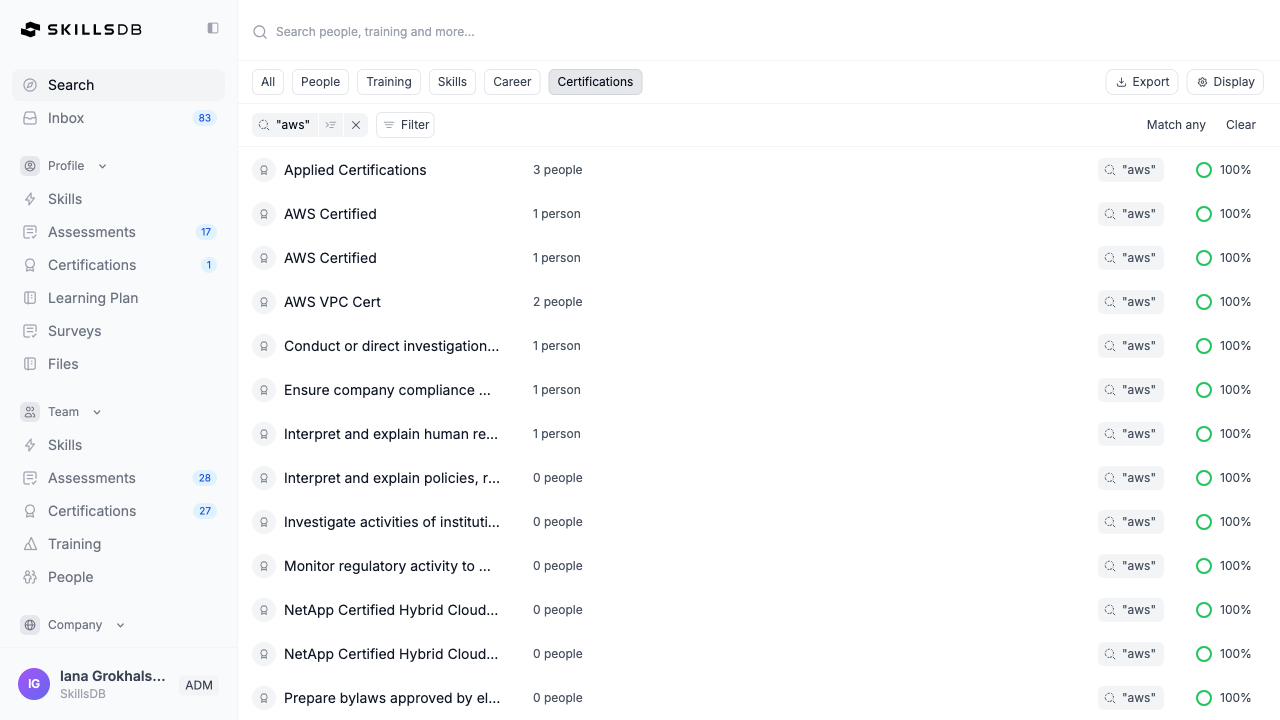
Navigating to Certifications- Select Search from the left sidebar.
- In the scope selector row, select Certifications.
- The results area loads with the Certifications view active by default.
 Choosing between Certifications and Employee Certifications views
The Certifications scope offers two distinct view modes, toggled from the Display menu:
Choosing between Certifications and Employee Certifications views
The Certifications scope offers two distinct view modes, toggled from the Display menu:
- Certifications — Displays the organization’s certification catalog. Each row represents a certification, showing how many employees are assigned to it, its issuing authority, category, and type. Use this view to explore what certifications exist in your organization.
- Employee Certifications — Displays individual people and their certification records. Each row represents a person–certification pairing, showing their current status, expiration date, and how many days remain until expiration. Use this view to find out who holds a specific certification.
- Select Display in the top right of the results area
- Under the display options, select either Certifications or Employee Certifications
- The results table updates immediately
- Enter a certification name or keyword in the search bar and press Enter — the term is added as a filter tag and results update automatically.
- To add structured filters, select Filter next to the search tags. Available filter types include organizational structure filters:
- Business Unit, Division, Department, Team
- Country, State, City, Site, Shift, Region
- Document Type
- To control how multiple filters are applied, toggle between Match all (results must meet every filter) and Match any (results meeting at least one filter).
- To remove a filter tag, select the x on the tag. To remove all filters, select Clear.
Understanding Certifications View Results
In Certifications mode, each row in the results table represents a certification in the organization’s catalog. The table displays:
Select any row to navigate to the certification’s detail page, where you can see a full list of employees assigned to it and their individual statuses.
Understanding Employee Certifications View Results
In Employee Certifications mode, each row represents an individual employee’s certification record. Each row displays the employee’s name with the certification name shown below it, along with the search criteria tags and match percentage.
Select a person’s row to navigate to their profile page.
Certification statuses
In Employee Certifications view, each record displays one of the following statuses:
Note: A certification expiring within 30 days is flagged with a yellow indicator on the expiration date in the certification detail view. The Days until expiration column in Employee Certifications view makes it easy to spot certifications approaching expiry.
Viewing Certification Details
Selecting a certification in the Certifications view opens the certification’s detail page in the library. This page shows:- A summary of the certification (name, description, issuing authority, category, type)
- A table of all employees assigned to the certification, including their status, expiration date, and ID number
Common Questions
What is the difference between the Certifications and Employee Certifications views?
What is the difference between the Certifications and Employee Certifications views?
The Certifications view shows the certification catalog — one row per certification — and is useful for understanding what certifications exist and how widely they are held. The Employee Certifications view shows one row per person–certification pairing and is useful for finding specific individuals and checking their status or expiration dates.
Can I export certification data from this page?
Can I export certification data from this page?
Export functionality is available from the certification detail page in the library. The Explore Certifications search results page itself does not have a direct export button. Navigate to a specific certification’s detail page to access export options.
Who can see the Explore Certifications page?
Who can see the Explore Certifications page?
Any SkillsDB user with search permissions enabled can access the Explore Certifications page. If the Search option is not visible in your left sidebar, your administrator may not have enabled search access for your account.
Can I see certifications for people outside my team?
Can I see certifications for people outside my team?
Yes. The Explore Certifications page shows certification data across the whole organization, not just your direct reports. Use the org structure filters to narrow results to a specific Business Unit, Division, Department, or Team if needed.
Why do some results show a match percentage?
Why do some results show a match percentage?
The match percentage reflects how closely a result matches your search criteria. When you apply multiple filters, the match score shows how many of those criteria a result satisfies. A 100% match means the result matches all of your applied criteria. This helps you prioritize the most relevant results when searching with multiple filters.
What is the difference between Explore Certifications and Manager Certifications?
What is the difference between Explore Certifications and Manager Certifications?
Explore Certifications is a read-only discovery tool for browsing certification data across the organization. Manager Certifications is a management tool that lets managers track, review, and action certification submissions for their direct reports. Managers use both: Explore to get an org-wide view, and Manager Certifications for day-to-day team tracking and approvals.
Related Articles
Managing Certifications
Submit, renew, and track your own personal certifications
Certification Tracking
Manage and approve your team’s certification submissions as a manager
Find Experts
Search for people with specific skills and expertise across your organization
Explore Training
Browse training records and completions across your org
Training Expirations
Understand how expiration works for training records
Need Help?
If you run into any issues or have questions, reach out to your organization’s SkillsDB administrator or contact SkillsDB Support.