

Quick Summary: Use the Search page to find people with specific skills, locate training resources, explore careers, and identify certified employees across your organization — all from a single, filterable interface.
Overview
The Search page is SkillsDB’s organization-wide discovery tool. It lets you search across people, skills, training resources, careers, and certifications simultaneously, then narrow results with targeted filters to find exactly who or what you need. Search is built for situations where you already know what you’re looking for — a subject matter expert in a particular skill, someone with a specific certification, or a career path that aligns with a set of competencies. Instead of browsing through multiple sections of the product, you can describe the criteria and let Search surface matching results ranked by relevance. The Search page is accessible to all users, though administrators can restrict access to people search features based on your organization’s settings. All users can search skills, training, careers, and certifications. Access to people search depends on your organization’s configuration.Navigating to Search
Select Search from the left sidebar. The Search page is located at the top level of SkillsDB navigation.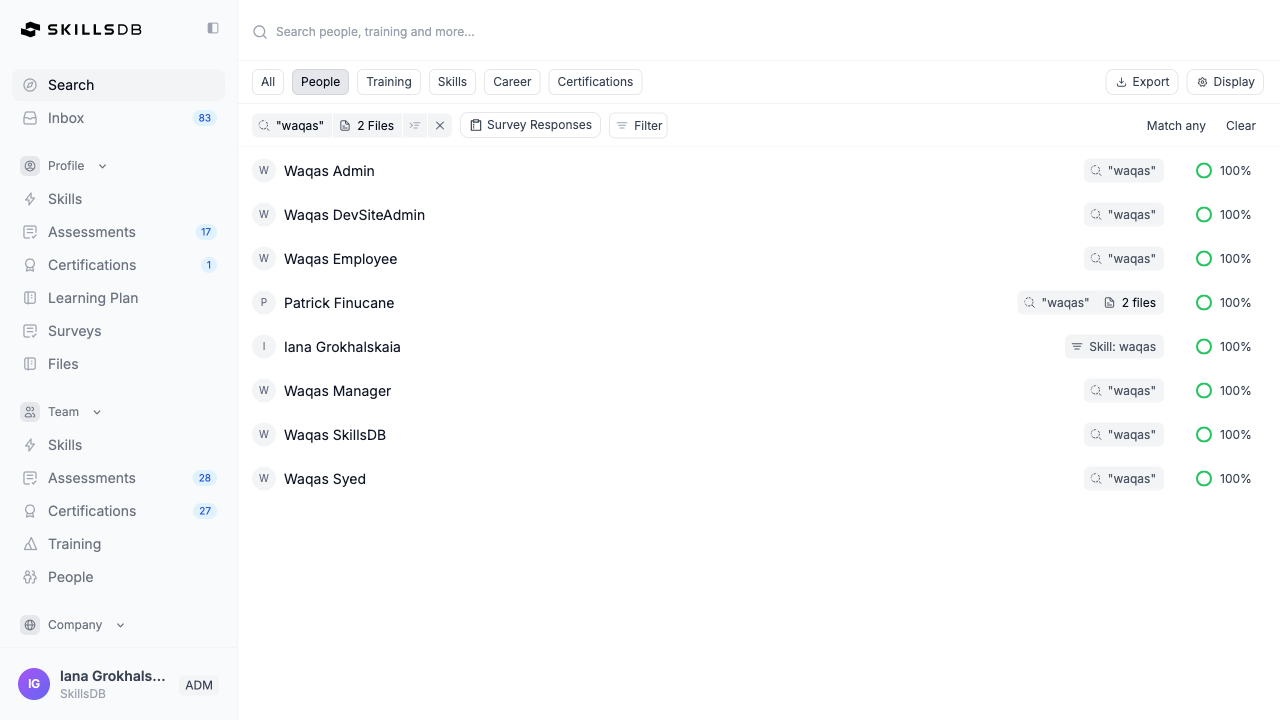
Note: If you previously bookmarked the old
/explore URL, SkillsDB automatically redirects it to the current /search path.Performing a Basic Search
Searching by keyword
Use the search input to find results by name or keyword across all resource types.- Select the search input at the top of the page (placeholder text reads “Search people, training and more…”).
- Type a keyword — for example, a skill name, a person’s name, or a training course title.
- SkillsDB displays a suggestion dropdown after you type one or more characters.
- Select a suggestion from the dropdown, or press Enter to run a broad text search.
Using type filters
By default, Search returns results across all resource types (All). Use the type filter buttons to limit results to one category:
Select a type filter button to scope your search. The active filter is highlighted. Select the active filter again to return to All.
Adding Filters
Filters are the primary way to find experts and narrow results. SkillsDB supports several types of filters that can be combined.Adding a skill or career filter
To find people who have a specific skill or who are assigned to a particular career:- Select the search input and type a skill or career name.
- Select the matching skill or career from the suggestion dropdown.
- SkillsDB adds a filter tag and updates the results to show matching people.
Adding an org structure filter
Org structure filters let you narrow results by organizational attributes such as department, location, or team. These filters appear as additional dropdowns below the main search input when active. To add an org structure filter:- Run a search that returns people results (use People scope or add a skill/career filter).
- Select the search input and type or scroll to find an org attribute — for example,
Department. - Select the org attribute from the suggestion dropdown.
- In the org filter that appears, select one or more values from the dropdown (for example, choose specific department names).
- Business Unit, Division, Department, Team
- Country, State, City, Site, Location
- Shift, Business Region
Adding a certification filter
To find employees with a specific certification:- Set the scope to Certifications or All.
- Type a certification name in the search input and select it from the suggestions.
- SkillsDB returns matching employees alongside certification status information.
- Certifications — shows the certification catalog
- Employee Certifications — shows individual employees’ certification records, including status and expiration
Using Sub-filters
Sub-filters refine an individual filter tag with additional criteria. For example, when searching for people with a skill, sub-filters let you require that those people hold an Expert flag for that skill, meet a minimum proficiency grade, or completed training within a specific time period.Adding sub-filters to a skill filter
- Add a skill as a filter (see Adding a skill filter).
- Select the filter icon on the skill filter tag.
- The sub-filters panel opens with the following options:
- Select your desired sub-filter values and close the panel. Results update automatically.
Note: The Expert flag is assigned by administrators or managers to designate someone as a subject matter expert for a given skill. If you need to find certified experts in a skill, use the Expert sub-filter under Skill Flags.
Adding sub-filters to a people filter
When searching for people directly, sub-filters include:Matching Mode
When you apply multiple filters, the Match all / Match any toggle controls how SkillsDB combines them:- Match all — Returns results that satisfy every filter (AND logic). Use this when you need people who meet all criteria simultaneously.
- Match any — Returns results that satisfy at least one filter (OR logic). Use this when you want a broader pool of results.
- Match all returns people who have both Python and Machine Learning.
- Match any returns people who have either Python or Machine Learning (or both).
Display Settings
Select the Display button (top right of the search toolbar) to access display options. Available options depend on the active scope:People scope display options
When your organization has document search enabled, matching documents may appear alongside people results in the criteria tags.
A Survey Responses button appears in the toolbar when the People scope is active, allowing you to search across survey response data.
Certifications scope display options
Understanding Search Results
Search results appear in a table with the following columns:
When the scope is set to All, results are organized into collapsible groups by type: People, Training, Skills, Careers, Certifications, and Employee Certifications.
Navigating to a result
Select any row in the results table to navigate to the detail page for that record:- People → opens the person’s full profile
- Skills → opens the skill detail page in the Library
- Training → opens the training resource in the Library
- Careers → opens the career detail page
- Certifications → opens the certification in the Library
- Employee Certifications → opens the person’s profile
Clearing and Resetting Filters
To remove a single filter, select the x on the filter tag. To remove all filters at once, select the Clear button in the search toolbar. If your search returns no results, SkillsDB displays “Your search or filters are a bit too specific.” Select Reset Filters to clear all active filters and start over.Common Questions
How do I find all experts for a specific skill?
How do I find all experts for a specific skill?
To find everyone flagged as an Expert for a skill: Navigate to Search in the left sidebar. Set the scope to People. Type the skill name in the search input and select it from the suggestions. Select the filter icon on the skill filter tag to open sub-filters. Under Skill Flags, check Expert. Results show only people who hold the Expert flag for that skill.
Can I search across multiple skills at once?
Can I search across multiple skills at once?
Yes. Add multiple skill filters by selecting each from the suggestions dropdown. Use Match all to find people who have all of the skills, or Match any to find people who have at least one.
Why can't I see people in my search results?
Why can't I see people in my search results?
Access to people search is controlled by your organization’s settings. If the People scope is disabled or returns no results and you believe you should have access, contact your SkillsDB administrator. If the People filter is visible but returns no results, your current filters may be too restrictive. Try removing one or more sub-filters, or switch from Match all to Match any.
What is the Match score and how is it calculated?
What is the Match score and how is it calculated?
The Match score is a percentage (0–100%) that reflects how closely a result satisfies your active filters. A higher Match score means more of your filter criteria were satisfied. When you apply sub-filters (such as minimum grade or skill flags), results that meet those requirements score higher than results that only partially match.
Can I search for inactive or former employees?
Can I search for inactive or former employees?
Yes. Select the Display button, then check Inactive under User Status. Inactive users will appear in results alongside active users when this option is enabled. By default, only active users are included.
Can I export search results?
Can I export search results?
Search results cannot be exported directly from the Search page. To export people data with skill information, use the export functionality in the Manager Guide or contact your SkillsDB administrator for a data export.
What is the difference between Certifications and Employee Certifications in the Display settings?
What is the difference between Certifications and Employee Certifications in the Display settings?
Certifications shows the certification catalog — the programs defined in your organization’s library. Employee Certifications shows individual employees’ certification records, including each person’s certification status (Assigned, Awaiting Approval, Approved, Denied, or Expired) and expiration date. Use Employee Certifications when you want to find people based on their certification status.
Related Articles
Your Skills Profile
View and manage your individual skills and proficiency grades
Skill Flags
Understand how Expert and other skill flags work
Explore Certifications
Browse certification programs across the organization
Certification Tracking
Manage and approve your team’s certification submissions as a manager
Need Help?
If you run into any issues or have questions, reach out to your organization’s SkillsDB administrator or contact SkillsDB Support.