

Quick Summary: Training expirations automatically track whether completed skills and certifications are still current. This article explains expiration statuses, where to find them in SkillsDB, and what to do when training expires.
Overview
Training expirations are how SkillsDB tracks whether completed skills and certifications are still current. When an administrator configures an expiration period for a skill or certification, SkillsDB automatically calculates an expiration date based on the date the training was approved. As that date approaches or passes, the training’s status updates to reflect whether it is still valid — without any manual action required. Expirations exist because many skills and certifications require periodic renewal to remain meaningful. Training completed two or three years ago may no longer reflect someone’s current knowledge, especially in fast-changing fields like technology, safety compliance, or regulated industries. By surfacing expiration data across the platform, SkillsDB helps individuals stay on top of their own renewal needs and gives managers a clear picture of where their team’s training records may be out of date. Training expirations apply to two types of records in SkillsDB:- Skill-based training — linked to specific skills within a career and tracked through the Training Matrix
- Certifications — formal credentials assigned and managed through the Certifications section
Understanding Expiration Status
SkillsDB displays one of four expiration statuses for each piece of training. The status appears as a color-coded badge throughout the platform wherever training records are shown.
How “Expiring Soon” is calculated:
- For skill-based trainings: within 30 days of the expiration date
- For certifications: within 30 days of the expiration date
Note: Skill-based training and certifications both use a 30-day warning window, so the “expiring soon” signal is consistent across the product.
Where to See Training Expirations
Expiration status appears throughout SkillsDB in several locations, depending on the type of training and your role. My Certifications Your certification expirations are visible from the My Certifications page.- Select Certifications from the left sidebar.
- The Expires column displays the expiration status badge for each certification.
- To narrow the list, select the Expires filter and choose from Expired, Expiring Soon, Valid, or No Expiration.
- Navigate to Profile > Skills.
- Select a career to open the career detail view.
- Skills with an expiration period configured display a training expiration badge. Skills with no expiration period show no badge or a gray “No Expiration” badge.
Using the Expirations View
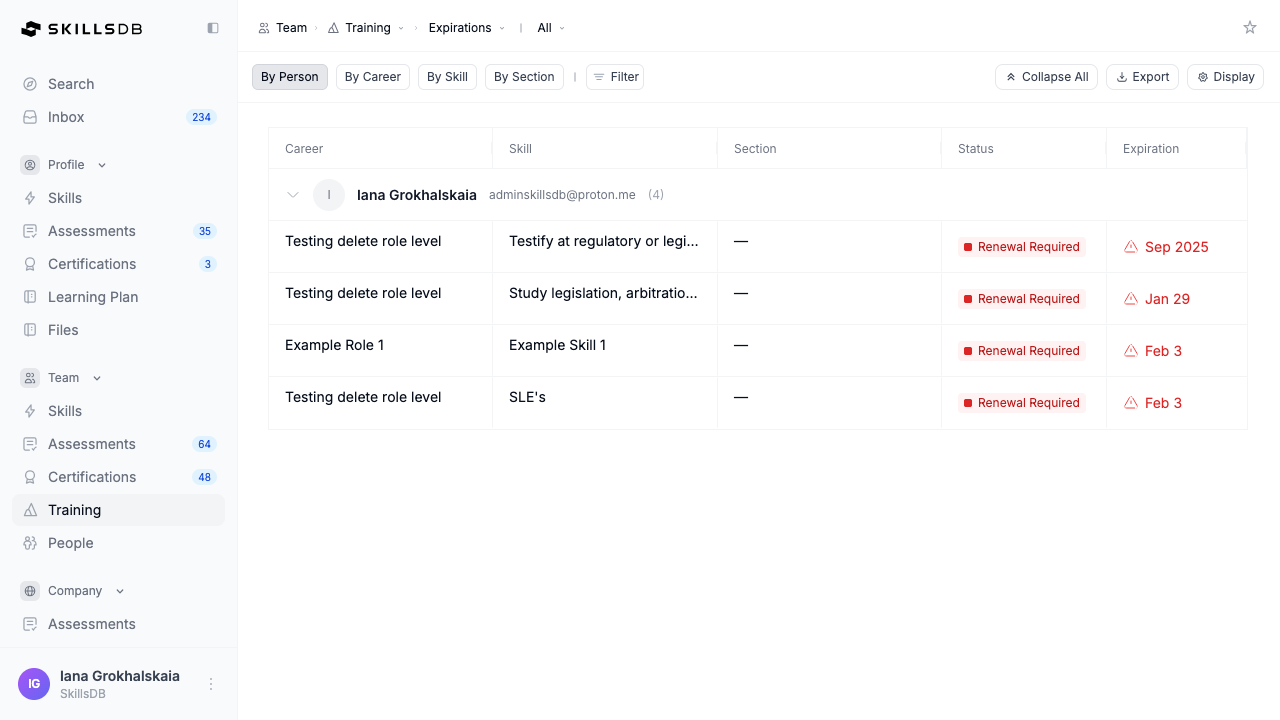
Team > Training has a dedicated Expirations view alongside All Activity and Training Matrix. Select Expirations from the view switcher in the breadcrumb to open it. The view lists every training record that carries an expiration date, grouped for review. Four grouping options appear as chips above the table:
Each row shows Career, Skill, Section, Status, and Expiration. Status is one of Approved, Awaiting Approval, or Renewal Required, and the Expiration column shows a warning icon next to the date once a record needs attention.
Use Filter to narrow the list, Collapse All to fold every group at once, and Export to download the current view. Scope tabs in the breadcrumb control which people are included.
What Happens When Training Expires
When training reaches Expired status, SkillsDB updates the badge to red and displays a warning icon wherever that training record appears. The training record is not deleted — the original approval date, training date, and full history remain intact. The expiration status is a visual signal, not a record deletion. An expired training does not automatically trigger a new training request. What happens next depends on the type of training: For certifications: Contact your manager or administrator. They can assign a certification renewal, which creates a new certification record while preserving the full history of the original. Once approved, the expiration countdown resets from the new certification’s issued and expiration dates. For skill-based training: Contact your manager. Managers can initiate a new training request from the Training Matrix. Once the new training is recorded, the expiration date is recalculated from the new training date plus the skill’s configured expiration period — not from the date it was approved.Tracking team expirations (managers)
Managers can monitor training expiration status across their team using the Training Matrix. The matrix shows a cell for each person-and-skill combination, and cells with expired or expiring-soon training are highlighted with color-coded badges.- Navigate to Team > Training > Training Matrix.
- Review the matrix. Each cell represents one person’s training status for one skill. Cells with Expired or Expiring Soon badges are immediately visible due to their red or yellow coloring.
- To focus on at-risk records, use the status filter to show only Expired or Expiring Soon results.
Common Questions
What is the difference between a training expiration and a certification expiration?
What is the difference between a training expiration and a certification expiration?
Training expirations and certification expirations are related but separate mechanisms. Training expirations apply to skill-based training records linked to careers and skills in the Training Matrix. Certification expirations apply to formal credentials managed in the Certifications section. Both use the same four statuses — Valid, Expiring Soon, Expired, No Expiration — but certifications use a 30-day warning window while skill-based trainings use a 15-day window.
Why does my training show 'No Expiration'?
Why does my training show 'No Expiration'?
A “No Expiration” status means your organization’s administrator has not configured an expiration period for that skill or certification. Trainings with no expiration period remain current indefinitely. If you believe an expiration period should be configured, contact your administrator.
Can I see the exact expiration date?
Can I see the exact expiration date?
Yes. Hover over any expiration status badge in a table, matrix, or skills profile to see a tooltip showing the exact expiration date. If the training has already expired, the tooltip shows how many days ago it expired. If training is still valid or expiring soon, it shows how many days remain.
Can I renew my training myself?
Can I renew my training myself?
Standard users cannot self-initiate training renewals directly in SkillsDB. If your training has expired or is expiring soon, contact your manager or administrator. They can assign a renewal or new training request on your behalf. Once the renewal is approved, the expiration date resets automatically.
Will expired training affect my skills profile or ratings?
Will expired training affect my skills profile or ratings?
No. An expired training does not change your proficiency ratings or self-assessment scores. The expired status is a data quality indicator — it signals to your manager and administrators that a training record may need refreshing. Accurate, current training records are important for skills gap analysis and workforce planning across your organization.
How does my organization configure expiration periods?
How does my organization configure expiration periods?
Administrators set expiration periods for skills and certifications at the organization level. Periods are defined in days, months, years, or a combination of all three. If you have questions about why a specific skill or certification does or does not have an expiration period, contact your administrator.
What if my training shows as expired, but I completed it recently?
What if my training shows as expired, but I completed it recently?
If you recently completed training that is still showing as expired, the renewal may not have been approved yet (certifications require manager or admin approval before the status updates), or the new training may not have been entered into SkillsDB. Contact your manager to confirm the approval has been recorded. Once approved, the expiration status will update automatically.
Related Articles
Training Approvals
Understand how training requests are submitted and approved in SkillsDB.
Training Matrix
Track training completion and expiration across your team.
Your Skills Profile
View and understand your skills profile, including training history and career detail views.
Need Help?
If you run into any issues or have questions, reach out to your organization’s SkillsDB administrator or contact SkillsDB Support.