

Quick Summary: Page Settings are the on/off controls on Company > Settings that decide which sidebar sections your users see and which platform behaviors are active. Administrators change them; the effect is immediate and organization-wide.
Overview
Page Settings are the toggle controls on the Company > Settings page. Where the structural settings covered in Organization Settings define the data SkillsDB operates on — grades, org structure, training attributes — Page Settings define what your users can see and do with that data. There are two kinds of toggle. Simple switches turn a single behavior on or off, such as hiding manager grades from employees or enabling system emails. Grouped toggles open a modal containing several related switches, such as the per-section visibility controls for the Library, Profile, and Team navigation groups. Visibility toggles are how most organizations phase SkillsDB in. A company that has not yet built its certification library can hide Library > Certifications and Profile > Certifications so employees never see an empty page, then switch both on when the library is ready. Because the toggles drive both the sidebar and the page-level access check, a hidden section is genuinely unreachable rather than merely absent from the menu. Only administrators can view or change Page Settings. The settings apply to every user in your SkillsDB instance — they are organization-wide, not per-user or per-team.Note: Users with the GlobalAdmin, Admin, or Full Access role always see every navigation
section regardless of the visibility toggles. If you hide a section and can still see it,
check your own role before assuming the setting did not save.
Prerequisites
Before you begin, you need:- Permission level: Administrator role
- Access: Navigate to Company > Settings in the left sidebar
Hiding Manager Grades From Employees
The Hide Manager Grades switch prevents all employee users from seeing their manager’s assessment of their skills anywhere in SkillsDB. When you enable Hide Manager Grades, employees no longer see the manager grade on their skills profile, in assessments, or in any matrix view. Employees are also not notified when a manager completes an assessment of them. When you disable it, manager grades become visible to employees again — no data is lost while the setting is on, only hidden. Organizations typically enable this setting during a calibration cycle, so managers can complete their assessments without employees reacting to in-progress grades, then disable it once the cycle closes and results are ready to share. To change it, navigate to Company > Settings and toggle the Hide Manager Grades switch. The change takes effect immediately for all users.Enabling Skill Flags
The Enable Skill Flags switch activates the skill flags feature for all users. When you enable skill flags, employees can flag skills as Focus or Interest from their profile page and from inside assessments. Managers can flag employee skills as Focus, Expert, or Mentor. Employees cannot alter a Focus flag that was set by their manager. When you disable skill flags, flag controls disappear from profiles, assessments, and matrices. Existing flag assignments are retained in SkillsDB and reappear if you re-enable the setting. The Expert flag is the one with functional consequences: an Expert can approve training requests for the skills they are flagged on. See Skill Flags for how to configure flag types and trainer designations. To change it, navigate to Company > Settings and toggle the Enable Skill Flags switch.Controlling Library Visibility
The Hide Library Sections setting controls which of the four Library sections appear in the sidebar. Select Configure Visibility Of Library Section to open the Manage Library Visibility modal, which contains one switch per section: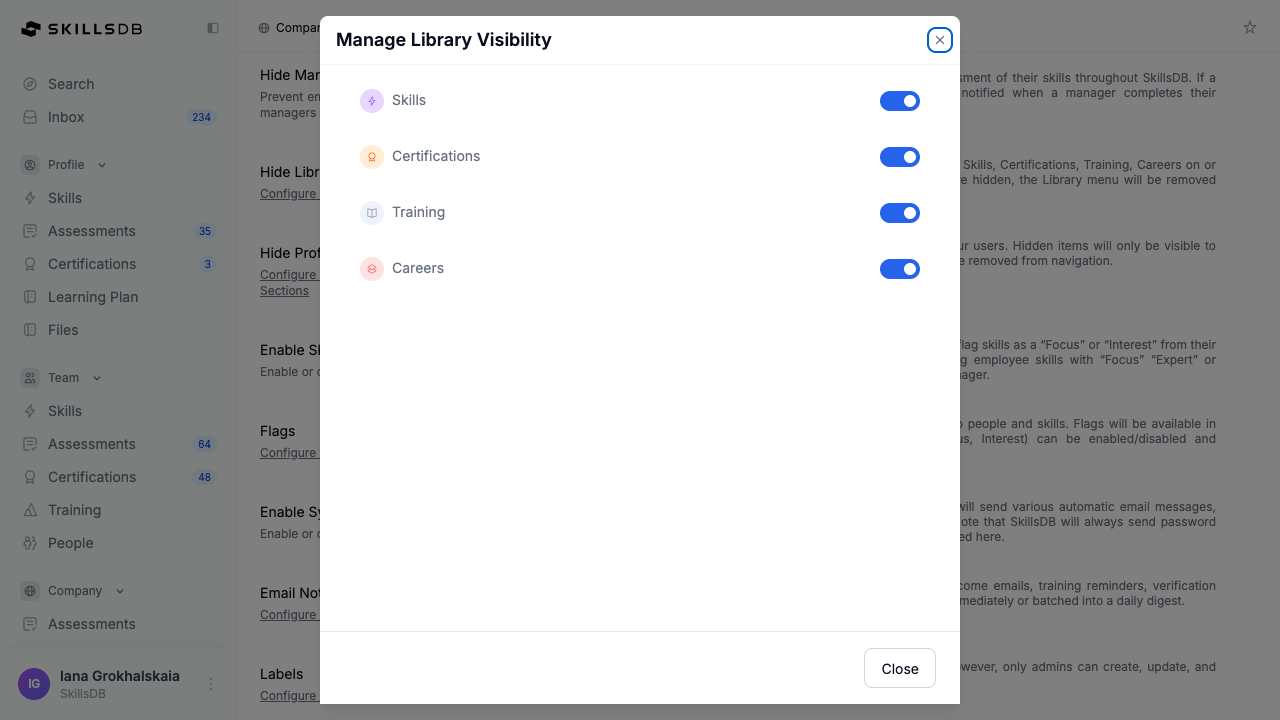 When you switch a section off, it is hidden from every non-administrator’s sidebar and the
corresponding pages become inaccessible to them. If you switch all four off, the Library group
disappears from navigation entirely for those users.
Administrators, GlobalAdmins, and Full Access users continue to see all four sections regardless
of these switches, so you can keep building a library while it is hidden from everyone else.
Select Close when you are finished. Changes save as you toggle — there is no separate save step.
When you switch a section off, it is hidden from every non-administrator’s sidebar and the
corresponding pages become inaccessible to them. If you switch all four off, the Library group
disappears from navigation entirely for those users.
Administrators, GlobalAdmins, and Full Access users continue to see all four sections regardless
of these switches, so you can keep building a library while it is hidden from everyone else.
Select Close when you are finished. Changes save as you toggle — there is no separate save step.
Controlling Profile and Team Section Visibility
The Hide Profile & Team Sections setting controls which items appear under the Profile and Team sidebar groups. Select Configure Visibility Of Profile & Team Sections to open the Manage Profile & Team Visibility modal.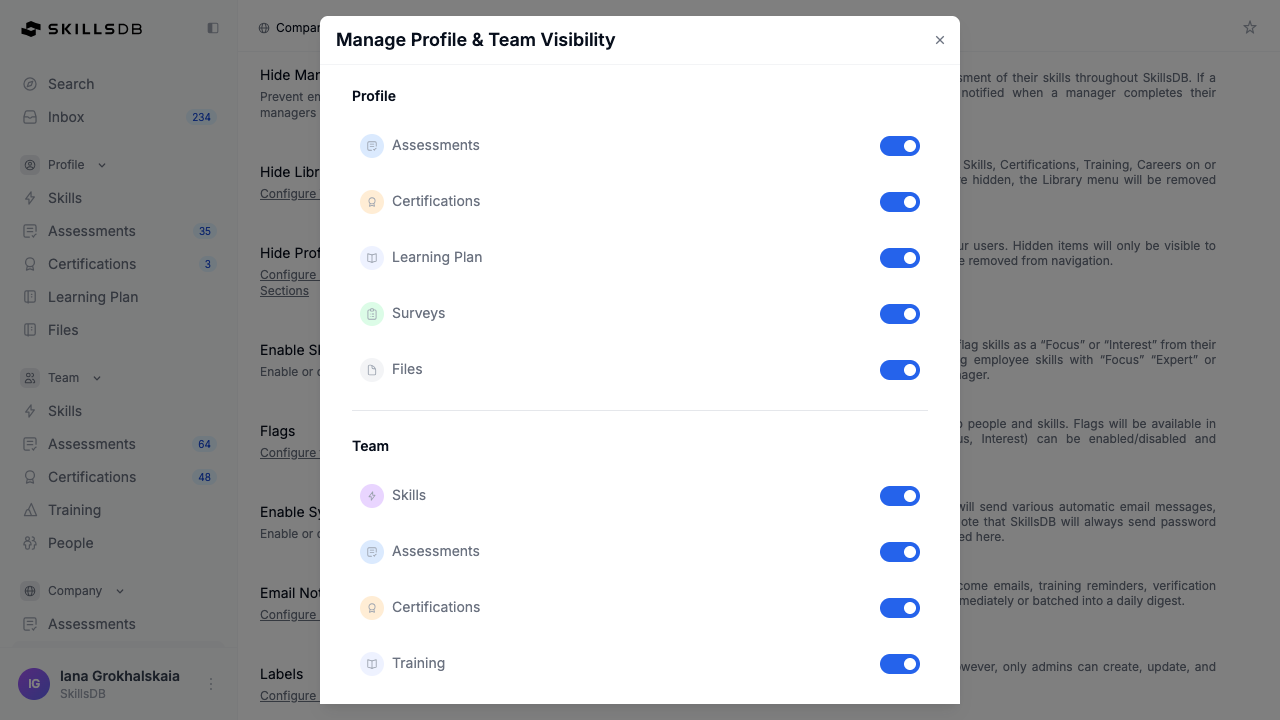
- Profile switches
- Team switches
Profile > Skills has no switch. It is the universal landing page after sign-in, so
hiding it would lock users out of the application on login.
Enabling System Emails
The Enable System Emails switch controls whether SkillsDB sends automated email at all. When system emails are enabled, SkillsDB sends automatic messages such as assessment notifications and certification reminders. When they are disabled, none of those messages are sent — assessment nudges, for example, will silently do nothing.Note: SkillsDB always sends password recovery email, whether or not system emails are
enabled here. Password recovery is not affected by this setting.
Showing Skill Assignment Dates
The Skill Assignment Dates setting controls whether users see the date each skill was assigned to them while they are taking an assessment. Select Configure Date Assigned In Assessments to open the Manage Date Assigned Visibility modal, which contains two switches:
The two switches are independent. Showing the date to managers while hiding it from employees is a
valid configuration.
Assignment dates help assessors judge whether a low grade reflects a genuine gap or simply a skill
that was added last week. Select Close when you are finished.
Configuring the Overall Training Status Page
The Team Skill Overall Progress setting configures the Team > Skills > Overall Training Status page. Select Configure Overall Training Status page to open the modal.
The three Progress Breakdowns toggles are independent — switch on only the breakdowns that
match how your organization groups skills. If your skills are organized by section but you do not
use labels, switch Progress by Section on and leave Progress by Label off so managers are
not shown an empty breakdown.
Note: This setting appears only if the underlying configuration rows exist for your company.
If you do not see Team Skill Overall Progress on the Settings page, contact SkillsDB Support.
Common Questions
What is the difference between Page Settings and Organization Settings?
What is the difference between Page Settings and Organization Settings?
Page Settings are the on/off toggles that control what users see and which behaviors are
active — library visibility, profile and team sections, manager grades, skill flags, system
emails. Organization Settings covers the structural configuration
that defines your data: the grading scale, search permissions, training library attributes,
and org structure. Both live on the same Company > Settings page.
I hid a section but I can still see it. Why?
I hid a section but I can still see it. Why?
Users with the GlobalAdmin, Admin, or Full Access role bypass every visibility toggle by
design, so administrators can continue configuring a section while it is hidden from everyone
else. Sign in as a standard employee or manager account to confirm the setting is applied.
Do I lose data when I hide a section or disable a feature?
Do I lose data when I hide a section or disable a feature?
No. Visibility toggles and feature switches only control what is displayed. Skill flags,
certifications, learning plans, and assessment records are all retained while a section is
hidden and reappear unchanged when you switch it back on.
Can I hide Profile > Skills?
Can I hide Profile > Skills?
No. Profile > Skills is the page every user lands on after signing in, so it has no
visibility switch. Hiding it would leave users with no accessible page at login.
If I disable system emails, will assessment nudges still work?
If I disable system emails, will assessment nudges still work?
No. A nudge is a system email. If Enable System Emails is off, selecting Nudge on an
assessment will not deliver anything to participants. Password recovery email is the only
exception — it is always sent.
Do Page Settings apply per team or per user?
Do Page Settings apply per team or per user?
Neither. Every setting on the Company > Settings page is organization-wide and applies to
all users in your SkillsDB instance. There is no per-team or per-user override.
Related Articles
Organization Settings
Configure the grading scale, search permissions, training library attributes, and org structure
Skill Flags
Set up skill flag types and trainer designations
Email Notifications
Choose which automated notification types your company sends
Proficiency
Understand how grades and manager assessments work
Need More Help?
If you need additional assistance:- Email support@skillsdb.com
- Use the in-app help chat
- Schedule a training session with your account manager