

Quick Summary: The Certifications Library is where administrators define, organize, and manage your organization’s certification catalog. From here you can create certification records, assign them to employees, review submission proof, and track completion and expiration status across the whole organization.
Overview
The Certifications Library is the administrative hub for all certifications in SkillsDB. Administrators build the library by creating certification records — defining the name, issuing authority, type, and other metadata for each certification the organization tracks. Once a certification exists in the library, administrators and managers can assign it to employees, who then submit their proof of completion. That proof flows into an approval workflow where a manager or administrator reviews and approves or rejects the submission. SkillsDB handles the full certification lifecycle from the library: assignment, submission, approval, expiration tracking, and renewal. Every approved submission is stored with a full history, so administrators have an auditable record of who holds which certifications, when they were earned, and when they expire. Administrators have full access to the library — they can create, edit, and delete certification records and manage certification types. Managers can assign certifications to their direct reports and approve their team’s submissions, but cannot create or modify certification definitions. Employees interact with certifications from their own profile and cannot access the library.Prerequisites
Before using the Certifications Library, you need:- Permission level: Administrator role
- Access: Navigate to Library > Certifications
Note: The Certifications Library is only visible in the sidebar for administrators. Employees see their personal certifications at Profile > Certifications, and managers see their team’s certifications at Team > Certifications.
Managing Certification Types
Certification types are the categories used to organize your certification catalog — for example,Compliance, Technical, Safety, Leadership, or Vendor. Defining types before building the library makes it easier to filter and report on certifications later.
To manage certification types:
- Navigate to Library > Certifications
- Select Manage Types in the top navigation bar
- The Manage Types drawer opens, showing all existing types in order
- Add a type — enter a name and select Save
- Edit a type — select the edit icon next to any type and update the name
- Delete a type — select the delete icon; any certifications using that type will have their type field cleared
- Reorder types — drag types into the preferred display order using the drag handle
Building the Certifications Library
Creating a certification
To add a new certification to the library:- Navigate to Library > Certifications
- Select + Certification in the top navigation bar
- Enter the certification name and optionally complete Additional Information:
- Select Continue, then choose a certification type to create the certification. A type is required; use Create certification type if you need a new one.
Expiration dates and proof attachments belong to individual submissions. They are not fields in the library’s create or edit dialog.
Editing a certification
- Navigate to Library > Certifications
- Select the certification row to open the detail page
- Select Actions > Edit. The dialog prepopulates the name, description, type, issuing authority, and labels
- Update the fields and select Save changes
Deleting a certification
- Navigate to Library > Certifications
- Select the certification row and access the delete option from the detail page or row actions
- Confirm the deletion in the dialog that appears
Assigning Certifications to Employees
Certifications must be assigned to employees before they can submit proof of completion. Assigning a certification creates an Assigned record on the employee’s profile and triggers a notification prompting them to submit their details.Assigning from the library
- Navigate to Library > Certifications
- Locate the certification you want to assign
- In the People (#) column, select the people count to open the assignment panel
- The assignment panel opens, showing a searchable list of all employees
- Search for employees by name using the Search people… field
- Select Assign next to each person you want to assign the certification to
Assigning from the certification detail page
Selecting a certification’s name in the library opens its detail page, which shows a table of all people currently assigned to that certification along with their status. From the detail page, you can also open the assignment panel to add more people.Unassigning a certification
To remove an assignment before a submission has been made:- Open the assignment panel for the certification
- Select Unassign next to the person’s name
Note: Managers can assign certifications to their direct reports from Team > Certifications. Managers cannot assign certifications to employees outside their direct reporting structure.
Reviewing and Approving Submissions
When an employee submits their certification details and proof, the status moves to Awaiting Approval and the reviewing manager or administrator receives a notification in their inbox. Approving or rejecting the submission is the final step in the assignment workflow.Reviewing a pending submission
- Open your Inbox from the left sidebar — pending certification approvals are listed there
- Select the certification submission you want to review
- The review dialog opens, showing:
- The employee’s name and the certification details
- Certification ID — the serial number or identifier the employee entered
- Date Granted — when the employee earned the certification
- Expiration Date — when the certification expires for this employee
- Attachments — uploaded proof documents (click to download or preview)
- Review the submitted information and supporting documents
- Select Approve to mark the certification as approved, or Reject to send it back to the employee
What happens after approval or rejection
If approved:- The certification status changes to Approved on the employee’s profile
- The approval is recorded with the approver’s name and timestamp
- If the certification has an expiration date, it will automatically become Expired on that date
- The certification status changes to Denied
- The employee is notified and prompted to resubmit with corrected information
- The employee can review the rejection and submit updated details
Understanding Certification Statuses
Every certification assignment has a status that reflects where it is in the lifecycle. The following statuses appear in the certification detail page and in manager and employee views: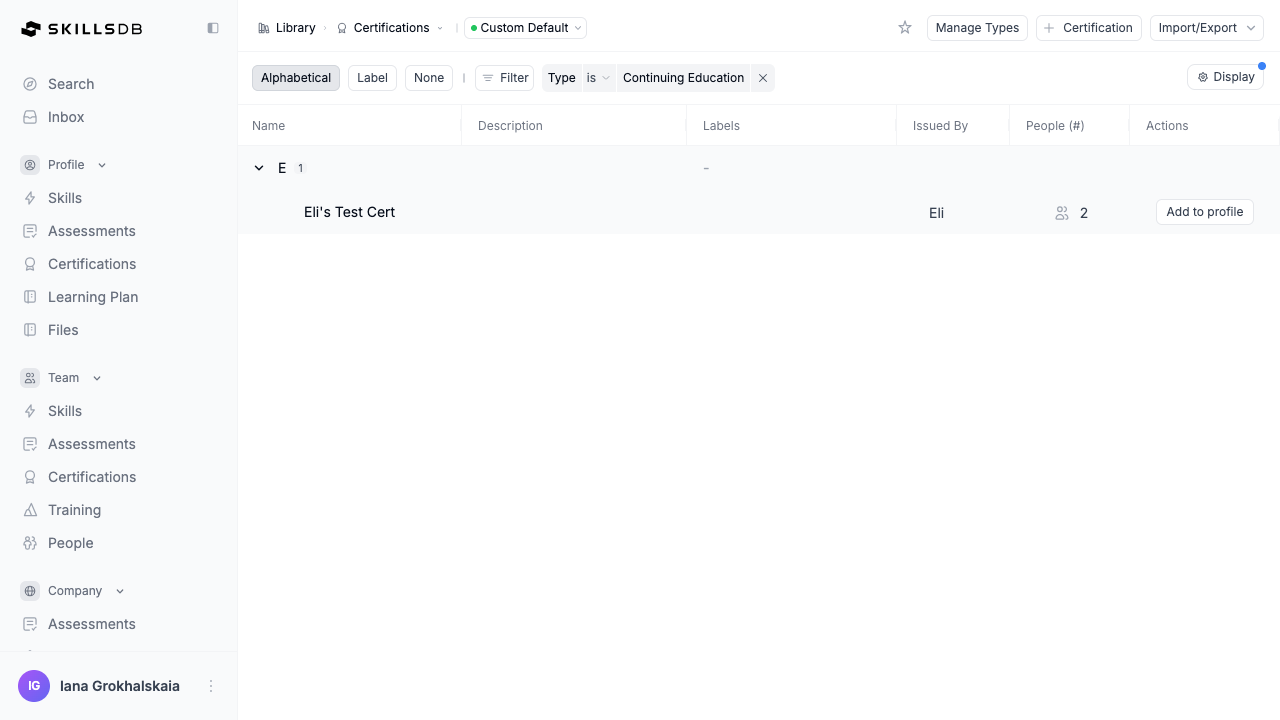
Note: A certification with status Expiring Soon appears when the approved submission’s expiration date is within 30 days. This status is displayed as a yellow badge in the expiration date column and serves as an early warning to prompt renewal.
Tracking Expiration and Managing Renewals
Expiration tracking
SkillsDB automatically calculates expiration status based on the expiration date on each employee’s approved submission:- If today’s date is before the expiration date by more than 30 days: certification is active with no warning
- If today’s date is within 30 days of the expiration date: status displays as Expiring Soon (yellow)
- If today’s date is on or after the expiration date: status displays as Expired (red)
Renewal workflow
When an employee’s certification expires, they can initiate a renewal from their profile page. The renewal creates a new submission record (a new grade) linked to the same certification — the employee provides updated credentials, a new expiration date, and new proof documents. The renewal submission follows the same approval workflow as the original submission: the employee submits, the manager or administrator reviews, and either approves or rejects. When approved, the new submission becomes the active record. All previous submissions are preserved in the certification history, giving a complete audit trail of every renewal cycle.Navigating the Certifications Library
To access the Certifications Library, select Library > Certifications from the left sidebar.Group By
The library supports three grouping modes via the toggle at the top of the page:Library table columns
Filtering
Select Filter in the toolbar to open the filter menu. Available filters: Name, Description, Labels, Issued By, Type, People (#).Importing and exporting certification data
Select Import/Export in the top navigation bar to access import and export options. To export the library to Excel:- Navigate to Library > Certifications
- Select Import/Export in the top navigation bar
- Select Export
- An
.xlsxfile downloads containing the visible data
Common Questions
Can employees add certifications to their own profile without being assigned by an admin?
Can employees add certifications to their own profile without being assigned by an admin?
No. Employees cannot add certifications to their own profile independently. A certification must first be assigned to an employee by an administrator or manager before the employee can submit their proof of completion. This ensures that only organization-approved certifications are tracked in SkillsDB.
Can I assign the same certification to multiple employees at once?
Can I assign the same certification to multiple employees at once?
Yes. Open the assignment panel for a certification and use the Search people… field to find employees one by one, selecting Assign for each. There is no single “select all and assign” button for batch assignment, so each employee is assigned individually from the same panel without needing to close and reopen it.
What happens if I delete a certification type that is in use?
What happens if I delete a certification type that is in use?
Deleting a certification type removes the type from the Manage Types list and clears the Type field on any certifications that were using it. The certifications themselves are not deleted — only their type association is removed. You can reassign a new type to those certifications at any time by editing each one.
Can a certification have different expiration dates for different employees?
Can a certification have different expiration dates for different employees?
Yes. The expiration date on the certification library record is optional and applies to the certification definition itself. Each employee enters their own personal expiration date when submitting their proof of completion. This means the same certification can have different expiration dates across different employees, reflecting when each individual’s credential actually expires.
What attachments can employees submit as proof?
What attachments can employees submit as proof?
Employees can upload up to five files per submission. Accepted formats are
.jpg, .png, .pdf, .docx, .xlsx, .txt, and .csv. Each file can be up to 10 MB. Employees can also include a certification ID number (such as a serial number or badge ID) and the date the certification was first granted.Can certifications be linked to job roles or careers?
Can certifications be linked to job roles or careers?
Yes. Certifications can be attached to job roles (Careers) in SkillsDB, so that employees assigned to a role can see which certifications are expected for it. This is configured from the career management side. See Library > Careers for details.
Can I see a history of all submissions and renewals for a specific employee's certification?
Can I see a history of all submissions and renewals for a specific employee's certification?
Yes. Each certification assignment maintains a full history of every submission, approval, rejection, and renewal. To view the history, open the certification detail page (Library > Certifications > [Certification Name]) and select the employee’s row. The individual record shows all grade history including dates, approval decisions, and attachments for every submission cycle.
Can certifications be captured through surveys?
Can certifications be captured through surveys?
Yes. Surveys in SkillsDB support a Certification Request question type that allows employees to confirm and submit certification details as part of a survey response. Responses to this question type flow into the standard certification approval workflow. See Surveys for information on building survey templates.
Related Articles
Managing Certifications
How employees view their assigned certifications and submit proof of completion
Certification Tracking
How managers track and approve certification submissions for their team
Explore Certifications
Org-wide certification visibility for admins and managers
Surveys
Collect certification data from employees through surveys
Library > Careers
Link certifications to job roles and career paths
Need Help?
If you run into any issues or have questions, reach out to your organization’s SkillsDB administrator or contact SkillsDB Support.