

Quick Summary: Upskilling in SkillsDB is a focused view that bridges skill gaps and learning resources. When admins attach resources to skills in the Learning Library, those skills automatically surface in every user’s Upskilling view, giving the whole organization a clear path from gap to growth.
Overview
Upskilling is a skill development feature in SkillsDB that surfaces skills alongside their associated learning resources. Rather than showing every skill a user holds, the Upskilling view shows only skills that have learning resources attached — creating a focused, action-oriented workspace for professional development. The feature exists to answer a fundamental question employees and managers face: “I know I have a skill gap — now what?” Instead of leaving users to search the Learning Library independently, Upskilling presents development opportunities in context, directly against the skills they are already being measured on. As an administrator, you enable Upskilling by populating the Learning Library and linking resources to skills. Once resources are attached to a skill, that skill automatically appears in the Upskilling view for any user who holds it. No additional configuration is required. Upskilling is used by all three role levels. Employees use it to find and add development resources to their learning plan. Managers use it to assign resources to their direct reports. Global admins use it to edit library resources directly. Understanding this flow helps you design your Learning Library to maximize adoption of your upskilling program.How Upskilling Works
The Upskilling view is driven entirely by the Learning Library. The connection works as follows:- An admin adds a learning resource to the Learning Library under Library > Training.
- That resource is linked to one or more skills in the library.
- Any user who has that skill in their skills profile sees the skill appear in their Upskilling view.
- The user can then add the resource to their learning plan or, if a manager, assign it to a team member.
Note: A skill only appears in the Upskilling view if it has at least one learning resource attached to it. Skills without resources do not appear, even if the user holds that skill.
Setting Up Upskilling for Your Organization
Administrators control what appears in the Upskilling view by managing the Learning Library. To ensure skills appear in the Upskilling view:Step 1: Add resources to the Learning Library
- Navigate to Library > Training.
- Select + New to create a new learning resource.
- Enter the resource details, including the Title, Type, Provider, and URL if applicable.
- Select Save.
Step 2: Link resources to skills
After creating a resource, link it to one or more skills so the resource appears in the Upskilling view for users who hold those skills.- Navigate to Library > Skills.
- Select the skill you want to link the resource to.
- In the skill detail view, locate the Learning Resources section.
- Add the relevant resource from the library.
Accessing the Upskilling View
The Upskilling view is accessed from the Skills page, which is available to all users.- Select Skills from the left sidebar.
- In the breadcrumb navigation at the top of the page, select Upskilling.
Note: If no skills appear in the Upskilling view, it means no learning resources have been linked to that user’s skills. Review the Learning Library to confirm resources are attached to the relevant skills.
Understanding the Upskilling Table
The Upskilling table lists skills as collapsible rows. Each skill row shows the skill name, any labels applied to that skill, and a Not Started progress badge indicating no resources in that skill have been added to the user’s learning plan yet. Selecting a skill row expands it to reveal the individual learning resources attached to that skill. Each resource row displays the following columns: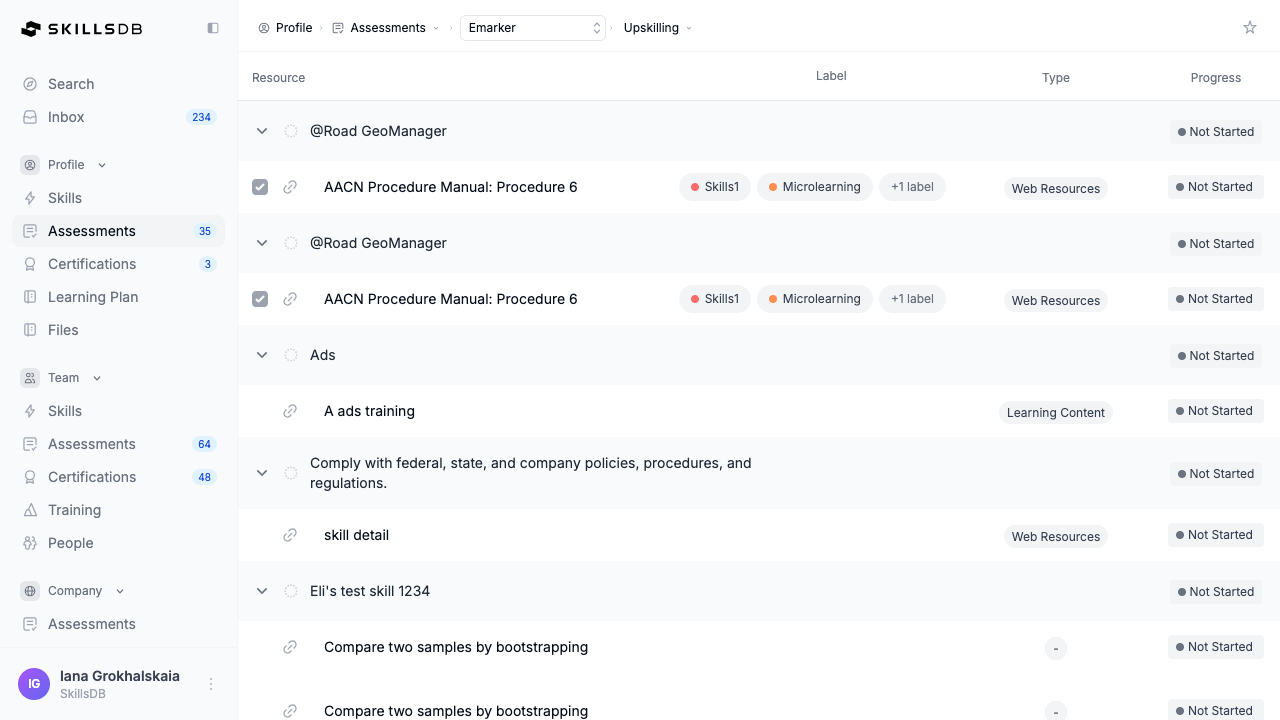 Selecting a skill row again collapses it and hides the resource rows.
Filtering the Upskilling view
A filter dropdown at the top left of the Upskilling view controls which skills are displayed:
To apply a filter, select the filter dropdown button and choose the desired option.
Taking Action on Resources
Users interact with resources by selecting the checkbox next to one or more resource rows. When at least one resource is selected, a floating action bar appears at the bottom of the screen. The actions available in the floating action bar depend on the user’s role:Adding resources to your learning plan
Employees can add resources from the Upskilling view directly to their own learning plan.- Select the checkbox next to one or more resources.
- In the floating action bar, select Add.
Note: The Add button is disabled if all selected resources are already in the user’s learning plan. A resource cannot be added twice.
Assigning resources to team members
Managers and administrators can assign resources from the Upskilling view to one or more team members.- Select the checkbox next to a resource.
- In the floating action bar, select Assign.
- In the Assign window, select the team member(s) to assign the resource to.
- Confirm the assignment.
Editing a learning resource
Global admins can edit a resource’s details directly from the Upskilling view without navigating to the Learning Library.- Select the checkbox next to exactly one resource.
- In the floating action bar, select Edit.
- In the Edit Resource dialog, update the resource fields as needed.
- Select Save.
Upskilling in Assessment Scorecards
The Upskilling view is not limited to the Skills page. When users complete a self-assessment or receive a manager assessment, the resulting scorecard includes an Upskilling tab alongside the standard grades view. The Upskilling tab in a scorecard shows only the skills from that specific assessment that have learning resources attached. This allows users and managers to immediately act on skill gaps identified during an assessment — browsing resources and adding them to a learning plan without leaving the scorecard context. Managers viewing a direct report’s scorecard see the same Upskilling tab and can use the Assign button to push development resources to that team member directly from the assessment results.Role and Permission Reference
Common Questions
Why is a skill not showing up in the Upskilling view?
Why is a skill not showing up in the Upskilling view?
A skill only appears in the Upskilling view if it has at least one learning resource attached to it in the Learning Library. If a skill is missing, navigate to Library > Skills, open the skill, and confirm that one or more resources are linked. If no resources are linked, add them from the library. Once a resource is attached, the skill appears immediately in the Upskilling view for all users who hold it.
Can a user see skills in Upskilling that are not in their skills profile?
Can a user see skills in Upskilling that are not in their skills profile?
No. The Upskilling view shows only skills that are part of the user’s skills profile and have attached learning resources. Skills the user does not hold do not appear, even if they have resources linked.
What is the difference between the Upskilling view and the Learning Library?
What is the difference between the Upskilling view and the Learning Library?
The Learning Library (accessible under Library > Training) is the organization’s full catalog of learning resources, managed by administrators. The Upskilling view is a personalized, user-specific view that shows only the resources connected to skills in that user’s profile. Users cannot browse the full Learning Library directly; they see resources only in the context of skills they hold.
Can employees see each other's Upskilling views?
Can employees see each other's Upskilling views?
No. Each user’s Upskilling view is private and shows only their own skills and associated resources. Managers can view a direct report’s upskilling resources through the assessment scorecard Upskilling tab, but not through a standalone profile view.
What happens when a resource is removed from a skill in the library?
What happens when a resource is removed from a skill in the library?
If a learning resource is unlinked from a skill, that skill may no longer appear in users’ Upskilling views — provided no other resources remain linked to that skill. Any existing learning plan items where users have already added that resource are not affected.
Can a manager assign resources to someone outside their team?
Can a manager assign resources to someone outside their team?
No. Managers can assign resources only to users within their reporting structure. The Assign window scopes available people to the manager’s direct reports. Global admins can assign resources to any user in the organization.
Related Articles
Building a Learning Plan
How users track and manage learning resources in their learning plan
Skill Gaps
How skill gaps are identified and displayed across SkillsDB
Skills Matrix
How to view and analyze skill proficiency across your organization
Need Help?
If you run into any issues or have questions, reach out to your organization’s SkillsDB administrator or contact SkillsDB Support.