

Quick Summary: The Inbox is your central hub for everything that needs your attention — assessments to complete, certifications and training to approve, skill requests to review, and survey invitations. Items are organized into categories so you can prioritize what matters most.
Overview
The Inbox consolidates every actionable item in SkillsDB into a single, filterable list. Instead of checking multiple pages for pending assessments, outstanding approvals, or new requests, you open the Inbox and see everything that requires your attention. What appears in your Inbox depends on your role. Employees see their own assessments and survey invitations. Managers also see team assessments and certification or training approvals. Administrators see all of the above plus skill requests, certification requests, and training suggestions submitted by others across the organization. The Inbox is accessible from the left sidebar and displays a badge count showing the total number of unresolved items. This count updates automatically as items are completed, approved, or archived.Inbox Categories
Items in the Inbox are grouped into categories. Select a category from the type filter to narrow the list, or select All Types to see everything together. A category appears only if you have items of that type, so the set you see depends on your role.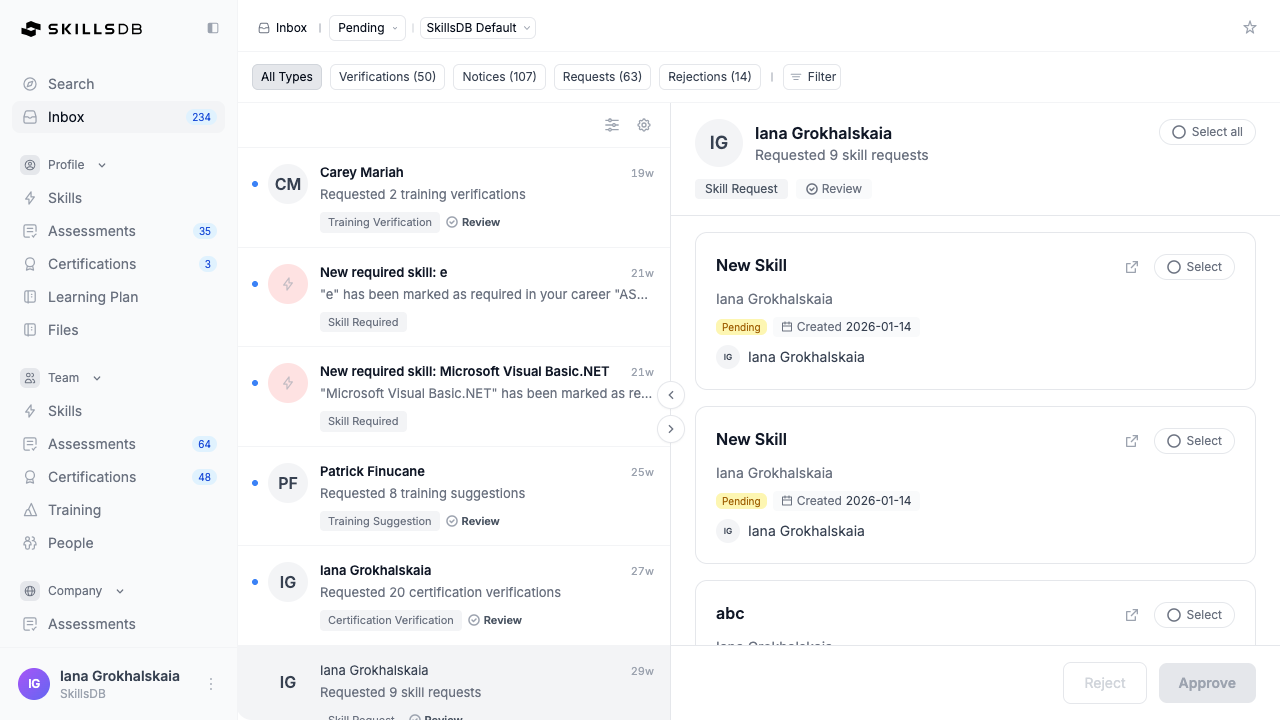
Notices
Notices include items that require you to take action — typically completing an assessment or responding to a survey.- Self Assessment — An assessment assigned to you for self-evaluation. Action: Start (new) or Continue (in progress).
- Manager Assessment — An assessment assigned to you as a manager to evaluate your team. Shows the number of employees assigned (e.g., “16 employees assigned”). Action: Start or Continue.
- Survey — A survey you have been targeted with. Action: Start or Continue.
Verifications
Verifications appear when a team member submits a record that requires your review.- Certification Verification — A team member submitted a certification for review. Action: Review (opens the certification detail to approve or reject).
- Training Verification — A team member submitted a training completion record. Action: Review.
- Journey Approval — A journey step assigned to you requires your approval. Action: Review.
Requests
Requests are submitted by employees or managers and require administrator action.- Skill Request — An employee requested to add a skill to their profile or to the organization’s library. Action: Review (approve, reject, or edit).
- Certification Request — A request for a certification to be added. Action: Review.
- Training Suggestion — A training resource suggestion submitted for review. Action: Review.
Rejections
Rejections collect the terminal outcomes of the review process in one place, so a decision does not get lost in the main feed.- Rejected — A pending request or approval that a reviewer declined.
- Cancelled — An approval that was granted and later revoked.
Item Statuses
Each Inbox item displays a status badge indicating where it stands: Statuses vary by category. Notices (assessments, surveys) use lifecycle statuses; approvals and requests use review statuses. Notices
Verifications, Requests, and Rejections
Items with a Past due status display a red warning icon next to the due date.
Filtering the Inbox
Pending, Archived, and All
The view dropdown in the breadcrumb bar lets you switch between three views:- Pending — Shows only unarchived, active items. This is the default view and displays a count (e.g., “Pending (11)”).
- Archived — Shows only items you have previously archived.
- All — Shows both active and archived items together.
Note: If the count exceeds 1,000, the badge displays 1k+ rather than an exact number.
SkillsDB stops counting at 1,000 so the Inbox stays fast on very large queues.
Filter Controls
Select the Filter button to narrow your Inbox by:- Status — Filter by item status (To Do, Past Due, Awaiting Approval, etc.)
- Person — Filter by employee name
- Due Date — Filter by date range (Today, This Week, This Month, or a custom range)
- Type — Select or deselect specific item types
Taking Action on Inbox Items
The Action column on each row provides a button to act on the item:
After you complete an action, the item’s status updates automatically and it moves out of the active Inbox view.
Inbox Badge Count
The sidebar badge next to Inbox shows the total count of items requiring attention. This count is the sum of:- Incomplete self assessments and manager assessments
- Pending certification and training approvals (managers and admins)
- Outstanding skill requests, certification requests, and training suggestions (admins)
- Incomplete survey invitations
Common Questions
Why do I see different items than my colleague?
Why do I see different items than my colleague?
Inbox content is role-based. Employees see only their own assessments and surveys. Managers also see approvals for their direct reports. Administrators see all approvals and requests organization-wide. If you expect to see items that are missing, check with your administrator to confirm your role and permissions.
What happens when I archive an item?
What happens when I archive an item?
Archiving removes the item from your default Inbox view but does not delete it or affect the underlying record. You can find archived items by selecting Archived from the Pending view switcher in the breadcrumb. Archiving is useful for clearing items you have already reviewed but do not want to delete.
Can I act on items in bulk?
Can I act on items in bulk?
Yes, for grouped review items. When several requests come from the same person, the Inbox groups them into one row — for example, “Requested 9 skill requests”. Selecting that row opens a detail pane listing each request, with a Select control on every card and a Select all button at the top. Choose the items you want and then use Approve or Reject at the bottom of the pane to action them together. Both buttons stay disabled until you select at least one item. Items that are not grouped are actioned individually with Start, Continue, or Review.
Why is my badge count different from the number of items I see?
Why is my badge count different from the number of items I see?
The badge count reflects all active items across all categories. If you have a category filter selected (e.g., Verifications only), the visible list may show fewer items than the badge count. Switch to All Types to see the full count.
Related Articles
Self-Assessments
Learn how to complete self-assessments that appear in your Inbox.
Manager Assessments
Understand how to complete manager assessments for your team.
Training Approvals
Learn about the training approval workflow and how to review submissions.
Surveys
Understand how surveys work and how to respond to survey invitations.
Need Help?
If you run into any issues or have questions, reach out to your organization’s SkillsDB administrator or contact SkillsDB Support.