

Quick Summary: Surveys are questionnaires assigned to you by your manager or administrator. This article explains how to find, complete, and submit surveys in SkillsDB.
Overview
Surveys in SkillsDB are structured questionnaires that your organization uses to gather information about skills, development needs, certifications, and other workplace topics. When a manager or administrator creates a survey and assigns it to you, it appears in your personal survey list for you to complete. Surveys can contain a variety of question types — from simple yes/no questions to rating scales, open-ended text responses, and file uploads. Some questions are required and must be answered before you can submit the survey. Others are optional and can be skipped. Your responses are saved automatically as you move between questions, so you can pause and return to a survey at any time without losing your progress. Once you submit a survey, you can view your responses but cannot edit them.Prerequisites
Before responding to a survey, you need:- Access requirement: A SkillsDB user account
- Setup requirement: At least one survey assigned to you by a manager or administrator
Understanding Your Surveys
Select Surveys from the left sidebar to open the My Surveys page. This page displays all surveys that have been assigned to you. At the top of the page, status filter chips let you quickly filter your surveys:- All — shows every survey assigned to you
- Not Started — surveys you have not yet opened
- In Progress — surveys you have started but not submitted
- Completed — surveys you have submitted
- Past Due — surveys whose due date has passed without submission
Survey statuses
How to Respond to a Survey
Step 1: Open the survey- Select Surveys from the left sidebar
- Locate the survey you want to complete in the My Surveys list
- Select the action button to open the survey:
- Start — appears when the survey status is Not Started
- Continue — appears when the survey status is In Progress or Past Due
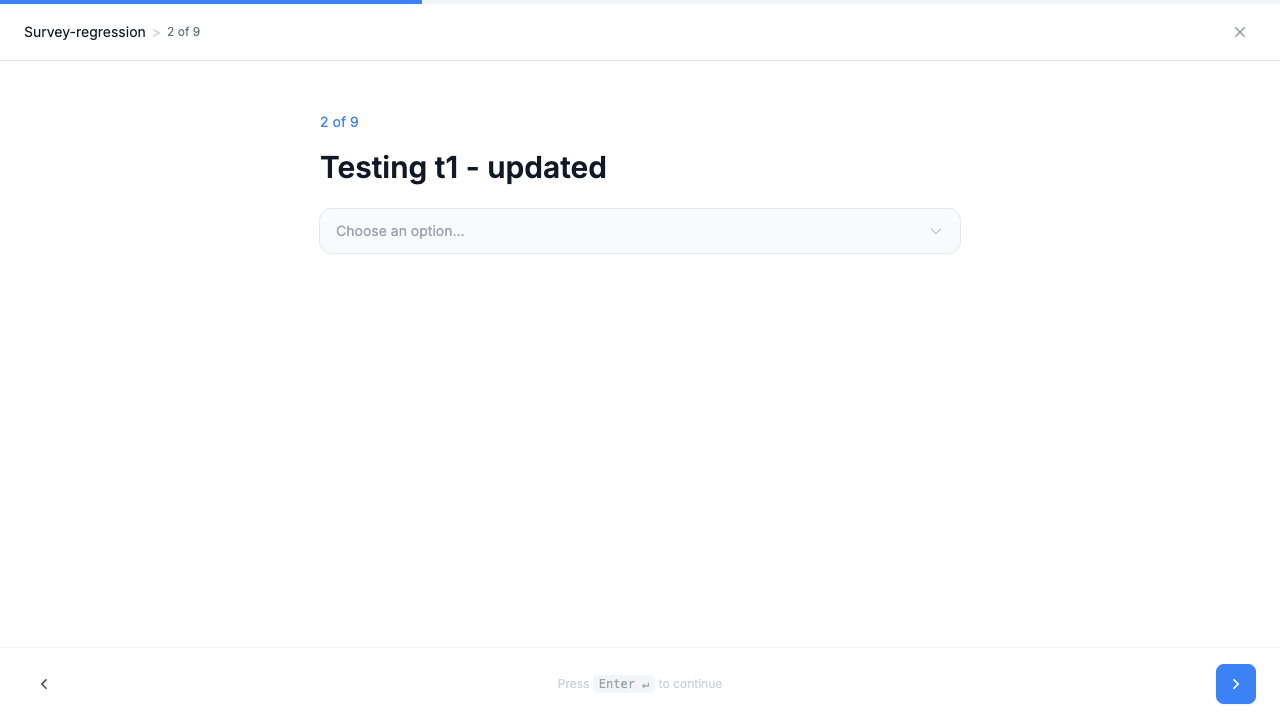
- Select the right arrow in the footer, or press Enter, to save your current response and advance to the next question
- Select the left arrow in the footer to return to the previous question
- Select the × in the top right to close the survey and return to the My Surveys page
2 of 9. The same counter appears above the question title. The footer shows the hint Press Enter ↵ to continue.
Note: Your response is automatically saved each time you move to a different question. If you close the survey and return later, your answers are preserved.
 If a required question is unanswered, the forward arrow does not advance and the message This question requires a response appears above the footer. Optional questions can be skipped.
Step 3: Answer each question
Answer each question using the input method provided. Required questions are marked with a red asterisk (
If a required question is unanswered, the forward arrow does not advance and the message This question requires a response appears above the footer. Optional questions can be skipped.
Step 3: Answer each question
Answer each question using the input method provided. Required questions are marked with a red asterisk (*) after the question title and must be answered before you can submit the survey. Questions without an asterisk are optional and can be left blank.
The following question types may appear in a survey:
Note: Older surveys may also contain Rating, Yes/No, or Likert questions. These types still display and accept answers, but they are no longer offered when building a new survey.
Note: Rating scales and other configurable question types may use different ranges depending on how your administrator has set up the survey.
- Accepted formats:
.jpg,.png,.pdf,.docx,.xlsx,.txt,.csv - Maximum file size: 10 MB per file
- Maximum number of files: 5 per upload question
- Select Go back to return to the survey and change any responses
- Select Submit Survey to submit your responses
Viewing a Completed Survey
After submitting a survey, you can view your responses at any time, but you cannot edit them.- Select Surveys from the left sidebar
- Locate the completed survey in the My Surveys list (status shows Completed)
- Select View
Note: Standard users cannot edit survey responses after submission. If you need to update a response, contact your manager or administrator.
Common Questions
Can I save my progress and return to a survey later?
Can I save my progress and return to a survey later?
Yes. SkillsDB automatically saves your responses each time you navigate to a different question. If you close the survey or leave the page, your progress is preserved. When you return, select Continue from the My Surveys list to pick up where you left off. The survey status shows In Progress until you submit.
Can I change my answers before submitting?
Can I change my answers before submitting?
Yes. You can navigate back to any previous question and change your response at any time before selecting Submit Survey. Use the left arrow in the footer to step back through the questions. Your updated response is saved when you navigate away from that question.
Can I edit my responses after I submit the survey?
Can I edit my responses after I submit the survey?
No. Once you select Submit Survey and your responses are submitted, they cannot be edited. You can view your completed responses by selecting View Response in the My Surveys list. If you need to correct a submitted response, contact your manager or administrator.
What happens if I miss the due date?
What happens if I miss the due date?
If the due date passes before you submit, the survey status changes to Past Due. A past due survey may still be accessible — select Continue to check if the survey is still open. If the survey has been closed by the administrator, it will no longer be available to complete.
Do I have to answer every question?
Do I have to answer every question?
Only questions marked with a red asterisk (
*) must be answered before you can submit the survey. Questions without an asterisk are optional and can be left blank. You cannot submit while required questions remain outstanding — the review screen shows how many are left.Are my survey responses anonymous?
Are my survey responses anonymous?
No. Survey responses in SkillsDB are linked to your user account. Your manager and administrator can see that your responses came from you. If you have questions about how your responses are used, contact your manager or administrator.
Why don't I see any surveys?
Why don't I see any surveys?
Surveys are only visible in your My Surveys list when a manager or administrator has assigned a survey to you. If the list is empty, no surveys have been assigned to your account yet. Contact your manager if you believe you should have received a survey.
Related Articles
Your Skills Profile
View and manage your skill ratings and proficiency levels
Self Assessments
Complete skill self-assessments assigned by your manager
Managing Certifications
Track and submit your professional certifications
Need Help?
If you run into any issues or have questions, reach out to your organization’s SkillsDB administrator or contact SkillsDB Support.