

Quick Summary: Manager assessments let you grade your direct reports’ skill proficiency across their assigned roles. You can grade team members one at a time or work through your whole team skill by skill using batch grading. When both you and your team members complete your assessments, results appear side-by-side on each person’s scorecard.
Overview
A manager assessment is a formal evaluation cycle in which you grade the skill proficiency of your direct reports. Manager assessments run in parallel with employee self-assessments — while your team members grade their own skills independently, you assess each of them using your organization’s grading scale (typically 1–5). When both are complete, the scorecard shows your grades and the employee’s self-assessed grades side-by-side for comparison. Manager assessments exist to provide an independent perspective alongside each employee’s self-reported proficiency. Together, manager and self-assessments give your organization a more complete picture of skills across the team, which feeds into skills gap analysis, development planning, and workforce reporting. Assessments are created and assigned by administrators. You receive manager assessments for the direct reports assigned to you in SkillsDB. You do not create assessments yourself — if you believe you should have an active assessment but cannot see one, contact your administrator.Note: Manager and self-assessments are completed independently. By default, you cannot see your team members’ self-assessed grades while you are grading, and they cannot see yours. Both sets of grades become visible on the scorecard once the assessment is complete.
Navigating to Your Team’s Assessments
To view your active assessments select Assessments from the My Team section of the left sidebar. The My Team Assessments page shows all assessments currently assigned to you, including completed and ended ones. ACE quick filters — Not Started, In Progress, Completed, and Ended — narrow the list. You can select several statuses at once; results match any selected status. Select an active filter again to clear it. With no status filters selected, all available statuses appear, so there is no separate All filter. Draft assessments are not shown. Each row in the table displays: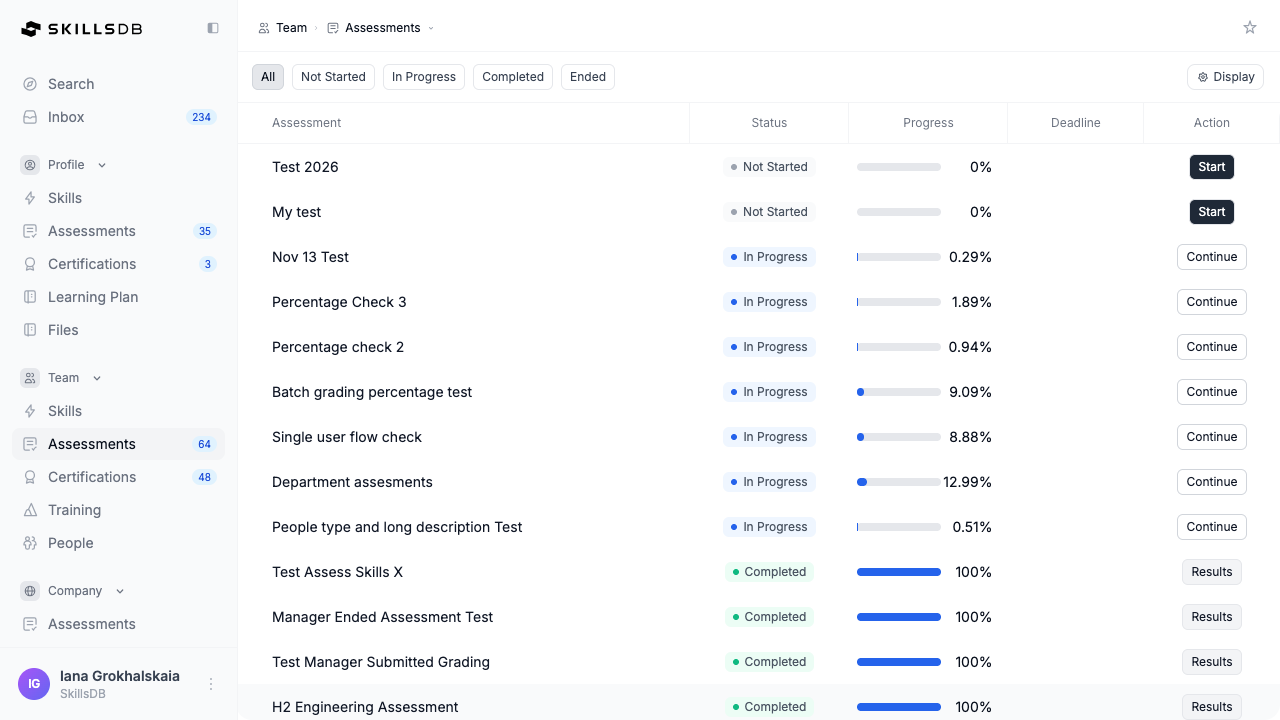 Select an assessment title or its action button to open it.
Opening an Assessment
Selecting an assessment opens its details page. This page is your home base for the full assessment — it shows overall progress, individual team member status, and your two grading options. Assessment metadata A card at the top of the page shows key information about the assessment:
Batch grading card
A prominent card shows your overall grading progress across the entire team, with a progress bar and a Start or Continue button. This is the entry point to batch grading. See Batch grading below for details.
Direct reports table
The table lists each of your direct reports with their current assessment status:
Action buttons available for each employee:
You can search for a specific team member using the search input above the direct reports table. The table filters by first or last name as you type.
Grading an Individual Team Member
Individual grading lets you work through one team member’s skills at a time. This is best when you want to give each person careful attention, review skill-by-skill context, or add comments as you grade. Starting individual grading- In the direct reports table, select Start or Continue next to a team member’s name.
Select Continue to proceed.
Step 2 — Assessment overview: A summary screen shows key information before you begin.
Select Start Assessment to begin. If you are returning to a partially completed assessment, the button reads Continue Assessment.
Understanding the grading layout
The grading interface is divided into three panels:
The center panel displays:
- Skill title — Shown as “[Section]: Skill Name” (for example, “Leadership: Team Management”)
- Skill description — A collapsible description of the skill
- Progress counter — “X of Y graded” in the top right, updated after each grade
Note: The Benchmark column only appears if a benchmark has been configured for this skill in the role. The Prior grade column only appears if this person was graded in a previous assessment cycle. Your administrator controls the grading scale labels (for example, “Beginner” through “Expert”).
Grading a Skill
To assign a grade to a skill:- In the Grade column, select Add Grade to open the grade selector.
- Choose the grade that best reflects this team member’s current proficiency. Each option shows a short description (for example, “Proficient”) and a longer explanation.
- Select your chosen grade. The grade saves automatically — there is no separate save step.
- A Benchmark badge next to the grade matching the role’s expected level
- A Prior badge next to the grade from the previous assessment cycle
Marking a Skill as Not Applicable
If a skill does not apply to a team member’s current role or responsibilities, you can mark it as Not Applicable instead of assigning a grade. To mark a skill as Not Applicable:- In the N/A column, toggle the switch on.
- The grade is cleared and the Grade column shows an N/A indicator.
- Skill flag buttons are disabled for that skill.
- The skill counts as complete toward your assessment progress.
- The skill is excluded from the average grade calculation in the completion summary.
Adding Skill Flags
Skill flags let you designate a team member’s standing or development status for a specific skill. Flags are visible on the team member’s Skills Profile and in org-wide skills searches. To add a skill flag:- In the Skill flags section of the grading table, select the flag you want to apply.
- The flag is saved immediately. Select it again to remove it.
Note: Skill flag availability depends on your organization’s configuration. If flag buttons are not visible, skill flags may not be enabled for your organization. Flags cannot be added to skills marked as Not Applicable.
Setting a Custom Benchmark
Each role has a default benchmark grade configured by your administrator. You can override this for an individual team member if their expected proficiency level differs from the role default. To set a custom benchmark:- Select Update Benchmark next to the Benchmark value for a skill.
- In the benchmark modal, select the grade that represents the expected level for this person.
- Select Save.
Navigating Between Skills
You can move through skills in any order at any time during grading. Using the navigation buttons:- Select Previous at the bottom of the page to return to the preceding skill.
- Select Next to advance to the next skill. The Next button activates once the current skill has been graded or marked Not Applicable.
- Select any skill to jump to it directly, regardless of order.
- Graded and N/A skills show a checkmark in the sidebar.
- Press
←to move to the previous skill. - Press
→to move to the next skill.
Submitting an Individual Assessment
You can submit your assessment for a team member once all their assigned skills have been graded or marked Not Applicable. When you select Next on the final skill (or pressEnter), SkillsDB checks whether any skills remain incomplete.
If incomplete skills remain:
A modal appears listing all skills that still need a grade or N/A, grouped by job role. Select any skill in the list to navigate directly to it and complete your input.
If all skills are complete:
A completion modal appears showing a summary of your grading:
To finalize:
- Review the summary.
- Select Submit.
Batch Grading
Batch grading lets you assess all of your direct reports skill by skill — working through one skill at a time across your entire team simultaneously. This is the most efficient approach for large teams and makes it easy to compare your team’s relative performance on each skill as you grade. Starting batch grading- On the assessment details page, select Start (or Continue) on the batch grading card.
Understanding the batch grading interface
The batch grading interface has three panels:
The center panel displays the current skill’s name and description at the top, followed by a row for each of your direct reports. Select a person’s cell (or use keyboard shortcuts) to assign a grade. Grades save automatically as you enter them.
Moving between skills in batch grading
After grading all team members for a skill, a confirmation prompt appears. Select Continue to advance to the next skill, or select any skill from the left sidebar to navigate directly to it. Use the right sidebar to see which skills still have ungraded cells.
Submitting batch grading
After grading all skills for all team members:
- Select Submit in the final confirmation modal.
Note: You can switch between individual and batch grading at any time within the same assessment. Grades made in one mode are immediately reflected in the other.
Viewing Scorecards and Results
After submitting an assessment for a team member, you can view their scorecard to see a side-by-side comparison of your grades and their self-assessed grades. To open a scorecard:- On the assessment details page, select Scorecard in the team member’s row.
- Your manager-assessed grade for each skill
- The team member’s self-assessed grade for each skill (if they have submitted their assessment)
- The benchmark grade for each skill in their role
- A visual comparison across all three data points
Note: If the employee has not yet submitted their self-assessment, the Employee Grade column will be empty. Employee grades become visible on the scorecard once the employee submits, or when the assessment period ends — depending on your organization’s configuration.
Common Questions
Can I grade team members using both individual and batch modes in the same assessment?
Can I grade team members using both individual and batch modes in the same assessment?
Yes. You can switch between individual grading and batch grading at any time. Grades made in either mode are immediately reflected in the other. A common approach is to use batch grading to move quickly through most skills, then switch to individual grading to review specific team members in more detail or add comments.
Can I save my progress and return later?
Can I save my progress and return later?
Yes. Grades are saved automatically as you select them — there is no manual save button. You can close the assessment at any time and return from the My Team Assessments page. Select Continue to resume from where you left off.
Can I edit grades after submitting an individual assessment?
Can I edit grades after submitting an individual assessment?
No. Once you submit an assessment for a team member, their grades are locked. If you need to make a correction after submission, contact your administrator.
What happens if the manager deadline passes?
What happens if the manager deadline passes?
If the deadline passes and the administrator has closed the assessment, you will no longer be able to access the grading interface. The assessment may appear as Ended in your list. Contact your administrator if you need an extension.
Can my team members see my grades while I am grading?
Can my team members see my grades while I am grading?
By default, no. Manager grades are not visible to employees during the active assessment period. Visibility is controlled by your administrator’s configuration. When the assessment ends, both sets of grades typically become visible on the scorecard.
Do I need to complete all team members before submitting any individual assessments?
Do I need to complete all team members before submitting any individual assessments?
No. With individual grading, you submit each person’s assessment separately and can do so in any order. With batch grading, submitting completes the assessment for all team members at once.
What if a team member has no skills assigned to them?
What if a team member has no skills assigned to them?
If a team member has no skills assigned through their role, their row in the direct reports table will show “No skills to be assessed” and no grading option will be available for that person.
Can I add skill flags during batch grading?
Can I add skill flags during batch grading?
Yes, but with some limitations. Batch grading supports adding Focus flags to multiple team members at once for a given skill. To assign Expert, Mentor, or Interest flags to specific individuals, use individual grading.
Related Articles
Self Assessments
How employees complete their own skill assessments
Viewing Your Team
Overview of your team’s skills profile and data
Analyze Skills
Review skills gaps and proficiency levels across your team
Customizing Benchmarks
Adjust expected skill levels for individual team members
Skill Flags
Understand what Focus, Expert, Mentor, and Interest flags mean
Skill Gaps
How skill gaps are calculated from assessment results
Need Help?
If you run into any issues or have questions, reach out to your organization’s SkillsDB administrator or contact SkillsDB Support.