

Quick Summary: The Settings area gives administrators full control over the structural foundations of SkillsDB — including how skills are graded, who can search for what, how training resources are categorized, how your organizational hierarchy is defined, and other platform-wide behaviors.
Overview
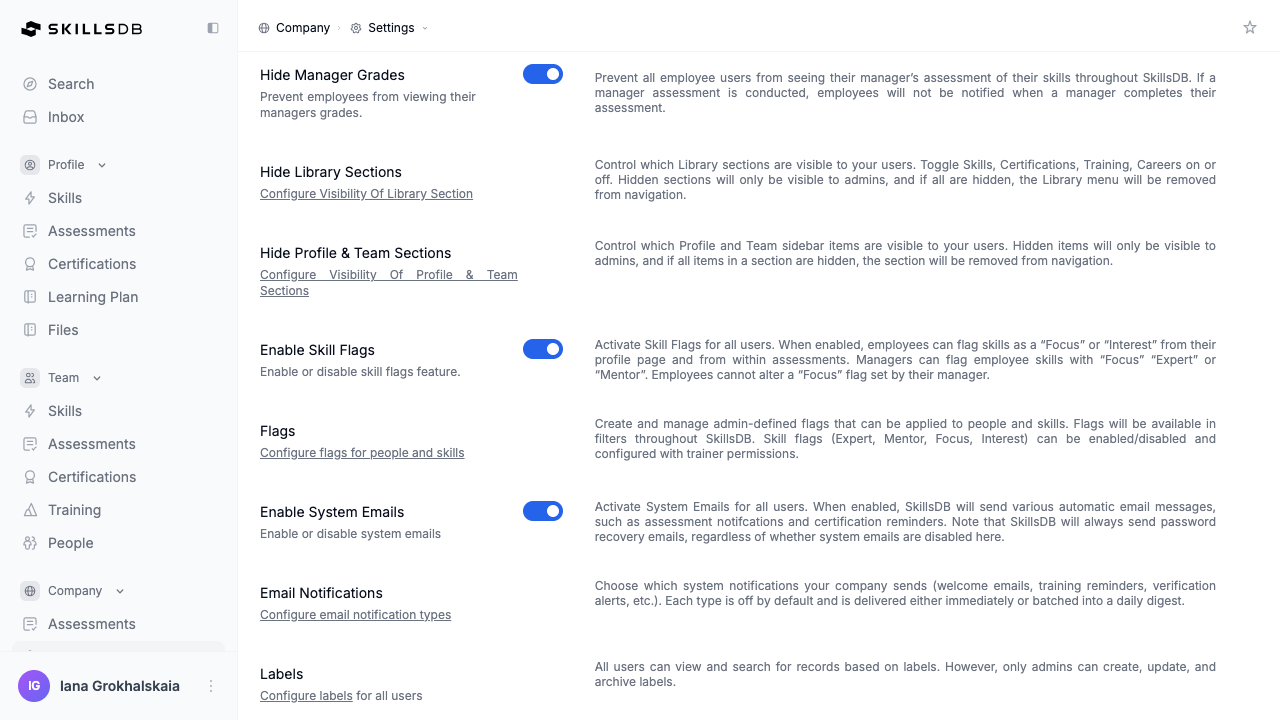
The Settings area is the administrative backbone of SkillsDB. Administrators define the organizational rules and structures that underpin every other feature in the platform — from how proficiency is measured to which users can find each other in search. Settings is accessible from Company > Settings in the left sidebar. The page is organized into two types of configuration:- Toggle settings control on/off behaviors like hiding manager grades, enabling skill flags, and enabling system emails. These are covered in Page Settings.
- Structural settings link to dedicated sub-pages where you build and manage structured data — like your grading scale, organizational hierarchy, search permissions, and training library metadata.
Note: All settings in this area are organization-wide and apply to every user in your SkillsDB instance. Only administrators can access and modify settings.
Prerequisites
Before you begin, you need:- Permission level: Administrator role
- Access: Navigate to Company > Settings in the left sidebar
Configuring the Grading Scale
The grading scale defines the proficiency levels used throughout SkillsDB — in self-assessments, manager assessments, skills matrices, and gap analysis. Every skill assessment in your organization uses the grades you define here. Navigate to Company > Settings, then select Grading Scale to open the Grading Scale Settings page.Understanding grade structure
The grading scale table has four columns:Adding a new grade
1
Open the grading scale
Navigate to Company > Settings, then select Grading Scale.
2
Add a new grade
Select + Add new Grade. A confirmation modal appears showing the next available grade number (for example, “Are you sure to add new grade level 6?”).
3
Enter descriptions
Enter a Short Description (required, maximum 100 characters). Optionally enter an Extra Description to provide additional details or examples for this grade level.
4
Confirm
Select Confirm to save the new grade.
Editing an existing grade
Click directly on any description field in the table to start editing — an edit icon appears on hover. Press Enter or click outside the field to save. Press Escape to cancel. Descriptions are always editable, even for grades that are in use. Grade numbers that are in use cannot be changed.Deleting a grade
Grades can only be deleted if they have never been used in an assessment. To delete a grade, select the delete icon in the Actions column for that row. Grade 0 cannot be deleted. It can only be deactivated (see below).Deactivating grade 0
Grade 0 is the system’s default “not yet assessed” state. It cannot be deleted, but it can be deactivated to hide it from assessments and grading views. Toggle the switch in the Actions column for Grade 0 to deactivate or reactivate it. When grade 0 is deactivated, it is not shown as a selectable option in assessments.Grade status reference
Configuring Search Permissions
Search Permissions control which user roles can search for people within SkillsDB and what information they can filter by. These settings let you balance visibility and privacy across your organization. Navigate to Company > Settings, then select Search Permission to open the Search Permissions page.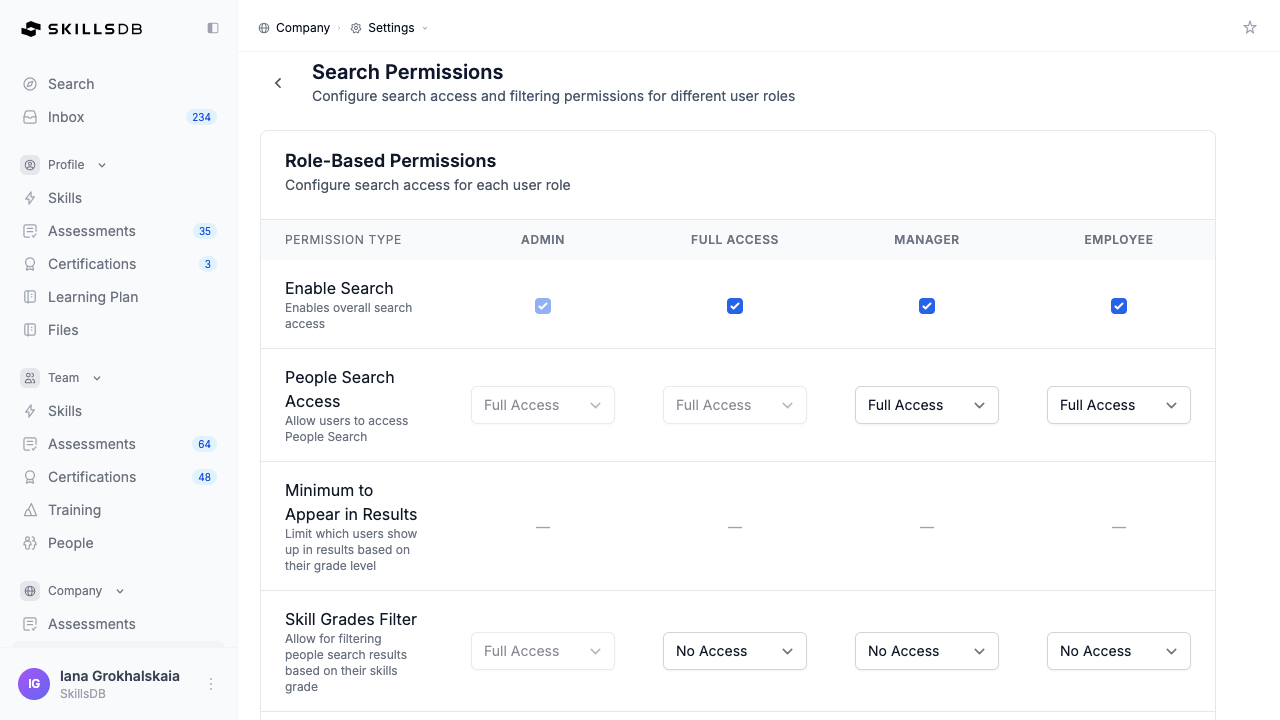
Understanding roles and access levels
Search permissions are configured across four columns representing security groups:Permission types
The permissions table contains the following rows:
Each filter can be set to No Access, Full Access, or Chain of Command for each role. The Admin column is always locked at Full Access.
People Search Access levels
Saving and discarding changes
When you modify any search permission value, Save Changes and Discard Changes buttons appear at the top of the page.- Select Save Changes to persist all changes you have made to the permissions table.
- Select Discard Changes to revert all unsaved modifications back to their last saved state.
Access level definitions
A reference section at the bottom of the page explains each access level:- No Access: Feature is hidden/disabled for this access type
- Full Access: Users can see all people matching the search criteria
- Chain of Command: Users can only see people in their reporting hierarchy that match the search criteria
- Above Grade: People search will only return users above the specified grade level when searching based on skills
Configuring Training Library Settings
Training Library Settings lets administrators define the metadata attributes that categorize and describe training resources in your library. Consistent metadata makes it easier for employees to find relevant training and for administrators to organize and filter the library. Navigate to Company > Settings, then select Training Library to open the Training Library Settings page. There are five attribute types you can configure, each managed through its own drawer:Managing a training attribute
The workflow is the same for all five attribute types:1
Open the attribute drawer
Navigate to Company > Settings > Training Library. Select Manage on the attribute type you want to configure.
2
Add, edit, or delete items
In the drawer that opens, you can:
- Add a new item by selecting + Add Type, entering a name, and selecting Save
- Edit an existing item by clicking on it
- Delete an item that is no longer needed
- Reorder items by dragging them to a new position
3
Save and close
Select Save to persist changes, then Close to return to the Training Library Settings page.
Managing Org Structure
The Org Structure settings let you define and maintain the organizational hierarchy used across SkillsDB. These values populate fields on employee profiles, drive search and filtering, and enable targeted settings scoping. Navigate to Company > Settings, then select Org Structure to open the Org Structure management page.Available org structure attributes
SkillsDB supports twelve organizational attribute types, each managed on its own tab. The tabs appear in this order:
Each tab shows a count of total and active items, a search bar for filtering, and an Add button.
Adding a new org structure item
1
Select the tab
On the Org Structure page, select the tab for the attribute type you want to manage.
2
Add the item
Select the Add button (for example, + Add Business Unit). In the modal, enter the item Name (required). Confirm the Active checkbox is checked if the item should be immediately available.
3
Save
Select Save. The new item appears in the list and is immediately available for assignment to employee profiles.
Editing an org structure item
Select the edit (pencil) icon on the item’s row. Update the Name or Active status as needed, then select Save.Deactivating an org structure item
Deactivating an item hides it from selection on new employee profiles while preserving its historical associations on existing records. Select the edit icon for the item, then uncheck the Active checkbox. If the item is currently assigned to employees or other records, a warning dialog appears showing where the item is in use. Review the usage details, then confirm deactivation or cancel.Additional Settings
The Settings page includes several other configuration options beyond the four structural areas above.Files
Configure the document type categories available when users upload files to their profile. Select Configure file types under the Files setting on the Settings page to open the file type manager.Skill Assignment Dates
Configure whether users see the date of assignment for each skill in their assessment. Select Configure Date Assigned In Assessments on the Settings page to manage this behavior.Saved Defaults & Saved Pages
Manage saved page defaults and saved pages across the system. Administrators can set default page states for all users and create saved pages that appear as sub-pages under their parent page in navigation. Navigate to Company > Settings, then select Manage saved defaults and saved pages to open the Saved Defaults management page.AI Assistants
Control whether employees can connect their own Claude, ChatGPT, or Microsoft Copilot to their SkillsDB data. Select Configure on the AI Assistants row in the Configuration section to govern read and write access and to review or revoke connections. This entry appears only when the AI Assistant feature is enabled for your account. See AI Assistant Connections for details.Common Questions
What is the difference between Settings and Page Settings?
What is the difference between Settings and Page Settings?
Settings (this article) covers the organizational configuration areas: grading scale, search permissions, training library attributes, org structure, file types, and other structural settings. These define the data and rules SkillsDB operates on.Page Settings covers feature toggles and page visibility controls — such as whether library sections are shown, whether skill flags are enabled, and whether system emails are sent. See Page Settings for details.
Can I change my grading scale after employees have completed assessments?
Can I change my grading scale after employees have completed assessments?
You can always add new grades and update grade descriptions. However, grade numbers that have been used in at least one assessment are permanently locked — their numeric value cannot be changed, and they cannot be deleted. Plan your grading scale thoroughly before assessments begin. Most organizations use a 1–5 scale, though SkillsDB supports up to grade 10.
What happens to an employee's profile if I deactivate an org structure item they are assigned to?
What happens to an employee's profile if I deactivate an org structure item they are assigned to?
Deactivating an org structure item preserves all existing assignments. Employees whose profiles reference the deactivated item are not affected — the item continues to appear on their profile. The deactivated item is simply removed from dropdown menus so it cannot be selected for new assignments.
Can managers and employees have different search filter access for the same filter type?
Can managers and employees have different search filter access for the same filter type?
Yes. Each filter permission (skill grades, certifications, career levels, etc.) is configured independently per role. You can grant employees full access to the careers filter while restricting managers to chain of command visibility, or any other combination that matches your organization’s privacy policy.
Can I give managers full search access while restricting what they can filter by?
Can I give managers full search access while restricting what they can filter by?
Yes, partially. If a manager’s People Search Access is set to Full Access, you can independently restrict individual filters (such as setting the Skill Grades Filter to No Access). However, if People Search Access is set to Chain of Command, filters cannot be set above Chain of Command level — they are automatically capped.
Do training library attribute changes affect existing training resources?
Do training library attribute changes affect existing training resources?
Adding new attributes has no effect on existing resources. Deleting an attribute that is currently used on training resources is not recommended and may affect filtering — review current usage before removing any attribute. You can also drag items to reorder how they appear in dropdown menus.
Why can't I change the Admin or Full Access search permissions?
Why can't I change the Admin or Full Access search permissions?
Admin permissions are locked because administrators always have full visibility across SkillsDB. The Full Access role’s People Search Access is also locked at full access because the Full Access role is specifically designed for users who need unrestricted people search capability.
Related Articles
Page Settings
Configure feature toggles, library visibility, and page-level controls
Skill Flags
Set up skill flags and configure trainer designations
People Flags
Create and manage people-specific flags
Labels
Configure organization-wide labels for filtering and tagging
AI Assistant Connections
Govern employee AI assistant access and review connections
Import/Export
Bulk-import employees using org structure fields defined here
Need Help?
If you run into any issues or have questions, reach out to your organization’s SkillsDB administrator or contact SkillsDB Support.