> ## Documentation Index
> Fetch the complete documentation index at: https://help.skillsdb.com/llms.txt
> Use this file to discover all available pages before exploring further.
# Managing Certifications
> Track and submit your professional certifications in SkillsDB — view your assigned certifications, submit details for approval, renew expired credentials, and maintain a complete history.
**Quick Summary:** Your Certifications page shows all certifications assigned to you by your manager or administrator. From here you can submit your certification details for approval, renew credentials when they expire, and view the full history of each certification.
# Overview
Certifications in SkillsDB represent your professional credentials — licenses, qualifications, and formal certifications that are relevant to your role. Your organization uses SkillsDB to track which certifications you hold, when they were issued, and when they expire.
Certifications are assigned to you by your manager or an administrator. Once a certification is assigned, you are responsible for submitting the details — such as your issued date, expiration date, credential ID, and any supporting documents. Your manager or administrator then reviews and approves your submission.
All employees can view and manage their own certifications. You do not need any special permissions to view your Certifications page or submit certification details. However, you cannot add certifications to your own profile — certifications must be assigned to you by a manager or administrator.
**Note:** If you believe a certification should appear in your list but it does not, contact your manager or administrator to have it assigned to you.
***
# Navigating to Your Certifications
To view your certifications:
1. Select **Certifications** from the left sidebar navigation.
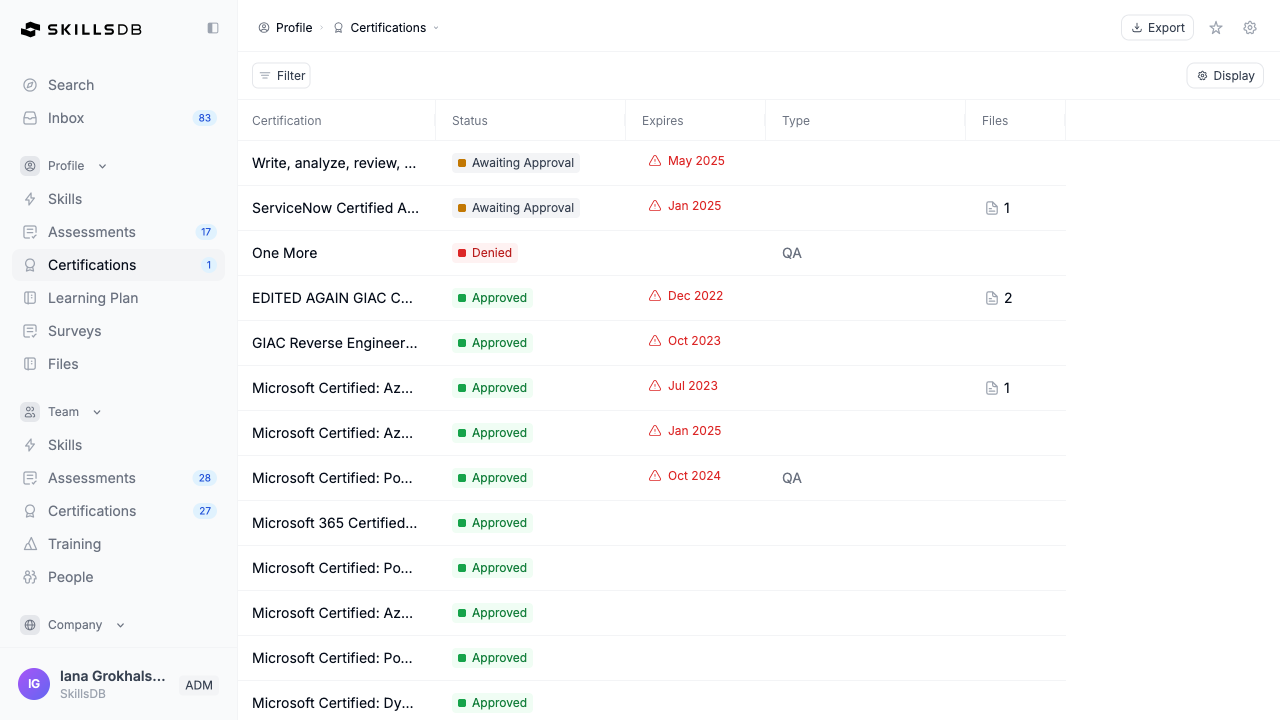
The **My Certifications** page displays a table of all certifications assigned to you.
***
## Understanding the Certifications Table
The My Certifications table shows key information about each certification at a glance.
**Default columns:**
| Column | Description |
| ----------------- | ----------------------------------------------------------------------------------------------------------------------------------- |
| **Certification** | The certification name. Select any row to open the certification detail page. |
| **Status** | The current status of your certification (see Understanding certification statuses below). |
| **Expires** | The expiration date with a visual indicator: Expired (red), Expiring Soon (within 30 days, amber), Valid (green), or No Expiration. |
| **Type** | The certification type or category, as configured by your organization. |
| **Files** | The number of supporting documents attached to the certification. |
**Additional columns** (hidden by default, enable via the column chooser):
| Column | Description |
| --------------- | --------------------------------------------- |
| **Labels** | Any labels applied to the certification. |
| **Issued Date** | The date the certification was first granted. |
| **ID Number** | Your credential ID or certification number. |
| **Authority** | The name of the issuing organization. |
To show or hide columns, select the **Display** button in the top right of the page.
***
## Understanding Certification Statuses
Each certification has a status that reflects where it is in the review process.
| Status | Displayed as | Meaning |
| --------------------- | ----------------- | --------------------------------------------------------------------------------------------- |
| **Assigned** | Submit Details | The certification has been assigned to you. You need to submit your details for approval. |
| **Awaiting Approval** | Awaiting Approval | You have submitted your details and are waiting for your manager or administrator to review. |
| **Approved** | Approved | Your manager or administrator has approved your certification details. |
| **Denied** | Denied | Your manager or administrator has rejected your submission. You can resubmit updated details. |
| **Expired** | Expired | Your certification has passed its expiration date. You can renew it to submit new details. |
| **Modified** | Modified | The certification details have been updated after a previous approval. |
***
## Submitting Certification Details
When a certification is assigned to you, its status displays as **Submit Details**. You must submit your certification details before your manager or administrator can approve it.
To submit your certification details:
1. Select **Certifications** from the left sidebar navigation.
2. In the table, select the row of the certification with **Submit Details** status. This opens the certification detail page.
3. On the detail page, you will see a yellow alert: **Certification Assigned — Please add details to your assigned certification**. Select **Add Details**.
4. In the **Add Certification Details** modal, complete the following fields:
* **Issued Date** (required) — The date you were first granted this certification.
* **Expiration Date** — The date the certification expires. Leave blank if the certification does not expire. The expiration date must be after the issued date.
* **ID Number** — Your credential ID or certification number. This field accepts letters, numbers, and hyphens only.
* **Attachment** — Upload supporting documents such as your certificate, transcript, or badge. You can upload up to 5 files. Accepted formats: .jpg, .png, .pdf, .docx, .xlsx, .txt, .csv (maximum 10 MB per file).
5. Select **Submit**.
When you select Submit, your certification status changes to **Awaiting Approval**. Your manager or administrator will review your submission and either approve or deny it.
**Tip:** Attach your official certificate document when submitting details. This gives your manager or administrator the supporting evidence they need to approve your submission quickly.
***
## Viewing Certification Details and History
The certification detail page shows the full record for a single certification, including the current status, metadata, and a history of all previous submissions and renewals.
To open the certification detail page:
1. Select **Certifications** from the left sidebar navigation.
2. Select any row in the table to open that certification's detail page.
The top section of the detail page displays:
* The **certification name** and description
* Metadata badges: **Type**, **Issued by** (the issuing authority name), and a link to the issuing authority's website if one is recorded
* Contextual action buttons based on the current status (such as **Renew**)
The history table below shows a row for each submission or renewal:
| Column | Description |
| -------------------- | ------------------------------------------------------------- |
| **Status** | The outcome of this submission (Approved, Denied, etc.) |
| **Requested** | The date you submitted this set of details for approval |
| **Approved** | The date the submission was approved |
| **Expires** | The expiration date recorded in this submission |
| **Issued** | The issued date recorded in this submission |
| **Certification ID** | The credential ID or certification number for this submission |
| **Approved By** | The name of the person who approved this submission |
| **Files** | The supporting documents attached to this submission |
**Note:** Certifications with **Submit Details** status do not yet have a history row. A history row is created when you submit your details for the first time.
***
## Renewing a Certification
When a certification has been approved and later expires — or when you receive a renewal — you can submit updated details to record the new certification period.
You can renew a certification when its status is **Approved** or **Expired**.
To renew a certification:
1. Select **Certifications** from the left sidebar navigation.
2. Select the row of the certification you want to renew. This opens the certification detail page.
3. Select **Renew** in the top right of the detail page.
4. In the **Renew Certification** modal, complete the following fields:
* **Issued Date** (required) — The date of your renewed certification.
* **Expiration Date** — The new expiration date for the renewed certification.
* **ID Number** — Your updated credential ID, if it has changed.
* **Attachment** — Upload the documents for your renewed certification.
5. Select **Submit**.
When you submit a renewal, SkillsDB creates a new record in the certification history. The previous certification record is preserved. Your renewal status changes to **Awaiting Approval** and your manager or administrator must approve the new submission.
**Note:** Renewing a certification does not overwrite your previous certification record. Your full certification history — including all past approved submissions — is preserved in the history table.
***
## Resubmitting After a Denial
If your manager or administrator rejects your submission, the certification status changes to **Denied**. You can review the feedback and resubmit updated details.
To resubmit after a denial:
1. Select **Certifications** from the left sidebar navigation.
2. Select the row of the denied certification. This opens the certification detail page.
3. On the detail page, you will see a red alert: **Certification Denied — Please try renewing your certification.** Select **Renew Certification**.
4. In the **Resubmit Certification** modal, the subtitle reads: "Your certification was denied. Please update and resubmit." Update the following fields as needed:
* **Issued Date** (required)
* **Expiration Date**
* **ID Number**
* **Attachment** — Upload revised or additional supporting documents.
5. Select **Submit**.
When you resubmit, the certification status returns to **Awaiting Approval** for your manager or administrator to review again.
***
## Filtering and Sorting Your Certifications
You can filter the My Certifications table to find specific certifications quickly.
To apply a filter:
1. Select a filter button from the filter bar above the table. Available filters are:
* **Name** — Filter by certification name (multi-select).
* **Status** — Filter by current status (multi-select).
* **Expires** — Filter by expiration category: Expired, Expiring Soon, Valid, or No Expiration (multi-select).
* **Type** — Filter by certification type (multi-select).
2. Select one or more values to apply the filter. The table updates immediately.
To remove all filters at once, select **Reset** in the filter bar.
***
# Exporting Your Certifications
You can export your certifications list to Excel for reporting or record-keeping purposes.
To export:
1. Select **Certifications** from the left sidebar navigation.
2. Select **Export** in the top right of the page.
SkillsDB downloads a file named `certifications-export.xlsx` containing all currently visible certifications, including any active filters.
***
## Deleting a Certification
If a certification was assigned to you in error or is no longer relevant, you can delete it from your profile. Deleting a certification removes it and all associated history permanently.
To delete a certification:
1. Select **Certifications** from the left sidebar navigation.
2. Select the certification you want to delete. This opens the certification detail page.
3. On the detail page, open the actions menu (the three-dot menu icon next to the certification name).
4. Select **Delete Certification**.
5. In the confirmation modal, confirm the deletion.
When the deletion is confirmed, SkillsDB removes the certification and redirects you to the My Certifications page.
**Warning:** Deleting a certification permanently removes the certification and all associated history, including previous submissions and approvals. This action cannot be undone. Contact your administrator if you need the certification reinstated.
***
# Common Questions
Your manager or administrator has assigned this certification to your profile. This means they expect you to hold or obtain this certification. Select the certification row to open the detail page, then select **Add Details** to submit your certification information for review.
No. Users cannot add certifications to their own profile. Certifications are assigned to you by your manager or administrator. If you hold a certification that is not listed in your profile, ask your manager or administrator to assign it to you.
Your certification status changes to **Awaiting Approval**. Your manager or administrator will review your submission. If they approve it, the status changes to **Approved**. If they deny it, the status changes to **Denied** and you can resubmit with corrections.
You can attach up to 5 files per submission. Accepted file types are .jpg, .png, .pdf, .docx, .xlsx, .txt, and .csv. Each file must be 10 MB or smaller.
A certification is marked as **Expiring Soon** when its expiration date is within the next 30 days. Use this filter on the My Certifications page to identify certifications that need renewal soon.
No. Once you select **Submit**, your details are sent for review and cannot be edited while in **Awaiting Approval** status. If you submitted incorrect information, contact your manager or administrator and ask them to deny the submission so you can resubmit with corrections.
All previous certification records are preserved. When you renew a certification, SkillsDB creates a new record in the certification history while keeping all prior approved submissions. You can view the complete history on the certification detail page.
Yes. Managers and administrators can submit and renew certification details on behalf of their team members. If your manager has submitted details on your behalf, you will see the certification in your list with a status reflecting their submission.
***
# Related Articles
View your overall skills profile, including certifications, grades, and training records
Create a personal learning plan to work toward certifications and other development goals
Learn how to upload and manage files in your profile
How managers track and approve certifications for their team
Browse certifications across your organization
***
# Need Help?
If you run into any issues or have questions, reach out to your organization's SkillsDB administrator or contact [SkillsDB Support](https://www.skillsdb.com/support).