> ## Documentation Index
> Fetch the complete documentation index at: https://help.skillsdb.com/llms.txt
> Use this file to discover all available pages before exploring further.
# Training
> Learn how to search and filter your organization's training catalog, add resources to your learning plan, and assign training to your team in SkillsDB.
**Quick Summary:** The Training search lets you discover all training resources available in your organization's library. Search by keyword, filter by provider, format, level, and more — then add resources to your learning plan or assign them to your team.
### Overview
The Training section of Explore Your Org is your gateway to discovering all training resources available in your organization's catalog. Whether you are looking for a specific course, exploring options to build a particular skill, or identifying development opportunities for your team, the Training search surfaces your entire training library in one searchable, filterable view.
Training resources in SkillsDB are created and managed by your organization's administrators. Each resource can include a title, description, provider, format, duration, cost, and target audience. Resources may also have associated skills and custom labels to help you understand what they are designed to develop.
Using the Training search, you can discover resources that match your goals, review key details at a glance, and take immediate action — adding resources to your own learning plan or assigning them to members of your team.
**Who this is for:**
* **Standard users** can search the full training catalog, view resource details, and add training to their personal learning plan.
* **Managers** can do everything above, plus assign training resources directly to team members.
* **Administrators** can do everything above, plus open the training edit form directly from search results.
***
### Navigating to Training search
1. Select **Search** from the left sidebar.
2. In the scope selector row, select **Training**.
3. The results area refreshes to show training-specific filters and results.
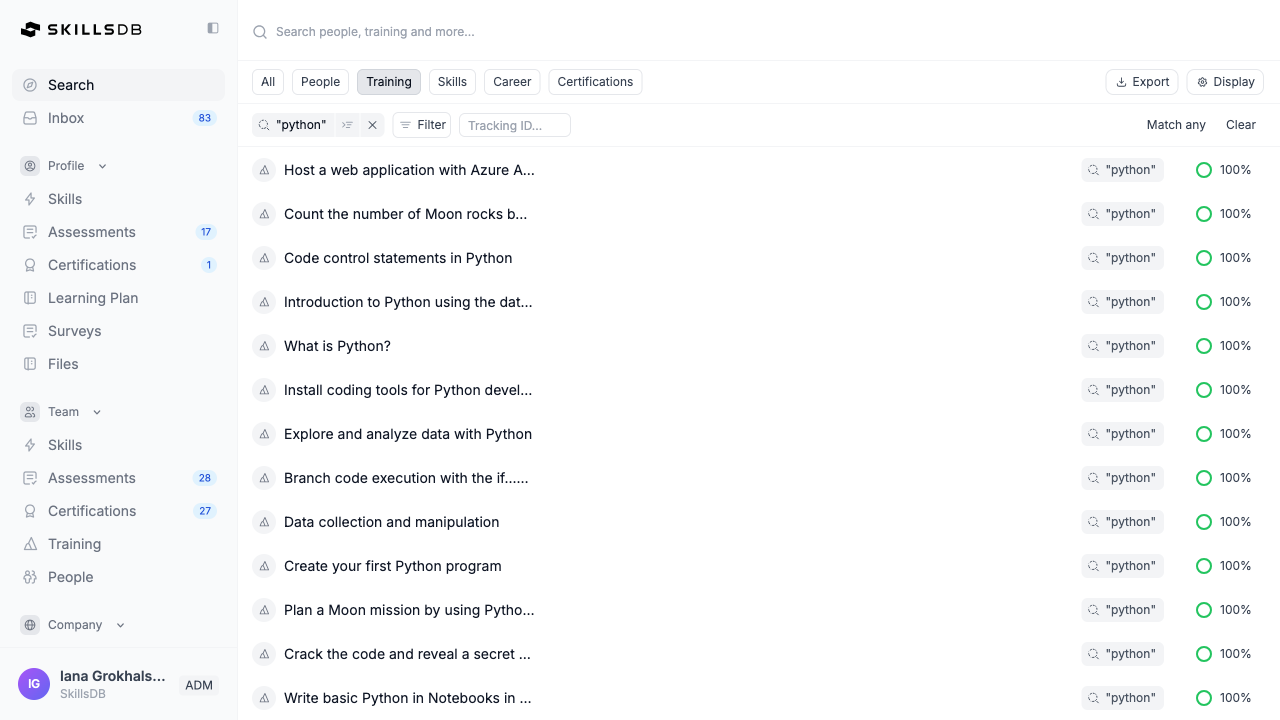 **Note:** If you do not select a specific scope, the page defaults to **All**, which returns mixed results across all resource types. Select **Training** from the scope selector to see only training resources.
***
### Searching for training
The Training search supports free-text search across your organization's full training catalog.
1. In the search bar, type a keyword — for example, the name of a course, a skill topic, or a provider name.
2. Results appear automatically as you type.
3. Each row in the results table represents one training resource.
**What each result row shows:**
| Field | Description |
| -------------- | ----------------------------------------------------------------------- |
| Training title | The name of the training resource, with a training icon |
| Criteria | Tags showing which search terms and filter values matched this result |
| Match | A percentage score showing how closely the result matches your criteria |
The **Criteria** column shows every filter and search term that was active when results were returned. Criteria that matched the result are displayed in full color. This lets you see at a glance why a particular result was returned and which of your filters it satisfies.
A **Tracking ID** input field is available next to the Filter button, allowing you to search for training by its tracking identifier.
***
### Filtering results
Use filters to narrow results by specific attributes. Filters are accessible via the **Filter** button next to the search tags.
1. Select **Filter** to open the filter panel.
2. Apply one or more of the following filters:
| Filter | Description |
| ------------ | ------------------------------------- |
| **Category** | Filter by training category |
| **Cost** | Filter by a cost range |
| **Hours** | Filter by a duration range (in hours) |
3. After applying filters, select **Match all** or **Match any** to control how multiple filters interact:
* **Match all** — Returns results that satisfy every active filter (AND logic)
* **Match any** — Returns results that satisfy at least one active filter (OR logic)
4. Active filters appear as tags below the search bar. Select the **x** on any tag to remove that filter individually, or select **Clear** to remove all filters and search terms at once.
**Tip:** Use **Match any** when you want a broad set of results across multiple providers or formats. Use **Match all** when you need results that specifically satisfy several criteria at once — for example, online courses at beginner level from a particular provider.
***
### Adding training to your learning plan
Any training resource you find in the search results can be added directly to your personal learning plan.
1. Locate the training resource you want to add.
2. In the **Actions** column, select **Add to My Learning**.
3. The training is added to your learning plan immediately. The button updates to **Assigned to You** to confirm the addition.
**Note:** Once a training is added to your learning plan, the **Add to My Learning** button is replaced with **Assigned to You** and becomes inactive. The training will appear in your learning plan under the **To Do** status. See Building a Learning Plan for instructions on managing your plan.
***
### Viewing training details
Selecting a training resource opens the full details page for that resource, where you can review its complete description, associated skills, and other attributes.
1. Select anywhere on a training row (except the action buttons) to open the training details page.
2. The details page displays the full training record, including all fields configured by your organization's administrators.
3. Use your browser's back button to return to your search results.
***
### Assigning training to team members (managers)
Managers can assign any training resource to one or more members of their team directly from search results.
1. Locate the training resource you want to assign.
2. In the **Actions** column, select **Assign**.
3. In the **Assign** dialog that opens, select the team members you want to assign the training to.
4. Confirm the assignment.
The training is added to the selected team members' learning plans. Each assigned user will see the resource in their personal learning plan under the **To Do** status.
**Tip:** Use the Assign feature to build learning plans for your team after identifying skill gaps. See Analyze Training and Build Learning Plans for guidance on combining these workflows.
***
### Exporting results
Training search results can be exported to Excel for use outside SkillsDB.
1. Perform a search with the filters and scope you want to export.
2. Select the **Export** option from the results table controls.
3. An `.xlsx` file downloads containing the current results.
**Note:** Export is available on desktop view only. The export includes all results for the current search and filter state.
***
### Common Questions
The Training search (Explore Your Org > Training) is designed for discovery — searching, filtering, and adding resources to your learning plan. The **Training Library** (`admin-guide/libraries/training`) is where administrators create and manage training records, configure details like provider, format, and expiration, and associate resources with skills. As a standard user or manager, use the Training search. Administrators use both.
A link icon next to a training title means the resource includes a URL to an external platform or website. Selecting the training row will take you to the training details page in SkillsDB, where you can find the external URL. The training itself is hosted outside SkillsDB.
Yes. You can open the filter panel and apply one or more filters without entering any text in the search bar. SkillsDB will return all training resources that match your active filters. This is useful when you want to browse by format, provider, or course level without a specific title in mind.
**Match all** returns results that satisfy every active filter simultaneously — the equivalent of AND logic. **Match any** returns results that satisfy at least one active filter — the equivalent of OR logic. For example, if you filter by two providers, **Match any** returns resources from either provider, while **Match all** would return only resources that somehow satisfy both (typically returning no results for provider filters).
Yes. Training that has already been added to your learning plan appears in search results with the **Assigned to You** label in the Actions column instead of the **Add to My Learning** button. To manage or track assigned training, navigate to your learning plan. See Building a Learning Plan.
The **Assign** button is only available to managers and administrators. If you are a standard user, you will see only **Add to My Learning** (or **Assigned to You** if already added). If you believe you should have manager access, contact your SkillsDB administrator.
Open the training details page by selecting the training row. The details page shows all metadata configured for that resource, including any skills the training is associated with. Skill associations are configured by your organization's administrators in the Training Library.
***
### Related Articles
Add training to your personal learning plan, move items through statuses, and track your progress.
Assign training and learning resources to your team members.
Review training completion and expiration data for your team.
Understand how expiration periods work for training resources and what to do when training expires.
Learn how training requests are submitted and approved in SkillsDB.
Search for people in your organization by skill, role, or flag.
***
### Need More Help?
If you need additional assistance:
* [Contact support](https://skillsdb.com/support)
* Use the in-app help chat
* Schedule a training session with your account manager
**Note:** If you do not select a specific scope, the page defaults to **All**, which returns mixed results across all resource types. Select **Training** from the scope selector to see only training resources.
***
### Searching for training
The Training search supports free-text search across your organization's full training catalog.
1. In the search bar, type a keyword — for example, the name of a course, a skill topic, or a provider name.
2. Results appear automatically as you type.
3. Each row in the results table represents one training resource.
**What each result row shows:**
| Field | Description |
| -------------- | ----------------------------------------------------------------------- |
| Training title | The name of the training resource, with a training icon |
| Criteria | Tags showing which search terms and filter values matched this result |
| Match | A percentage score showing how closely the result matches your criteria |
The **Criteria** column shows every filter and search term that was active when results were returned. Criteria that matched the result are displayed in full color. This lets you see at a glance why a particular result was returned and which of your filters it satisfies.
A **Tracking ID** input field is available next to the Filter button, allowing you to search for training by its tracking identifier.
***
### Filtering results
Use filters to narrow results by specific attributes. Filters are accessible via the **Filter** button next to the search tags.
1. Select **Filter** to open the filter panel.
2. Apply one or more of the following filters:
| Filter | Description |
| ------------ | ------------------------------------- |
| **Category** | Filter by training category |
| **Cost** | Filter by a cost range |
| **Hours** | Filter by a duration range (in hours) |
3. After applying filters, select **Match all** or **Match any** to control how multiple filters interact:
* **Match all** — Returns results that satisfy every active filter (AND logic)
* **Match any** — Returns results that satisfy at least one active filter (OR logic)
4. Active filters appear as tags below the search bar. Select the **x** on any tag to remove that filter individually, or select **Clear** to remove all filters and search terms at once.
**Tip:** Use **Match any** when you want a broad set of results across multiple providers or formats. Use **Match all** when you need results that specifically satisfy several criteria at once — for example, online courses at beginner level from a particular provider.
***
### Adding training to your learning plan
Any training resource you find in the search results can be added directly to your personal learning plan.
1. Locate the training resource you want to add.
2. In the **Actions** column, select **Add to My Learning**.
3. The training is added to your learning plan immediately. The button updates to **Assigned to You** to confirm the addition.
**Note:** Once a training is added to your learning plan, the **Add to My Learning** button is replaced with **Assigned to You** and becomes inactive. The training will appear in your learning plan under the **To Do** status. See Building a Learning Plan for instructions on managing your plan.
***
### Viewing training details
Selecting a training resource opens the full details page for that resource, where you can review its complete description, associated skills, and other attributes.
1. Select anywhere on a training row (except the action buttons) to open the training details page.
2. The details page displays the full training record, including all fields configured by your organization's administrators.
3. Use your browser's back button to return to your search results.
***
### Assigning training to team members (managers)
Managers can assign any training resource to one or more members of their team directly from search results.
1. Locate the training resource you want to assign.
2. In the **Actions** column, select **Assign**.
3. In the **Assign** dialog that opens, select the team members you want to assign the training to.
4. Confirm the assignment.
The training is added to the selected team members' learning plans. Each assigned user will see the resource in their personal learning plan under the **To Do** status.
**Tip:** Use the Assign feature to build learning plans for your team after identifying skill gaps. See Analyze Training and Build Learning Plans for guidance on combining these workflows.
***
### Exporting results
Training search results can be exported to Excel for use outside SkillsDB.
1. Perform a search with the filters and scope you want to export.
2. Select the **Export** option from the results table controls.
3. An `.xlsx` file downloads containing the current results.
**Note:** Export is available on desktop view only. The export includes all results for the current search and filter state.
***
### Common Questions
The Training search (Explore Your Org > Training) is designed for discovery — searching, filtering, and adding resources to your learning plan. The **Training Library** (`admin-guide/libraries/training`) is where administrators create and manage training records, configure details like provider, format, and expiration, and associate resources with skills. As a standard user or manager, use the Training search. Administrators use both.
A link icon next to a training title means the resource includes a URL to an external platform or website. Selecting the training row will take you to the training details page in SkillsDB, where you can find the external URL. The training itself is hosted outside SkillsDB.
Yes. You can open the filter panel and apply one or more filters without entering any text in the search bar. SkillsDB will return all training resources that match your active filters. This is useful when you want to browse by format, provider, or course level without a specific title in mind.
**Match all** returns results that satisfy every active filter simultaneously — the equivalent of AND logic. **Match any** returns results that satisfy at least one active filter — the equivalent of OR logic. For example, if you filter by two providers, **Match any** returns resources from either provider, while **Match all** would return only resources that somehow satisfy both (typically returning no results for provider filters).
Yes. Training that has already been added to your learning plan appears in search results with the **Assigned to You** label in the Actions column instead of the **Add to My Learning** button. To manage or track assigned training, navigate to your learning plan. See Building a Learning Plan.
The **Assign** button is only available to managers and administrators. If you are a standard user, you will see only **Add to My Learning** (or **Assigned to You** if already added). If you believe you should have manager access, contact your SkillsDB administrator.
Open the training details page by selecting the training row. The details page shows all metadata configured for that resource, including any skills the training is associated with. Skill associations are configured by your organization's administrators in the Training Library.
***
### Related Articles
Add training to your personal learning plan, move items through statuses, and track your progress.
Assign training and learning resources to your team members.
Review training completion and expiration data for your team.
Understand how expiration periods work for training resources and what to do when training expires.
Learn how training requests are submitted and approved in SkillsDB.
Search for people in your organization by skill, role, or flag.
***
### Need More Help?
If you need additional assistance:
* [Contact support](https://skillsdb.com/support)
* Use the in-app help chat
* Schedule a training session with your account manager